Best Ergonomic Mouse for CAD & Design in 2026
If your hand starts aching halfway through a modeling session, the problem usually is not your skill, it is the mouse. CAD work is repetitive in a way most office tasks are not. You are zooming, orbiting, snapping to points and clicking small targets for hours, often with the wrist locked in a twisted position. An ergonomic mouse for CAD is built to reduce that strain while still giving you the tracking precision that design software demands.
I have spent time researching and comparing ergonomic mice used by CAD professionals, 3D modelers and technical designers, drawing on manufacturer specifications, verified product listings and independent user feedback. This guide is meant to help you choose a mouse that fits your hand, your software and your workday, not just the one with the flashiest marketing copy.
We will look at what actually matters for CAD use (precision, grip style, button count, DPI range), compare seven specific mice, and walk through who should buy each one and who should not.
Quick Answer
The short answer: for most CAD users, the Rapoo MT760 offers the best overall balance of programmable buttons, adjustable DPI and ergonomic shape at a reasonable price. If wrist strain is your main concern during long modeling sessions, the Evoluent VerticalMouse 4 Small is a stronger long-term investment. If you want maximum cursor precision with minimal arm movement, a trackball such as the ELECOM EX-G is worth considering instead of a standard mouse.🖱️Best Ergonomic Mice for CAD (2026)
A fast overview before the full reviews. Each pick solves a different CAD workflow problem, from precision to budget to long-session comfort.


Why CAD Work Is Hard on the Wrist
CAD software rewards precision, and precision usually means small, repeated movements: nudging a point by a fraction of a millimeter, orbiting a model, snapping to an edge. Unlike general browsing or typing, this work rarely lets the hand rest in a neutral position for long. A standard mouse forces the forearm into pronation (palm facing down), which can increase pressure through the wrist and forearm over a full workday.
Emily Richardson, an ergonomics and work-from-home product specialist, notes that the right mouse for CAD is not necessarily the one with the highest DPI number, it is the one whose grip angle, button layout and weight actually match how you hold and move the mouse during long design sessions.
Research Insight: A systematic review of controlled trials on alternative mouse designs, published in Cogent Engineering, identifies non-neutral postures during mouse use, shoulder abduction, forward arm flexion, wrist extension, ulnar deviation and forearm pronation, as recurring risk factors associated with upper-limb musculoskeletal discomfort in computer users.
What This Means: None of this means a standard mouse will definitely cause pain, or that switching mice guarantees relief. It means the postures a mouse forces on your hand and forearm are a reasonable thing to pay attention to if you are already noticing discomfort during long CAD sessions.
Practical Example: If you notice your wrist bends outward (toward your pinky) or your forearm rotates fully palm-down while you work, that is the kind of posture the research above associates with added strain, and it is worth trying a mouse shape that reduces it before assuming nothing can help.
This is a comfort and workspace-fit topic, not a medical one. If you are dealing with persistent wrist, hand or forearm pain, a new mouse may help reduce unnecessary strain, but it is not a substitute for advice from a doctor, physiotherapist or occupational health professional.
What to Look For in an Ergonomic Mouse for CAD
1. Sensor precision and DPI range
CAD work benefits from a mouse that can shift between a low DPI for fine point placement and a higher DPI for fast navigation across a large model. Look for a wide adjustable DPI range rather than a single fixed sensitivity, most of the mice in this guide offer between 4 and 7 selectable DPI steps.
2. Grip style compatibility
Palm, claw and fingertip grips all interact differently with a mouse shape. A vertical mouse changes your grip almost entirely, which is worth trying before committing to daily CAD use, since some users need a short adjustment period.
3. Button count and programmability
CAD software relies heavily on keyboard shortcuts, and a mouse with several programmable buttons can offload some of that to your dominant hand, useful for orbit, pan, or view-preset commands.
4. Wrist and forearm position
A vertical mouse or a trackball can each change forearm posture, but they do it in different ways. A vertical mouse rotates the hand into a handshake-like position, which reduces forearm pronation. A trackball removes the need to move the whole arm, letting the thumb or fingers move the cursor instead. The two are not interchangeable, and research suggests neither one is a universal fix, see the ergonomic analysis in each product review below for what the evidence actually shows for that specific design.
5. Weight and stability
Heavier mice can feel more planted during precise pointer movement, but they also add fatigue over long sessions. Lighter mice are easier to reposition quickly but can feel less stable for very fine adjustments.
6. Wireless latency and connection type
Most CAD tasks are not latency-sensitive the way competitive gaming is, but a mouse with noticeable input lag can still interfere with precise point placement. Bluetooth and 2.4GHz dongle connections both work well for CAD; a wired connection remains the most consistent option if latency is a specific concern.
7. Battery life and charging
Rechargeable batteries reduce long-term cost and waste, but a mouse that runs on standard AA or AAA batteries can be more convenient if you travel between workstations and do not want to carry a charging cable.
8. Software and compatibility
Some manufacturer software for remapping buttons and DPI is Windows-only or has limited macOS support. If you work across multiple operating systems, check compatibility before you rely on custom button mapping.
Quick Verdict Table
| Product | Best For | Main Strength | Main Limitation | Rating | Link |
|---|---|---|---|---|---|
| Rapoo MT760 | Overall CAD use | 11 programmable buttons, 4000 DPI | Bulkier shape may not suit small hands | 4.5/5 | Check Price |
| TECKNET Vertical Mouse | Budget-conscious buyers | Near-vertical grip at a low price | Only 6 buttons, right-handed only | 4.3/5 | Check Price |
| Evoluent VerticalMouse 4 Small | Long CAD sessions, wrist comfort priority | Purpose-built vertical ergonomics, adjustable pointer speed | Highest price in this guide | 4.6/5 | Check Price |
| ELECOM EX-G Trackball | Fine cursor precision | Thumb trackball with ruby ball bearings | Learning curve for new trackball users | 4.4/5 | Check Price |
| ProtoArc EM01 NL | Budget trackball option | Adjustable 0–20° angle, rechargeable | Lower max DPI than some rivals | 4.2/5 | Check Price |
| Philips SPK7858 | Multi-device CAD/office switching | Dual scroll wheels, 3-device pairing | Fewer programmable buttons than Rapoo | 4.3/5 | Check Price |
| INFINMIND L910 | Casual or light CAD viewing | Comfortable contour, low price | Lower max DPI (3000), fewer precision features | 3.9/5 | Check Price |
Product Reviews
1. Rapoo MT760, Best Overall
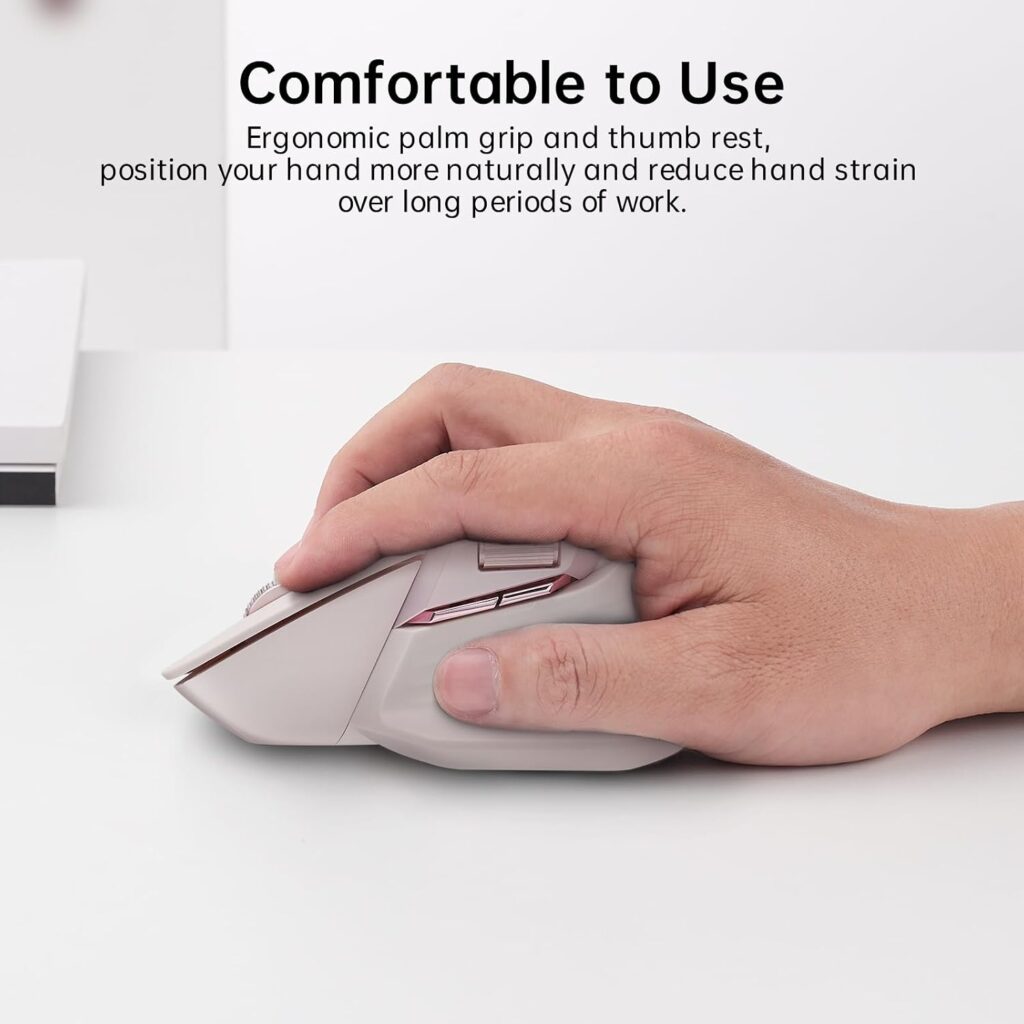
Quick Verdict: The Rapoo MT760 pairs a genuinely ergonomic bow-back shape with 11 programmable buttons and DPI up to 4000, which is a rare combination for the price. For CAD users who want to offload orbit, pan and view-preset shortcuts onto the mouse itself, this is a strong starting point.
Best For: CAD users who want extensive button customization without paying a premium price.
Key Specifications:
- Up to 4000 DPI, 7 adjustable DPI presets
- 11 programmable buttons
- Bluetooth 5.0/3.0 and 2.4GHz dual-mode connection, up to 4 paired devices
- Rated battery life around 90 days on a full charge
- Weight: approximately 3.88 ounces
What We Like
- Button count is unusually high for this price bracket
- M+ cross-computer technology lets you move the cursor between paired screens
- Anti-slip, sweat-resistant coating for long sessions
What We Don’t Like
- Wireless charging requires a separate module sold apart from the mouse
- The bow-back shape is designed for medium-to-large hands, and may feel oversized for smaller hands
Ergonomic Analysis: The bow-back contour supports the palm along its length rather than just at the base, which can reduce point-pressure during long clicking sessions. This is a comfort feature, not a vertical-angle design, your forearm still rotates into a standard pronated position, so it will not fully replace a vertical mouse if forearm rotation is your main concern.
Who Should Buy It? Designers who spend hours in CAD and want to remap several shortcuts to physical buttons instead of memorizing keyboard combinations.
Who Should Skip It? Anyone with small-to-average hand size who finds larger mice uncomfortable, or anyone who specifically wants a vertical grip angle.
Value for Money: At around $38.57, the button count and adjustable DPI range represent solid value relative to mice with far fewer programmable options at a similar price.
🛒 Check Price on Amazon2. TECKNET Vertical Mouse, Best Value
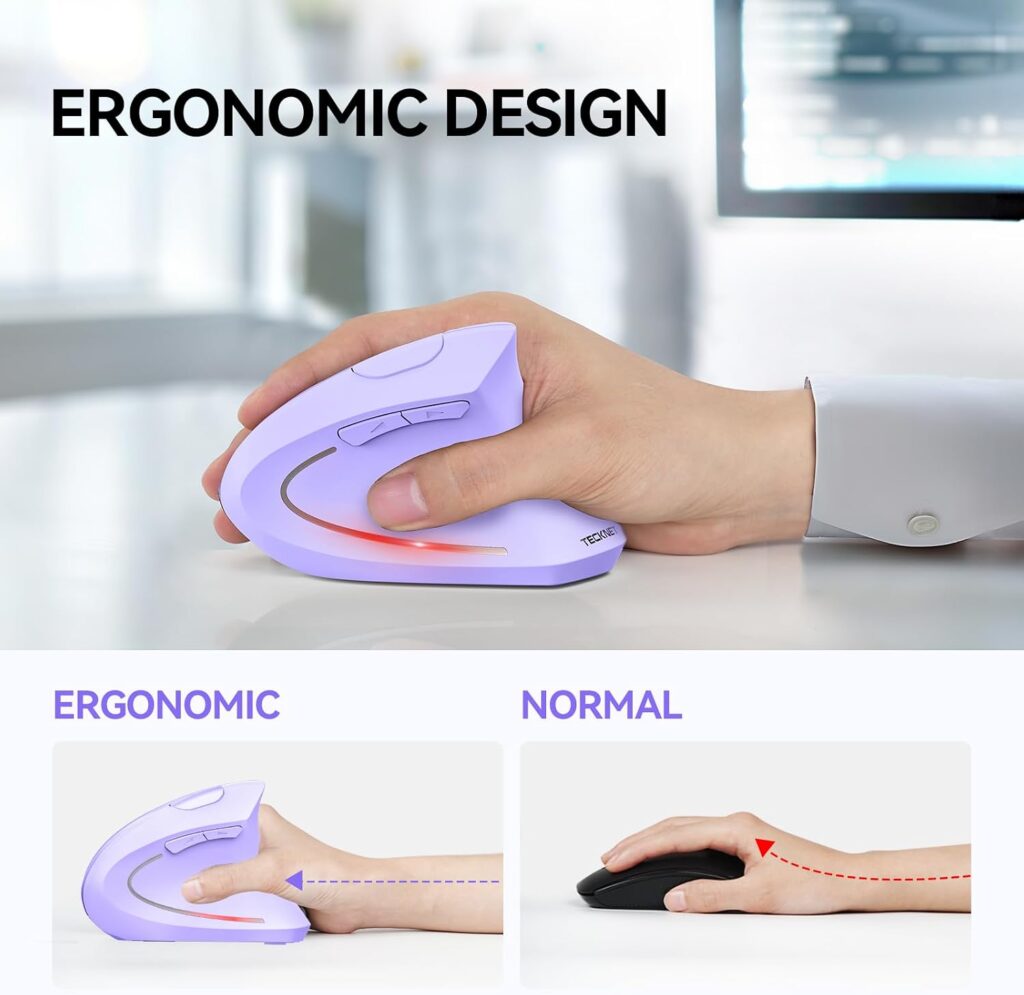
Quick Verdict: For under $25, the TECKNET vertical mouse gives you a near-vertical grip angle and a DPI ceiling of 4800, numbers you would normally expect from a pricier mouse. It is a reasonable entry point if you want to try a vertical mouse before committing to a premium model.
Best For: Budget-conscious CAD users who want to test whether a vertical grip suits them.
Key Specifications:
- 4800 DPI maximum, 6 adjustable DPI levels
- 6 buttons total
- Bluetooth 5.0/3.0 and 2.4GHz USB-A connection, up to 3 paired devices
- Runs on 2 AAA batteries (not included), rated up to 24 months
- Right-handed design only
What We Like
- Near-vertical angle reduces forearm rotation compared with a standard mouse
- Quiet clicks on the primary buttons
- Broad OS compatibility (Windows, Mac, Chrome, Linux)
What We Don’t Like
- Side buttons are not compatible with macOS
- Only 6 buttons, which limits how many CAD shortcuts you can remap
- Runs on disposable AAA batteries rather than a rechargeable cell
Ergonomic Analysis: A vertical grip angle around 90 degrees keeps the forearm closer to a neutral, handshake-like position. A controlled study published in the journal Ergonomics compared a vertical mouse with a standard mouse and measured a meaningful reduction in forearm pronation (28° vs. 42°) and lower wrist extensor muscle activity, though it also found that pointing tasks took longer to complete with the vertical mouse and that users needed a familiarization period to close that gap. That trade-off, better posture, slower initial performance, lines up with what many first-time vertical mouse users experience in the first week or two.
Worth noting: a separate clinical study in Applied Ergonomics tested a vertical mouse specifically in patients already diagnosed with carpal tunnel syndrome and found that, while it reduced ulnar deviation, it did not lower carpal tunnel pressure compared with a standard mouse. In other words, the postural benefits are real, but they should not be read as a treatment for a diagnosed condition, comfort and clinical outcome are two different things.
Who Should Buy It? Anyone curious about switching to a vertical mouse who does not want to spend over $100 to find out if it works for them.
Who Should Skip It? Left-handed users, and anyone who relies on more than six shortcut buttons during CAD work.
Value for Money: This is one of the more affordable ways to try vertical ergonomics without committing to premium pricing.
🛒 Check Price on Amazon3. Evoluent VerticalMouse 4 Small, Best Premium, Best for Long Sessions
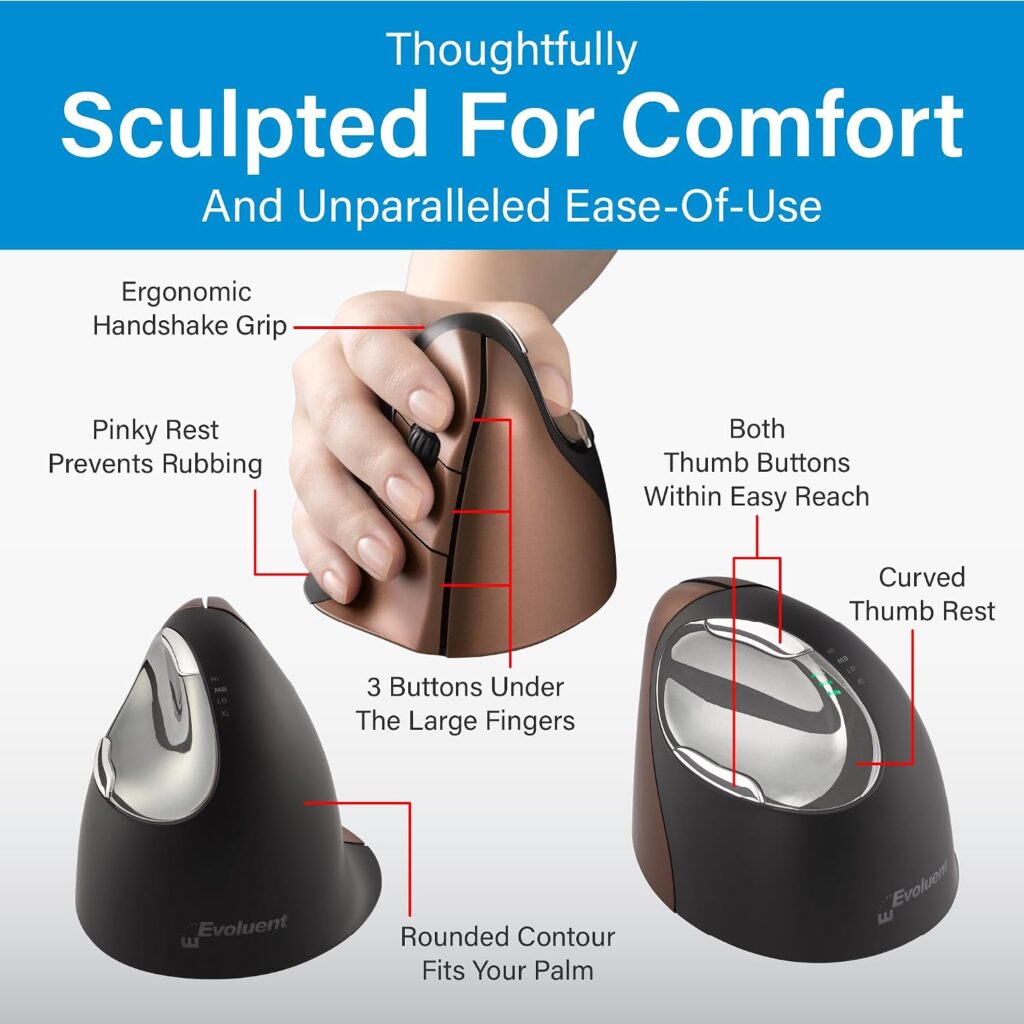
Quick Verdict: Evoluent is the brand most closely associated with vertical mouse design, and the VerticalMouse 4 Small reflects that focus with a sculpted, upright shape and side-mounted pointer-speed controls you can adjust without releasing your grip. It costs more than any other mouse in this guide, but the design maturity shows.
Best For: CAD professionals who work long hours and want a mouse purpose-built around forearm-neutral positioning.
Key Specifications:
- 6 customizable buttons via Evoluent Mouse Manager software
- Adjustable pointer speed controlled from the side of the mouse
- USB connection; check the current listing for wired vs. wireless variant details, as Evoluent sells both
- Small size profile, designed for smaller to medium hands
- Compatible with Windows, macOS and Linux
What We Like
- Broad bottom lip supports the palm during long sessions
- Side-mounted speed control means you never have to break grip to adjust sensitivity
- Long-standing reputation in the ergonomic mouse category, including coverage in our own Evoluent VerticalMouse review
What We Don’t Like
- Noticeably more expensive than every other mouse in this comparison
- The “Small” size is specifically sized for smaller hands, check Evoluent’s size chart, since a larger hand may prefer the Regular size
- Connectivity details (wired vs. wireless) can vary by listing, so confirm the exact configuration before buying
Ergonomic Analysis: The nearly vertical shell keeps the hand in a handshake-like orientation, which reduces the degree of forearm pronation compared with a flat mouse. A usability study described in PMC that specifically compared a standard mouse against the Evoluent VerticalMouse 4 Right found the vertical design supported a more neutral pronation posture, though the researchers also noted that mouse weight and geometry both affect forearm muscle activity during fast movement, a reminder that shape alone is not the only variable that matters.
Emily Richardson’s tip: if you already know a vertical mouse suits your hand from trying a budget model, the Evoluent is the logical upgrade, the sculpted shell and adjustable speed controls are refinements on a design you have already tested.
Who Should Buy It? Designers who spend most of the workday in CAD software and have already confirmed that a vertical grip works for them.
Who Should Skip It? First-time vertical mouse users on a tight budget, try a lower-cost vertical mouse first, since the grip angle takes some adjustment and is not guaranteed to suit everyone.
Value for Money: At around $109.95, this is a significant jump over the other mice here. For occasional CAD use, it is hard to justify. For daily, multi-hour CAD work, the refined shape and button placement can be worth the premium over time.
🛒 Check Price on Amazon4. ELECOM EX-G Trackball, Best for Precision Work
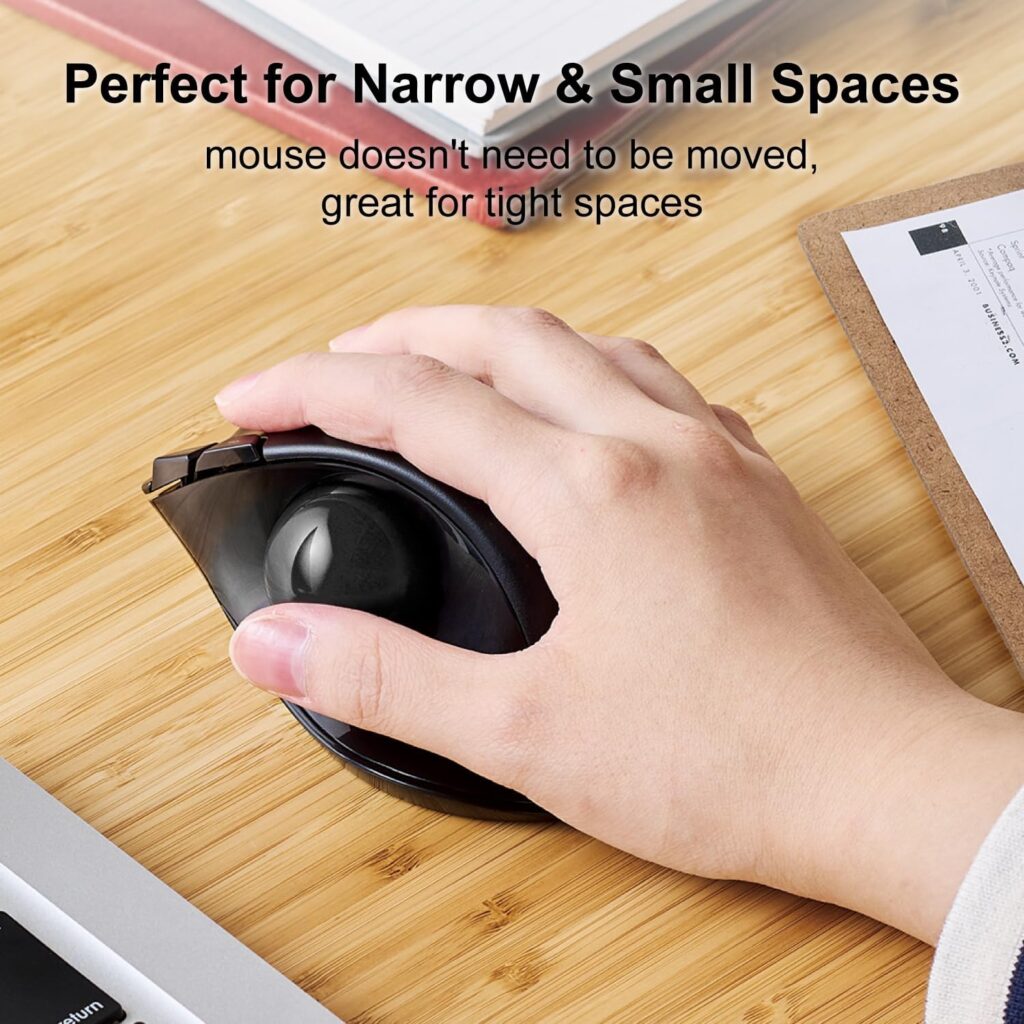
Quick Verdict: The EX-G swaps arm movement for thumb movement. Instead of sliding the whole mouse to move the cursor, you roll a ball with your thumb while the body of the mouse stays still; which can be genuinely useful for fine point placement in CAD software.
Best For: CAD users working on a cramped desk, or anyone who wants to reduce shoulder and arm movement during detailed work.
Key Specifications:
- Switchable DPI: 750 / 1500
- 6 physical buttons, including tilt-scroll for horizontal scrolling
- Optical gaming-grade sensor for the trackball itself
- Ball rides on three 2.5mm ruby ball bearings
- Weight: approximately 4.5 ounces (without battery); runs on 1 AA battery
What We Like
- The mouse body never has to move, which is useful on small or cluttered desks
- Ruby ball bearings resist dust buildup better than plastic bearings
- Precise, low-fatigue cursor control once you adjust to the trackball motion
What We Don’t Like
- DPI range (750/1500) is lower than several standard mice in this list, which may feel slow for very large, high-resolution monitors
- Trackballs generally require a learning period, expect a week or two before it feels natural
- Right-handed design only
Ergonomic Analysis: Because the wrist and forearm stay largely stationary, a trackball removes the repetitive-motion pattern of constantly sliding a mouse across a pad. It is worth being precise about what the research actually shows here, though. A comparison of pointing devices published in Applied Ergonomics found that a centrally-placed touchpad and rollermouse were associated with more neutral shoulder posture and lower forearm extensor muscle activity than a trackball, and that the trackball in that study was associated with the highest forearm muscle activity among the devices tested, higher than a conventional mouse. That does not mean a trackball is a poor ergonomic choice; it does mean the “hand stays still, so strain goes down” logic is not automatically true, and the real-world benefit likely depends heavily on hand size, thumb strength and how the trackball is positioned relative to the desk. Our trackball mouse guide covers grip styles and adjustment tips in more depth if you are new to trackballs.
Who Should Buy It? CAD users with limited desk space, or anyone who has experienced shoulder or forearm fatigue from repeatedly sliding a standard mouse.
Who Should Skip It? Anyone who needs to switch quickly between fine and very fast cursor movement, the lower DPI ceiling can feel restrictive for large multi-monitor CAD setups.
Value for Money: At around $35.99, this is a reasonable price for a well-reviewed trackball with a long track record in the category.
🛒 Check Price on Amazon5. ProtoArc EM01 NL, Best Budget Trackball
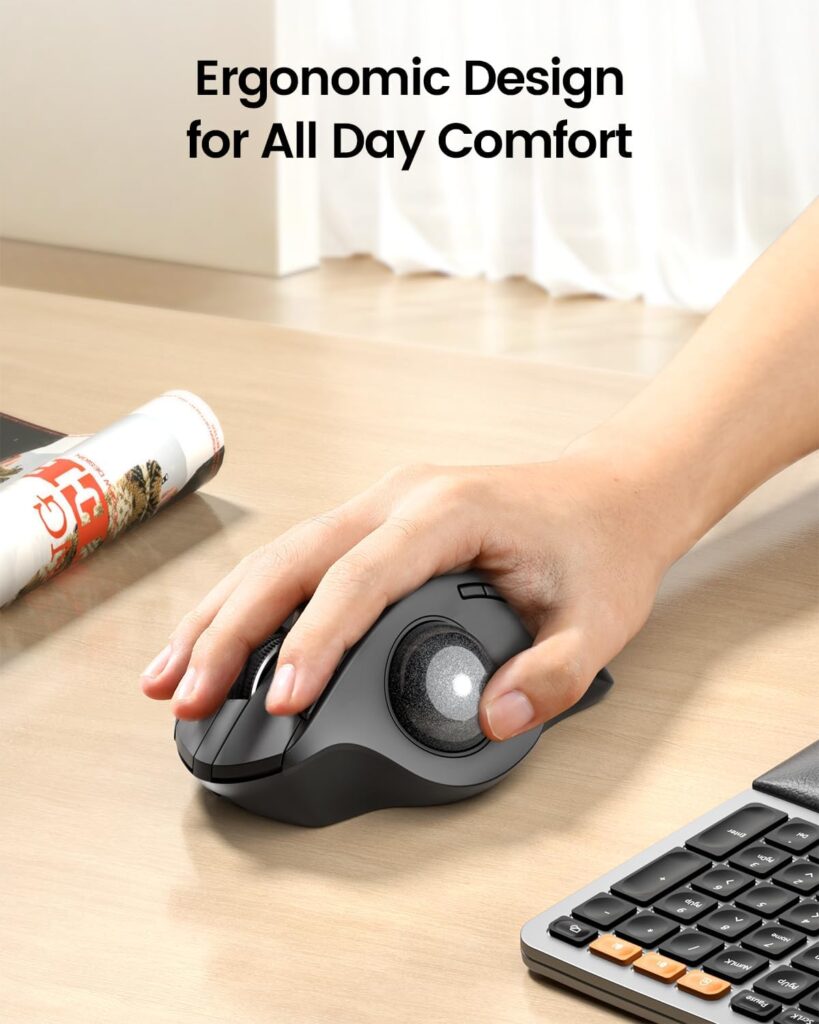
Quick Verdict: The EM01 NL is a more affordable trackball alternative to the ELECOM, with the added benefit of an adjustable 0–20 degree hinge that lets you angle the trackball to match your natural hand position.
Best For: Buyers who want to try trackball ergonomics without paying premium prices, and who value multi-device switching.
Key Specifications:
- DPI levels: 200 / 400 / 800 / 1200 / 1600
- 6 buttons total
- Bluetooth and 2.4GHz wireless, switches between up to 3 devices
- Built-in rechargeable battery (USB-C)
- Adjustable trackball angle from 0 to 20 degrees
What We Like
- Rechargeable battery avoids the ongoing cost of disposable batteries
- Adjustable angle is a genuinely useful feature most competitors don’t offer at this price
- Quiet left and right clicks
What We Don’t Like
- Maximum DPI (1600) is on the lower end for CAD work involving high-resolution displays
- Scroll wheel and side buttons are not silent, so click noise is inconsistent across the mouse
- The trackball and rollers need occasional cleaning to maintain tracking accuracy
Ergonomic Analysis: The adjustable hinge is the standout ergonomic feature here; it lets you find a trackball angle that keeps your wrist closer to neutral, rather than forcing one fixed position on every user’s hand shape. As noted in the ELECOM review above, research on trackballs as a category has produced mixed results for forearm muscle activity, so the ability to fine-tune the angle to your own hand is arguably more valuable than the trackball format itself.
Who Should Buy It? CAD users who want to test trackball ergonomics on a budget, or who switch frequently between a laptop, desktop and tablet.
Who Should Skip It? Anyone doing precision CAD work on a 4K or ultrawide monitor who needs a higher maximum DPI for fast, large-scale navigation.
Value for Money: At around $39.99, it undercuts many premium trackballs while still offering rechargeable power and multi-device pairing.
🛒 Check Price on Amazon6. Philips SPK7858, Best for Multi-Device Workflow
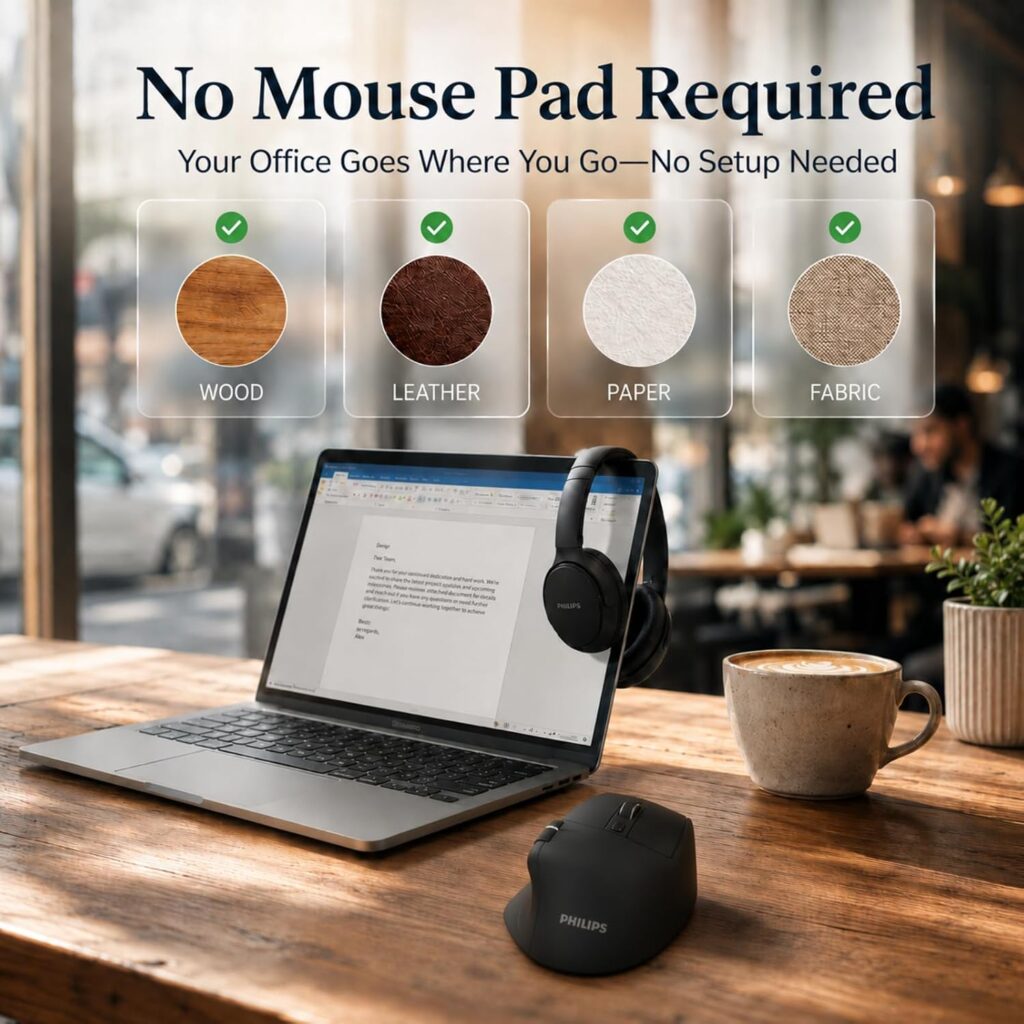
Quick Verdict: The Philips ergonomic mouse targets professionals who move between a laptop, a desktop and a tablet throughout the day, with dual scroll wheels for quickly navigating both large models and spreadsheets.
Best For: CAD users who also spend significant time in spreadsheets, documentation or multi-monitor setups and want fast device switching.
Key Specifications:
- 5-level adjustable DPI, 800 to 4000
- Dual scroll wheels: main vertical wheel plus a thumb-side horizontal wheel
- USB-A/C dual receiver plus Bluetooth pairing, up to 3 devices
- Rechargeable 500mAh battery, rated around 25 days of heavy daily use
- 5-minute emergency charge for roughly one hour of use
What We Like
- Horizontal scroll wheel is genuinely useful for navigating wide CAD viewports or spreadsheet columns
- Quiet-click switches for shared workspaces
- Fast-charge feature reduces the risk of running out of battery mid-session
What We Don’t Like
- Fewer programmable buttons (5) than the Rapoo MT760
- Laser sensor performance can vary depending on desk surface; a mouse pad is recommended for consistent tracking
- Software for remapping buttons has specific OS version requirements (Windows 11 / macOS 14 or later)
Ergonomic Analysis: The contoured, right-handed shell and anti-slip thumb rest are designed to support wider grips, which Philips states is intended to reduce daily fatigue during long sessions. The dual scroll wheels reduce the need to drag the cursor across the screen to reach navigation controls, which can cut down on repetitive reaching.
Who Should Buy It? Designers who split time between CAD software and spreadsheet-heavy documentation work across multiple devices.
Who Should Skip It? Anyone who wants extensive shortcut remapping, five buttons is comparatively limited next to the Rapoo’s eleven.
Value for Money: At roughly $39.98, the multi-device switching and fast-charge feature make it a reasonable pick if you frequently move between machines.
🛒 Check Price on Amazon7. INFINMIND L910, Best for Casual or Light CAD Use

Quick Verdict: The INFINMIND is a comfortable, contoured mouse for everyday computer use, but its lower DPI ceiling and simpler feature set make it better suited to light CAD viewing than heavy, all-day modeling work.
Best For: Students or occasional users who need a comfortable mouse for basic CAD viewing, general office tasks and multi-device switching.
Key Specifications:
- DPI levels: 1000 / 1600 / 2400 / 3000
- 7 buttons including a side scroll wheel
- Bluetooth (x2) and 2.4G USB connection, switches between 3 devices
- Runs on 1 or 2 AA batteries (included), rated up to 40 months on 2 batteries
- Weight: approximately 5.3 ounces
What We Like
- Soft rubber grips add comfort for casual, shorter sessions
- Side scroll wheel is convenient for wide documents and spreadsheets
- Long battery life on standard AA batteries
What We Don’t Like
- Maximum DPI of 3000 is noticeably lower than several other mice in this guide, which limits precision on large, high-resolution CAD viewports
- Fewer programmable options for CAD-specific shortcuts
- Standard (non-vertical) shape offers less forearm-rotation benefit than the vertical or trackball options here
Ergonomic Analysis: The contoured shape and soft grips help with general hand fatigue, but this is a comfort-focused general-purpose mouse rather than a CAD-specialized tool. It is a reasonable secondary mouse, not necessarily a primary daily driver for intensive modeling work.
Who Should Buy It? Anyone who needs an affordable, comfortable mouse for occasional CAD file review alongside general office tasks.
Who Should Skip It? Full-time CAD professionals who need a wider DPI range and more programmable buttons for daily modeling work.
Value for Money: At around $23.99, it is reasonably priced for general comfort, but dedicated CAD users will likely outgrow its precision ceiling quickly.
🛒 Check Price on AmazonComparison Table
| Product | Type | Max DPI | Buttons | Weight | Connectivity |
|---|---|---|---|---|---|
| Rapoo MT760 | Contoured | 4000 | 11 | 3.88 oz | BT + 2.4GHz |
| TECKNET Vertical | Vertical | 4800 | 6 | 4.3 oz | BT + 2.4GHz |
| Evoluent VM4SW | Vertical | Not published | 6 | 7.5 oz | USB |
| ELECOM EX-G | Trackball | 1500 | 6 | 4.5 oz | 2.4GHz wireless |
| ProtoArc EM01 NL | Trackball | 1600 | 6 | 12.3 oz | BT + 2.4GHz |
| Philips SPK7858 | Contoured | 4000 | 5 | 3.42 oz | BT + USB-A/C |
| INFINMIND L910 | Contoured | 3000 | 7 | 5.3 oz | BT + 2.4GHz |
Decision Framework: Which Mouse Should You Buy?
Choose the Rapoo MT760 if: you want the most programmable buttons for CAD shortcuts and a comfortable contoured shape, without paying premium prices.
Choose the TECKNET Vertical Mouse if: you want to try a vertical grip angle on a tight budget before deciding if it works for you.
Choose the Evoluent Vertical Mouse 4 Small if: you already know vertical mice suit your hand and you work in CAD for most of the day, this is the refined, long-session option, also covered in detail in our Evoluent Vertical Mouse review.
Choose the ELECOM EX-G Trackball if: you want maximum precision with minimal arm movement, and you have a small or cluttered desk.
Choose the ProtoArc EM01 NL if: you want trackball ergonomics with an adjustable angle at a lower price than premium trackball brands.
Choose the Philips SPK7858 if: you regularly switch between a CAD workstation, a laptop and a tablet, and want a horizontal scroll wheel for wide viewports.
Choose the INFINMIND L910 if: your CAD use is occasional, and comfort for general office tasks matters more than maximum precision.
If you specifically work in tight cubicle or laptop-only setups and want more wireless-specific comparisons, our wireless ergonomic mouse guide covers that angle in more depth. Programmers with overlapping shortcut-heavy needs may also find our ergonomic mouse for programmers guide useful for comparison.
Common Mistakes When Choosing a CAD Mouse
- Buying based only on star ratings; a 4.5-star general office mouse is not automatically suited to CAD precision work.
- Ignoring hand size, a “Small” vertical mouse sized for smaller hands will feel cramped for larger hands, and vice versa.
- Assuming higher DPI is always better, a very high DPI without fine adjustment steps can actually make precise point placement harder, not easier.
- Skipping the adjustment period; vertical mice and trackballs typically need one to two weeks before they feel natural; judging them after a single session is premature.
- Ignoring software compatibility; some programmable-button software is Windows-only or requires a specific OS version, which matters if you work across platforms.
- Overlooking desk space; a trackball needs less lateral space than a standard mouse, which matters on small CAD workstations.
- Choosing based on price alone, the cheapest mouse is not always the best value if it lacks the DPI range or button count your CAD workflow needs.
- Forgetting mouse pad quality, a laser or optical sensor can behave differently depending on the desk surface; a proper mouse pad improves tracking consistency.
Best Practices for CAD Ergonomics
- Position your mouse close to your body so you are not reaching forward or sideways to use it.
- Keep your wrist as close to neutral as possible; avoid resting it at a sharp upward angle for extended periods.
- Set your monitor height so the top of the screen sits at or slightly below eye level, OSHA’s computer workstation guidance recommends this along with a viewing distance of at least 20 inches to reduce neck and eye strain.
- Take short movement breaks. NIOSH research found that supplementing regular breaks with brief 5-minute breaks roughly once an hour meaningfully reduced musculoskeletal discomfort and eyestrain without hurting productivity.
- If you use a wrist rest, use it for brief pauses rather than resting your wrist on it while actively moving the mouse.
- Adjust DPI settings per task: lower for fine point placement, higher for fast navigation across large models.
What This Means: None of these are CAD-specific findings, and none of them guarantee that discomfort will disappear. They are general workplace ergonomics findings that apply just as much to a designer working in CAD software as to any other computer-intensive job, the mouse you choose is one variable among several, not a fix on its own.
Alternatives Worth Considering
- Best alternative for shortcut-heavy CAD work: our ergonomic mouse for programmers guide covers mice with a similar emphasis on programmable buttons.
- Best alternative if you want a broader trackball comparison: see our full trackball mouse guide.
- Best alternative for simpler wireless needs: the wireless ergonomic mouse guide is a good starting point if CAD-specific features are not your top priority.
Frequently Asked Questions
What is the best ergonomic mouse for CAD work?
For most users, the Rapoo MT760 offers the best overall balance of programmable buttons, adjustable DPI and ergonomic shape. If wrist comfort during long sessions is the priority, the Evoluent VerticalMouse 4 Small is a stronger long-term option, while the ELECOM EX-G trackball suits users who want maximum precision with minimal arm movement.
Are vertical mice good for CAD?
Vertical mice can help reduce forearm rotation during long CAD sessions, which some users find more comfortable. However, they typically require an adjustment period of one to two weeks, and research on their effect on muscle activity has produced mixed results, so results vary by individual.
Is a trackball better than a regular mouse for CAD?
A trackball can offer more precise cursor control with less arm movement, which is useful for detailed point placement and small desks. It generally has a steeper learning curve than a standard mouse and a lower maximum DPI, which may feel limiting on very large or high-resolution displays.
How much DPI do I need for CAD software?
Most CAD users benefit from a mouse offering adjustable DPI between roughly 800 and 4000, so you can lower sensitivity for fine point placement and raise it for fast navigation. The ideal number also depends on your monitor resolution and mouse pad size.
Do ergonomic mice actually reduce wrist pain?
Ergonomic mice are designed to support a more neutral wrist and forearm position, which may help reduce unnecessary strain during long sessions. They are not a medical treatment, and persistent or severe pain should be discussed with a doctor or other qualified healthcare professional.
How long does it take to adjust to a vertical mouse or trackball?
Most users report a noticeable adjustment period of one to two weeks. Expect reduced precision initially, especially with a trackball, as your thumb or fingers learn to control cursor movement without moving the whole hand.
Can I use an ergonomic mouse for both CAD and gaming?
Many of the mice in this guide, including the Rapoo MT760 and Evoluent VerticalMouse, include adjustable pointer speed and programmable buttons that work for both CAD and general use. Competitive gaming typically favors mice with very low input latency and high polling rates, which is a slightly different priority than CAD precision.
What is the difference between a vertical mouse and a trackball for ergonomics?
A vertical mouse rotates the hand into a handshake-like position to reduce forearm pronation, while a trackball keeps the hand mostly stationary and uses the thumb or fingers to move the cursor. Both aim to reduce repetitive strain, but through different mechanisms, the right choice often comes down to personal comfort and grip preference.
Is a wireless mouse reliable enough for precise CAD work?
Bluetooth and 2.4GHz wireless mice are generally reliable for CAD tasks, since CAD work is not as latency-sensitive as competitive gaming. If you notice any lag or tracking inconsistency, a wired connection remains the most consistent fallback option.
Are expensive ergonomic mice worth it for CAD designers?
A higher price often reflects more refined shaping, adjustable features, and established design history, as seen with the Evoluent VerticalMouse. For designers who use CAD software for most of the workday, the investment can be worthwhile. For occasional CAD use, a mid-range option like the Rapoo MT760 or TECKNET Vertical Mouse may offer better value.
Final Verdict
If you want the best overall balance of programmability and comfort for CAD work, the Rapoo MT760 is our top recommendation. If wrist strain during long sessions is your main concern and budget allows, the Evoluent VerticalMouse 4 Small is worth the higher price. If your desk is small or precision matters more than raw speed, the ELECOM EX-G Trackball is a solid alternative worth trying instead of a standard mouse. And if you are simply testing whether ergonomic designs work for you before spending more, the TECKNET Vertical Mouse and ProtoArc EM01 NL are reasonable low-risk starting points.
There is no single “best” mouse for every CAD workflow, the right choice depends on your hand size, grip style, desk space and how many hours a day you actually spend modeling.
Compare the latest prices and availability before making your decision, since Amazon pricing and stock can change.