How to Hold a Vertical Mouse Correctly: Grip, Posture and Desk Setup
By Emily Richardson, Ergonomics & Work-from-Home Product Specialist
At ErgoFixes, our product evaluations combine manufacturer specifications, verified retailer and Amazon listing data, customer feedback, review patterns, and ergonomic design analysis. We assess products across factors such as comfort, adjustability, materials, functionality, durability, and overall value, using multiple sources to provide a balanced and practical recommendation.
Quick Answer: How to Hold a Vertical Mouse
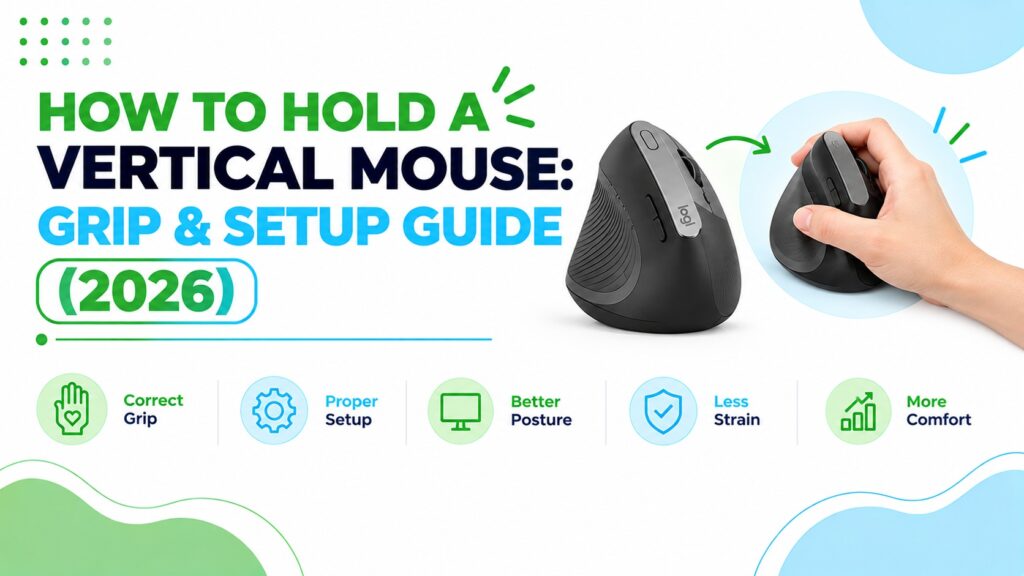
To hold a vertical mouse correctly, set your hand down beside it with your thumb pointing up, then slide it onto the mouse in a handshake position. Rest your thumb on the thumb rest, keep your wrist straight, let the outer edge of your hand sit on the desk, grip lightly, and move from your elbow rather than flicking your wrist.
If you only have a minute, this is the short version:
- Fix the desk first. Elbows bent roughly 90–120 degrees, shoulders relaxed, mouse level with the keyboard.
- Keep the mouse close. Right beside the keyboard, in line with your forearm.
- Use the side approach. Hand beside the mouse, thumb up, then slide in. Don’t drop onto it palm-down.
- Support the outer edge of your hand. A floating wrist is the most common reason a vertical mouse feels worse than a flat one.
- Give it two weeks. It usually feels strange for the first few days.
🖱️ Quick Picks: Vertical Mice That Make a Correct Grip Easier
Seven options, from a budget first vertical mouse to a size-adjustable model, plus one conventional mouse for readers who decide a vertical shape isn’t for them.


Prices are the figures shown on the Amazon.com listings at the time of writing and can change. This page contains affiliate links; see the disclosure at the end.
Quick Verdict Table
| Product | Best For | Main Strength | Main Limitation | Rating | Link |
|---|---|---|---|---|---|
| TECKNET TK-MS063 | First-time vertical mouse users; multi-device desks | Bluetooth + 2.4GHz, rechargeable, 36-month warranty (registered) at the lowest listed price | Side buttons not supported on macOS | 4.6/5 | Check Price |
| Redragon BM4235 | Small to medium hands | Clear sizing guidance, 2-year warranty, three-device connectivity | Not suited to large hands | 4.5/5 | Check Price |
| Kensington K75575WW | Readers unsure of hand size, or with larger hands | Mid-Size and Full-Size options plus a pinky ledge | Lowest customer rating here (4.1); no Bluetooth | 4.3/5 | Check Price |
| AOC MS610 | Feature-focused users with small to medium hands | Three connection modes, lightest body, battery display | Fewer reviews; not recommended for large hands | 4.3/5 | Check Price |
| Anker 2.4G Vertical Mouse | Buyers who want a long-established model | Over 53,000 ratings; receiver stores in the base | Batteries not included; 2.4GHz only | 4.2/5 | Check Price |
| Nulea M510 | A simple AA-powered vertical mouse | Stated 57° angle, six buttons, easy-to-find AA battery | 1600 DPI maximum; battery not included | 4.1/5 | Check Price |
| Razer Orochi V2 | A compact conventional fallback (not a vertical mouse) | 2.08 oz body and very long listed battery life | No vertical angle; palm-down grip | 3.8/5 | Check Price |
Why Most People Hold a Vertical Mouse the Wrong Way First
You buy a vertical mouse because your wrist or forearm feels tired after a long day of clicking. The box promises a “natural handshake position.” Then you plug it in, grab it the way you grabbed every flat mouse before it, and it feels clumsy, slow and oddly tiring.
That reaction is common, and it usually isn’t the mouse’s fault. A flat mouse is operated palm-down with a wrist pivot. A vertical mouse asks for a different movement pattern, and nothing in the packaging teaches it.
This guide covers how to hold a vertical mouse, where to put your hand, wrist and desk, and how to avoid the mistakes I see most often. If you’re still deciding which model to buy, our best vertical mouse roundup goes wider than the seven models below. If you want the basics first, what an ergonomic mouse is is a good starting point.
Comfort note: ErgoFixes is a product website, not a medical provider. A vertical mouse may help reduce unnecessary strain for some people, but it isn’t a treatment for any condition. If you have persistent pain, numbness or tingling, please speak to a healthcare professional.
What Is the Vertical Mouse Handshake Position?
The handshake position is the hand posture you’d use to shake someone’s hand: thumb on top, palm facing sideways, forearm rotated about halfway between palm-down and palm-up. A vertical mouse is designed to keep the forearm in a more neutral position than a traditional flat mouse, where your palm faces the desk.
Researchers describe this rotation as forearm pronation. A flat mouse holds the forearm much closer to full pronation. A vertical mouse stands the hand on its edge and reduces that rotation.
Research Insight: In Odell and Johnson’s study in the journal Work, twelve experienced mouse users did point-and-click tasks on five mouse shapes. A fully vertical benchmark mouse produced about 40° of forearm pronation, against about 70° for a traditional flat mouse. The same vertical mouse also produced the most wrist extension (about 41° against about 36°), the slowest pointing times, and the lowest preference ratings in a session of roughly four minutes per mouse. The study was funded in part by Microsoft.
What this means: A vertical shape does what it promises on forearm rotation, but it can move the strain elsewhere if you hold it badly. The study was short and small, and it tells us about first impressions rather than months of use. It does not prove that any specific mouse in this article will reduce discomfort for you.
Practical example: If your wrist bends upward while you use a vertical mouse, you’ve probably recreated the extension the study measured. The fixes in the steps below, mainly supporting the outer edge of your hand, target exactly that.
How to Hold a Vertical Mouse Correctly: Step by Step
These steps combine published ergonomic guidance with the practical adjustments I’d suggest to any reader. Work through them in order the first time.
Step 1: Set Up the Desk and Chair First
Sit with your elbows bent between roughly 90 and 120 degrees, your shoulders relaxed and your upper arms close to your body. OSHA’s neutral-posture guidance also describes hands, wrists and forearms as straight, in line and roughly parallel to the floor.
If your desk is too high, your shoulder lifts and your wrist compensates. Fix the chair or desk height before you blame the mouse.
Step 2: Place the Mouse Close and In Line With Your Forearm
OSHA’s pointing-device guidance recommends keeping the mouse close to the keyboard and positioning it so your wrist can stay straight and neutral. Reaching out to the side pulls the shoulder into the movement.
Put the mouse where your hand naturally lands when your elbow rests near your body. If you use a full-size keyboard with a number pad, that distance is often the first thing to fix.
Step 3: Approach the Mouse From the Side
Rest your hand on the desk beside the mouse with your thumb pointing up, then slide it into the mouse. Don’t lift your hand high and drop onto the mouse palm-down.
This is the same cue used in a Harvard-led study in Human Factors, where coached participants placed the hand beside the mouse with the thumb pointing up, then rotated the forearm to grip it.
Research Insight: In that study, 30 healthy adults used a standard mouse and a tilted alternative mouse. The trained group, coached on how to hold the alternative mouse, showed lower forearm pronation (up to 11.5° lower than with the standard mouse, against 6.5° for the untrained group). Wrist-extensor muscle activity was lower only in the trained group. The untrained group also showed more wrist extension (up to 5.6° higher than with the standard mouse). The alternative mouse was an angled model rather than a fully vertical one, the tests were short lab sessions, and Microsoft partly supported the work.
What this means: The way you hold the mouse can decide whether its shape helps you at all. A good design held badly can lose much of its benefit.
Practical example: Before each work session, spend a few seconds on the side approach. After a week it becomes automatic.
Step 4: Put Your Thumb on the Rest and Let Your Fingers Settle
Your thumb should rest naturally on the thumb ledge, not grip hard against the side. Your index and middle fingers rest on the buttons. Your ring and little fingers can rest against the side, or on a ledge if the mouse has one, such as the pinky ledge on the Kensington K75575WW.
Don’t hover your fingers above the buttons. Holding them up is its own muscular effort.
Step 5: Let the Outer Edge of Your Hand Rest on the Desk
The outer edge of your hand, the side below your little finger, should rest lightly on the desk or the mouse base. In the Human Factors study above, coached participants rested the outer side of the hand on the work surface, and the paper links this to lower wrist extension and forearm pronation.
Think of it as a skid, not an anchor. The hand should slide with the mouse, not stick to the desk.
Research Insight: A one-year randomised controlled trial of 206 engineers in Occupational and Environmental Medicine compared a conventional mouse, an alternative neutral-forearm mouse, a forearm support board, and the mouse plus board. The groups given a forearm support board reported lower right upper-extremity discomfort than those without one. The alternative mouse showed a trend towards fewer incident disorders, but that result was not statistically significant. All participants used computers for more than 20 hours a week.
What this means: In this trial, supporting the arm showed a clearer benefit than changing the mouse shape alone. That is a good reason to treat arm and hand support as part of your setup rather than an afterthought. The trial did not test any mouse in this article, and a support board is not the same thing as resting the edge of your hand on the desk.
Practical example: If your hand edge feels awkward on a hard desk surface, check whether your forearm can rest lightly on the desk or an adjustable armrest at the right height, so your shoulder isn’t holding the weight of your arm.
Step 6: Keep Your Wrist Straight and Move From the Elbow
Look at your wrist from the side and from above. It shouldn’t bend upward, droop downward or kink toward your little finger. Small movements should come from your forearm pivoting at the elbow.
If you see a sideways bend, rotate the mouse slightly toward your body’s centreline until hand, wrist and forearm form a straight line. This is a practical suggestion rather than a research finding, though Odell and Johnson noticed that most participants held the mouse parallel to the keyboard edge, which required more ulnar deviation and extension than the designers intended.
Research Insight: In a Human Factors study of 37 healthy adults, researchers recorded pressure inside the carpal tunnel while participants slowly moved their wrists through different positions. They estimated the angles that kept 75% of participants below a 30 mmHg pressure threshold: about 33° of wrist extension and about 15° of ulnar deviation (bending towards the little finger).
What this means: In this lab setting, more extension and more sideways bend were associated with higher pressure in the carpal tunnel. That is a good reason to watch your wrist angle. The participants were healthy, the wrist was moved slowly rather than during real mouse work, and the study measured pressure rather than symptoms, so these figures are not diagnostic limits. Because studies measure angles differently, I wouldn’t compare these numbers directly with the mouse-use angles quoted earlier.
Practical example: Once or twice a day, look at your wrist from the side. If the back of your hand tilts upward from your forearm, rest the outer edge of your hand more firmly, lower your grip, or check your desk height.
Step 7: Grip Lightly and Tune the DPI
OSHA advises avoiding a tight grip on the mouse. If your knuckles whiten, your grip is too firm.
Check your DPI as well. OSHA notes that low sensitivity can force large wrist movements to cover the screen. Start in the middle of the range, then raise it until the cursor crosses the screen with small, relaxed movements.
Emily Richardson’s tip: Measure your hand before you buy, and again before you give up on a mouse that feels wrong. A vertical mouse that is too large forces your fingers to stretch, which undoes the posture benefit. Fit should come before features.
Vertical Mouse Posture Guide: The Desk Setup Checklist
A correct grip only works if the rest of the workstation supports it. Run through this list once:
- Mouse height: about level with the keyboard, near elbow height.
- Mouse distance: next to the keyboard, not across a keyboard with a number pad.
- Chair: feet supported, back supported, thighs roughly parallel to the floor.
- Surface: a smooth, flat surface or a thin mouse mat. Avoid a thick gel wrist rest that props your wrist up.
- Monitor: centred in front of you, so you aren’t twisting your neck while you steer the cursor.
- Both hands: alternate hands occasionally if you can, as OSHA suggests. Several mice in this list are right-hand only, so this may mean using a trackpad or a second mouse for short stretches.
Your First Two Weeks: How to Get Used to It
Expect the learning curve. Redragon, for example, tells buyers to allow about two weeks to adapt, and the Human Factors study found untrained users were slower with the alternative mouse than with the standard one. That is a manufacturer and a short lab study, not a promise, and individual adaptation varies.
Research Insight: In a 2013 study in the journal Ergonomics by Quemelo and Vieira, 16 people used both a vertical mouse and a standard mouse. The vertical mouse was associated with less forearm pronation (about 28° versus 42°) and lower wrist-extensor muscle activity. It was also slower: participants took about 4.2 seconds to reach targets, against about 3.4 seconds with the standard mouse. The authors concluded that extra training and time to get used to the mouse may be needed.
What this means: A slower first week doesn’t mean you are doing it wrong. It matches what this study found. The study also doesn’t show that any specific mouse in this article will reduce discomfort for you.
Practical example: This is why the plan below keeps your old mouse nearby for precision work during the first week.
Here’s a gentle plan I’d suggest:
- Days 1–3: Use the vertical mouse for browsing and email in 30–60 minute blocks. Keep your old mouse for precision work.
- Days 4–7: Make it your main mouse for everyday work. Keep the old one on the desk for tasks like detailed editing.
- Week 2: Use it for everything. Revisit the DPI setting and adjust the mouse angle by a few degrees if you notice any bend in your wrist.
If you feel pain, numbness or tingling, stop and speak to a healthcare professional rather than pushing through.
Common Vertical Mouse Grip Mistakes (and Fixes)
- Holding it like a flat mouse. Pressing down with a palm-down hand fights the design. Fix: use the side approach and let your hand stand on its edge.
- A floating wrist. Lifting the wrist off the desk causes the extension the research flags. Fix: rest the outer edge of your hand lightly.
- Squeezing the mouse. A tight grip tires the forearm. Fix: loosen until the mouse is just controlled.
- Pointing it parallel to the keyboard edge. This can bend the wrist sideways. Fix: rotate the mouse until your hand and forearm line up.
- Placing it too far away. Reaching engages the shoulder. Fix: bring it next to the keyboard.
- Choosing the wrong size. A mouse that’s too big or too small changes your finger posture. Fix: measure your hand length from the wrist crease to the tip of your middle finger and compare it with the sizing notes below.
- Skipping the DPI setting. Low sensitivity means large arm movements. Fix: raise it gradually.
- Quitting on day two. Unfamiliar doesn’t mean wrong. Fix: give it a fair trial, but stop if pain appears.
How to Choose a Vertical Mouse You Can Hold Comfortably
Before you open a single product page, check these six factors. Each one affects how well you can use the grip above.
Hand Size and Shape
This matters most. Redragon recommends its BM4235 for hand lengths up to 7.5 inches (19.05 cm), and AOC states its MS610 is optimised for small to medium hands and not recommended for large hands. Kensington sells a Mid-Size and a Full-Size version. In Odell and Johnson’s study, participants described the vertical benchmark mouse as too big and a poor fit for the hand, which hurt their ratings.
Angle
The listings I reviewed state 57° for the Nulea M510 and TECKNET TK-MS063, and 52° for the AOC MS610. The others don’t state an angle. Brands don’t always measure angle the same way, so treat these as rough guides rather than exact comparisons. A gentler tilt can feel easier to adapt to. A steeper one stands the hand closer to a handshake.
Thumb and Little-Finger Support
A thumb rest holds the thumb in place. A pinky ledge, like the Kensington’s, gives the outer fingers a place to rest instead of dragging on the desk.
Connectivity and Power
Rechargeable models (TECKNET, Redragon, AOC) avoid battery changes. AA and AAA models (Kensington, Nulea, Anker) can be refreshed instantly with a spare cell. Bluetooth helps if you use a laptop or tablet. Several models here use a USB-A receiver, so a USB-C-only laptop may need an adapter.
DPI and Button Layout
Look for adjustable DPI, since it helps you keep your wrist neutral. Extra side buttons can reduce repeated reaching, though some buttons may not work on every operating system.
Handedness and Warranty
Every mouse I reviewed is listed as right-handed. Left-handed vertical mice exist from some manufacturers, but none are included here. Warranty terms in the listings range from 12 months to 36 months, so read them before buying.
Emily Richardson’s recommendation: If you work from home for several hours a day, prioritise proper fit and workspace compatibility over extra features you may never use.
Product Reviews: 7 Mice Compared for Grip and Fit
1. TECKNET TK-MS063: Best Overall
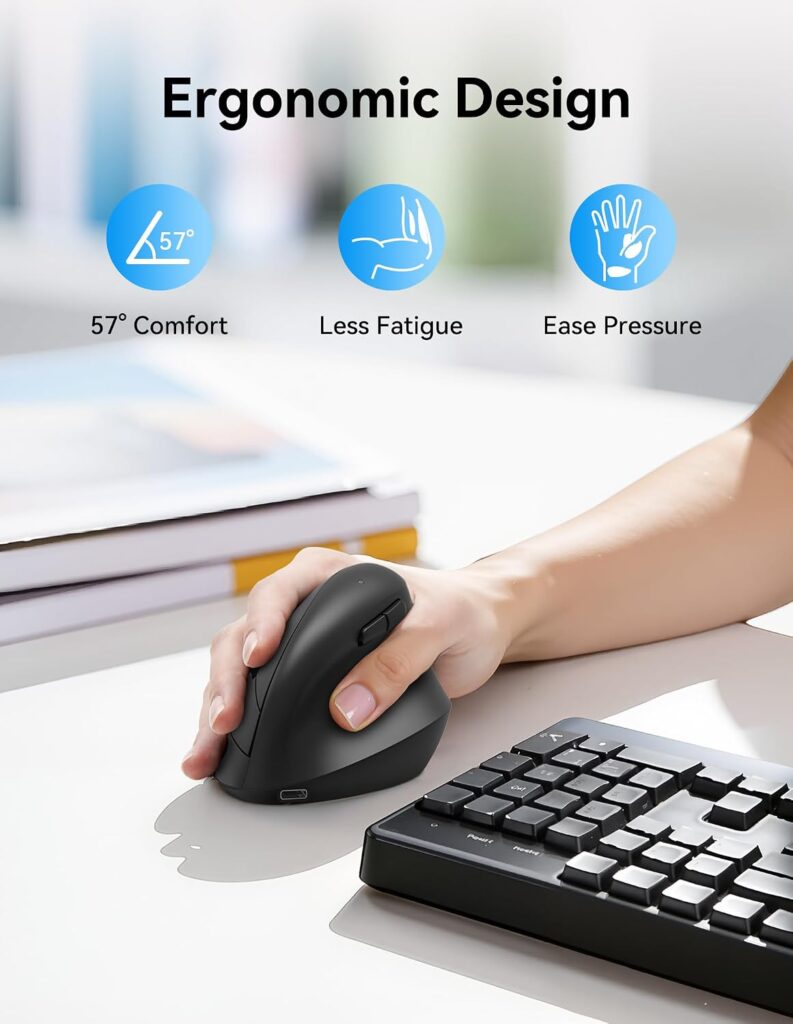
Quick Verdict: The TECKNET TK-MS063 gives you the most features for the lowest listed price in this group: Bluetooth 5.3 plus 2.4GHz, a rechargeable battery, quiet clicks and a stated 57° angle. It’s the model I’d start with if you haven’t used a vertical mouse before and want the cost of experimenting kept low.
Best For: First-time vertical mouse users and desks that switch between a laptop, tablet and desktop.
Key Specifications:
- Stated angle: 57°
- Connectivity: Bluetooth 5.3/3.0 and 2.4GHz receiver, switching between three devices
- Power: rechargeable, 2–3 hour charge, listed as up to about three months at two hours of daily use
- DPI: six levels from 800 to 4800
- Weight: 5.6 oz; listed size 4.2″ L × 2.8″ W
- Warranty: 36 months (registered only)
What We Like:
- The multi-device switch means you can keep the same grip across all your devices.
- Rechargeable battery and a lengthy warranty for the price.
- Six DPI steps make it easy to tune cursor speed so your wrist stays still.
What We Don’t Like:
- The listing says side buttons aren’t supported on macOS.
- At 5.6 oz it’s among the heavier models here, and the listing gives no hand-size guidance, so check fit.
- Quiet-click claims (up to 90% less noise) come from the manufacturer.
Ergonomic Analysis: The 57° angle stands the hand closer to a handshake, which is the point of the design. Because a steep tilt can add wrist extension in some hands, the outer-edge support in Step 5 matters more with this style. The three-device switching also helps if you want one grip habit across work and personal devices.
Who Should Buy It? Readers who want a low-risk first vertical mouse with modern connectivity.
Who Should Skip It? macOS users who rely on side buttons, and anyone who wants replaceable AA batteries.
Value for Money: At roughly $19 on the listing I reviewed, it’s strong value. You get rechargeable power, two wireless modes and a long warranty at a price lower than any other model here.
🛒 Check Price on Amazon2. Redragon BM4235: Best for Small to Medium Hands
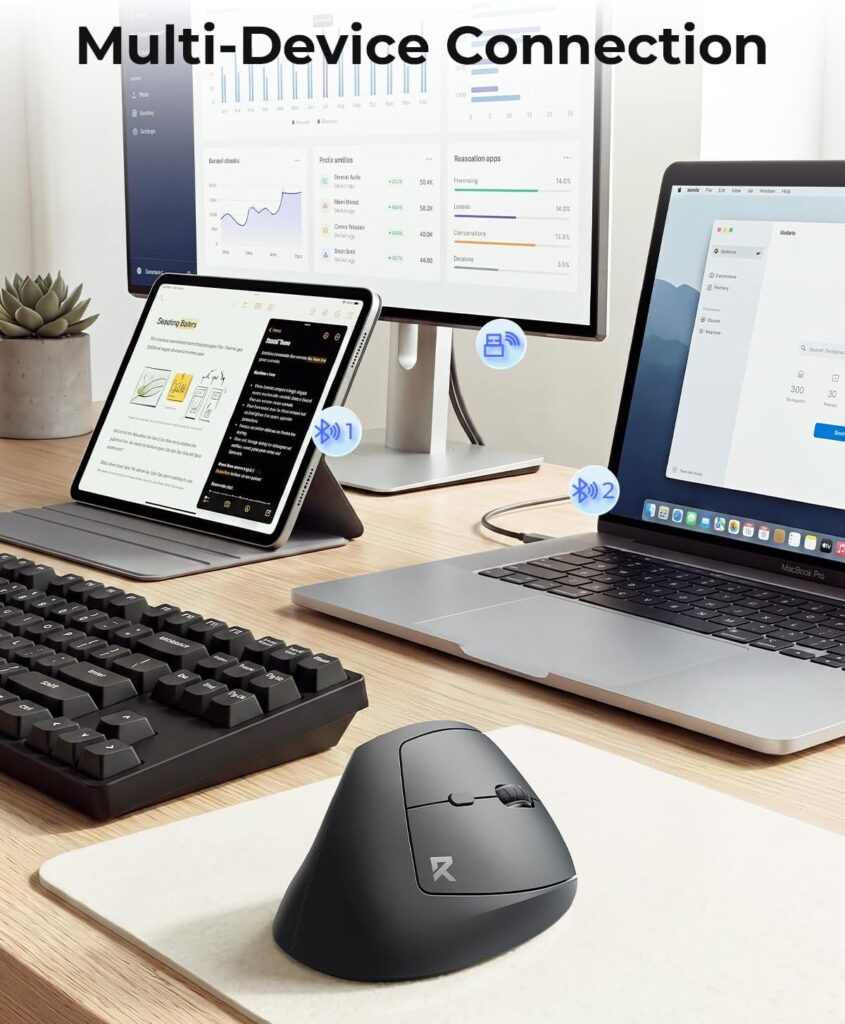
Quick Verdict: The Redragon BM4235 pairs a rechargeable battery and three-device connectivity with the clearest sizing advice in this group. It carries a 4.6 rating across more than 3,700 reviews and a 2-year warranty.
Best For: Users with small to medium hands who want a rechargeable, multi-device vertical mouse.
Key Specifications:
- Connectivity: Bluetooth plus a 2.4GHz USB-A receiver, up to three devices
- Power: 500mAh rechargeable battery, Type-C charging
- DPI: five presets from 800 to 4800
- Weight: 5 oz; six buttons
- Sizing: designed for hand lengths up to 7.5 inches (19.05 cm)
- Warranty: 2 years
What We Like:
- The listing tells you exactly who it fits, which helps you avoid the wrong size.
- A 2-year warranty and strong customer rating.
- The listing recommends giving yourself about two weeks to adapt, which is honest advice.
What We Don’t Like:
- It isn’t aimed at larger hands.
- The receiver is USB-A and no USB-C receiver is included, so some laptops will need an adapter.
- The listing doesn’t state an angle or dimensions, so shape is hard to compare numerically.
Ergonomic Analysis: Sizing is the main ergonomic lever here. A vertical mouse that matches the length of your hand lets you rest the thumb and outer hand without stretching, which is exactly what Steps 4 and 5 need.
Who Should Buy It? Readers whose hand length falls within the listing’s guidance.
Who Should Skip It? Anyone with large hands, or anyone who wants a stated tilt angle before buying.
Value for Money: At about $22, the combination of rechargeable power, multi-device switching and a 2-year warranty is good value.
🛒 Check Price on Amazon3. Kensington K75575WW: Best for Size Choice
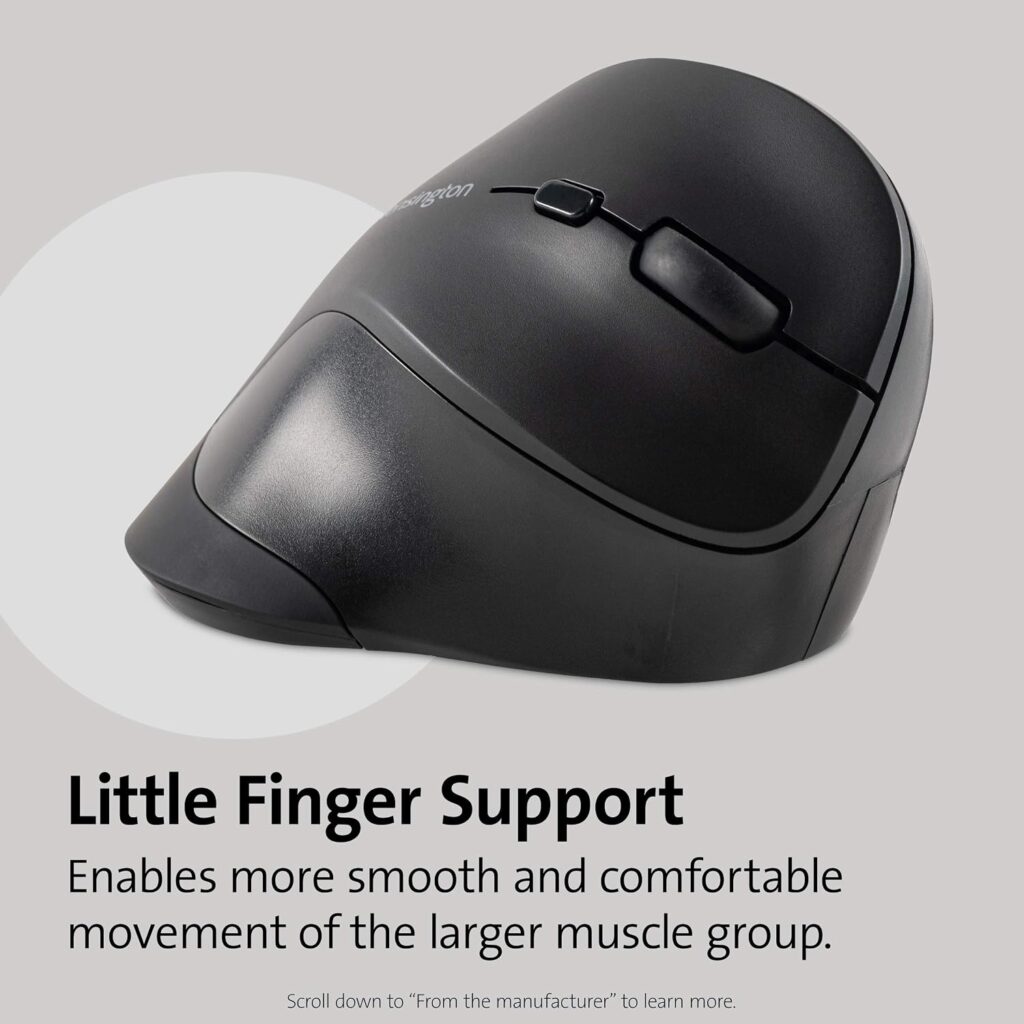
Quick Verdict: The Kensington K75575WW is the only mouse here sold in two sizes, Mid-Size and Full-Size, and the only one with a dedicated pinky ledge. It uses an included AA battery and needs no software, but it has the lowest customer rating of the group.
Best For: Readers with larger hands, or anyone unsure which size they need.
Key Specifications:
- Sizes: Mid-Size ($22.99 on the listing) and Full-Size ($39.99)
- Mid-Size dimensions: 2.74″ tall and 4.38″ long
- Connectivity: 2.4GHz nano receiver that stores inside the mouse; range about 33 ft (10 m)
- Power: one AA battery, included
- DPI: five levels from 800 to 2400
- Compatibility: Windows, macOS and ChromeOS; no software needed
What We Like:
- A size choice is rare at this price.
- The pinky ledge gives the outer fingers a place to rest.
- Included battery and a stowable receiver.
What We Don’t Like:
- A 4.1 average rating from about 2,400 reviews is the lowest in this list.
- No Bluetooth, and the USB-A receiver may need an adapter for USB-C-only laptops.
- The listing describes “four button control” in one place and shows six buttons in the specifications, so check the buttons you need.
Ergonomic Analysis: The pinky ledge directly supports Step 4, since resting the outer fingers can help you keep a lighter grip. Kensington says the ledge encourages movement from larger muscle groups, which is a manufacturer claim rather than independent evidence.
Who Should Buy It? Larger hands, or buyers who want to pick a size.
Who Should Skip It? Anyone who wants Bluetooth or a rechargeable battery.
Value for Money: The Mid-Size is fairly priced. The Full-Size costs notably more, so it’s worth it only if your hand needs the extra length.
🛒 Check Price on Amazon4. AOC MS610: Most Features
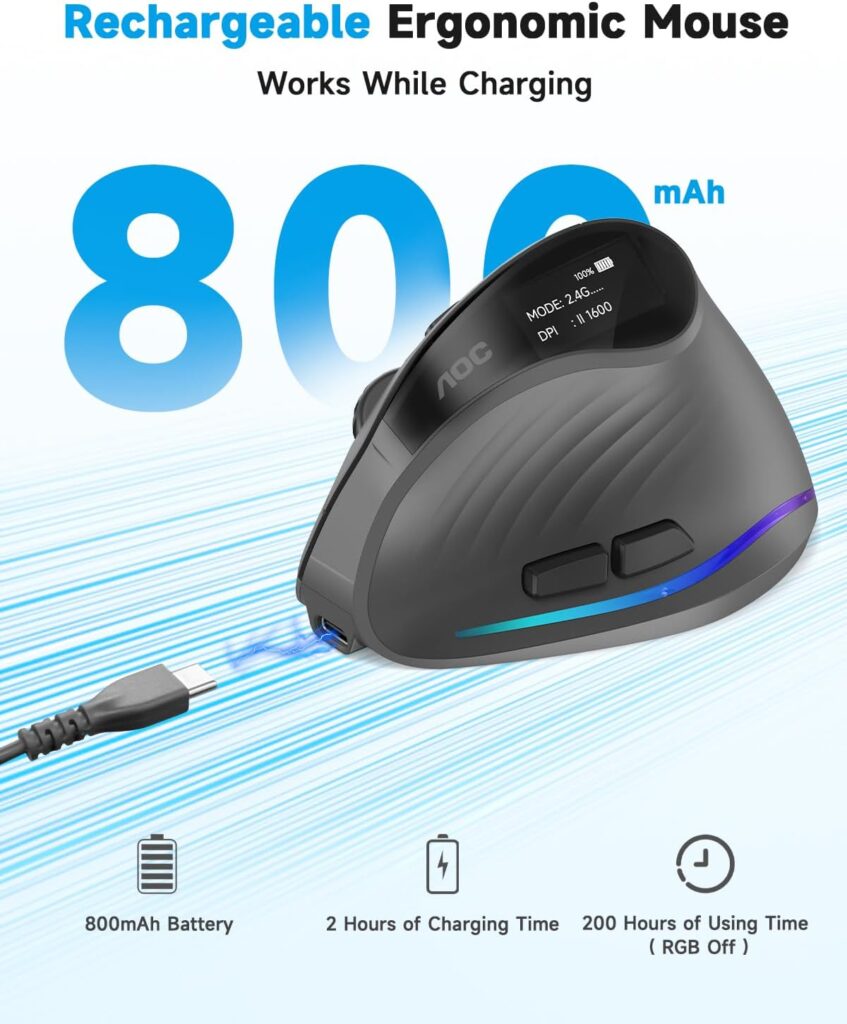
Quick Verdict: The AOC MS610 is the feature leader: Bluetooth 5.4, a 2.4GHz receiver and a wired mode, a battery-percentage display, programmable buttons and a stated 52° angle. It’s also the lightest vertical mouse here. The catch is a smaller review base and a hand-size limit.
Best For: Small to medium hands that want maximum connectivity options.
Key Specifications:
- Stated angle: 52°
- Connectivity: Bluetooth 5.4, 2.4GHz receiver or wired USB
- Power: 800mAh rechargeable; up to 200 hours without RGB and 40+ hours with RGB, per the listing
- DPI: five levels from 1000 to 4800
- Weight: 3.68 oz; listed size 4.33″ L × 2.91″ W
- Warranty: 12 months plus a 45-day return guarantee
What We Like:
- The wired mode lets you keep working while it charges.
- The lightest body here, which can reduce the effort of moving it.
- Left and right clicks are rated under 35 dB.
What We Don’t Like:
- AOC doesn’t recommend it for large hands.
- Only 258 reviews, so there’s less of a track record.
- Only the left and right buttons are quiet, and RGB and programming require an app.
Ergonomic Analysis: A 52° tilt is gentler than the 57° models, which may suit readers who find a steep angle awkward at first. Because brands measure angle differently, test it rather than assuming. Weight is a quiet advantage, since a lighter mouse helps you keep the light grip from Step 7.
Who Should Buy It? Small to medium hands that want wired and wireless flexibility.
Who Should Skip It? Large hands, or buyers who want a long warranty and a deep review history.
Value for Money: At about $30, you’re paying for features. If you won’t use the wired mode, programming or battery display, a cheaper model gets you the same grip.
🛒 Check Price on Amazon5. Anker 2.4G Wireless Vertical Mouse: Most Reviewed
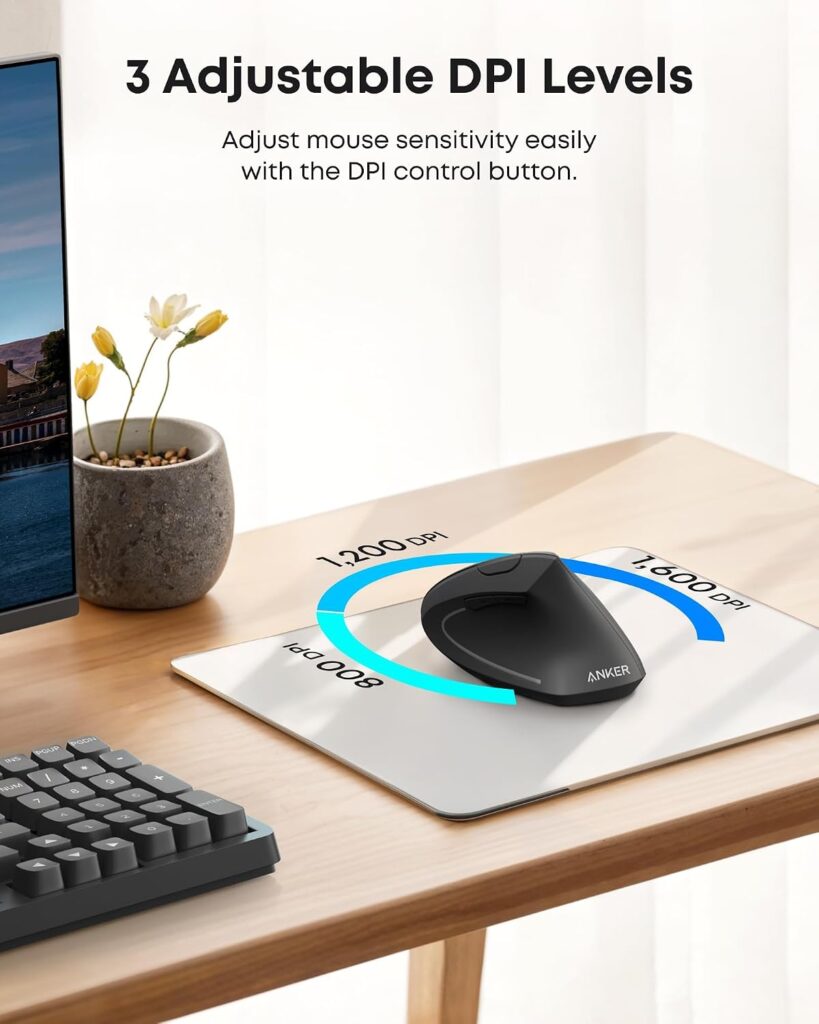
Quick Verdict: The Anker is a no-frills 2.4GHz vertical mouse with a very large customer base: over 53,000 ratings averaging 4.2. It’s simple and proven, though it lacks Bluetooth and rechargeable power.
Best For: Buyers who want a long-established, straightforward model.
Key Specifications:
- Connectivity: 2.4GHz USB receiver stored in the base (no Bluetooth); range about 5 m
- Power: two AAA batteries, not included
- DPI: 800, 1200 and 1600; five buttons
- Size: 120 × 62.8 × 74.8 mm
- Weight: the listing says 3.4 oz in the description and 4.5 oz in the specifications table
- Warranty: 18 months
What We Like:
- A huge review base makes it easy to read real-world feedback.
- The receiver stores in the base, which helps when you travel.
- A user manual PDF is available.
What We Don’t Like:
- Batteries aren’t included, and it needs a USB-A port.
- The listing notes that click sounds are unavoidable.
- The two weight figures disagree, so check the current listing.
Ergonomic Analysis: The listing describes a neutral handshake wrist and arm position but gives no angle. The compact 120 mm length suits mid-sized hands, though I’d confirm the fit using the hand-length measure from earlier.
Who Should Buy It? Readers who value an established track record over extra features.
Who Should Skip It? Anyone who wants Bluetooth, a rechargeable battery or a stated angle.
Value for Money: At about $30 it’s priced higher than the TECKNET and Redragon, which offer more connectivity, so you’re paying for the track record.
🛒 Check Price on Amazon6. Nulea M510: Simple AA Option
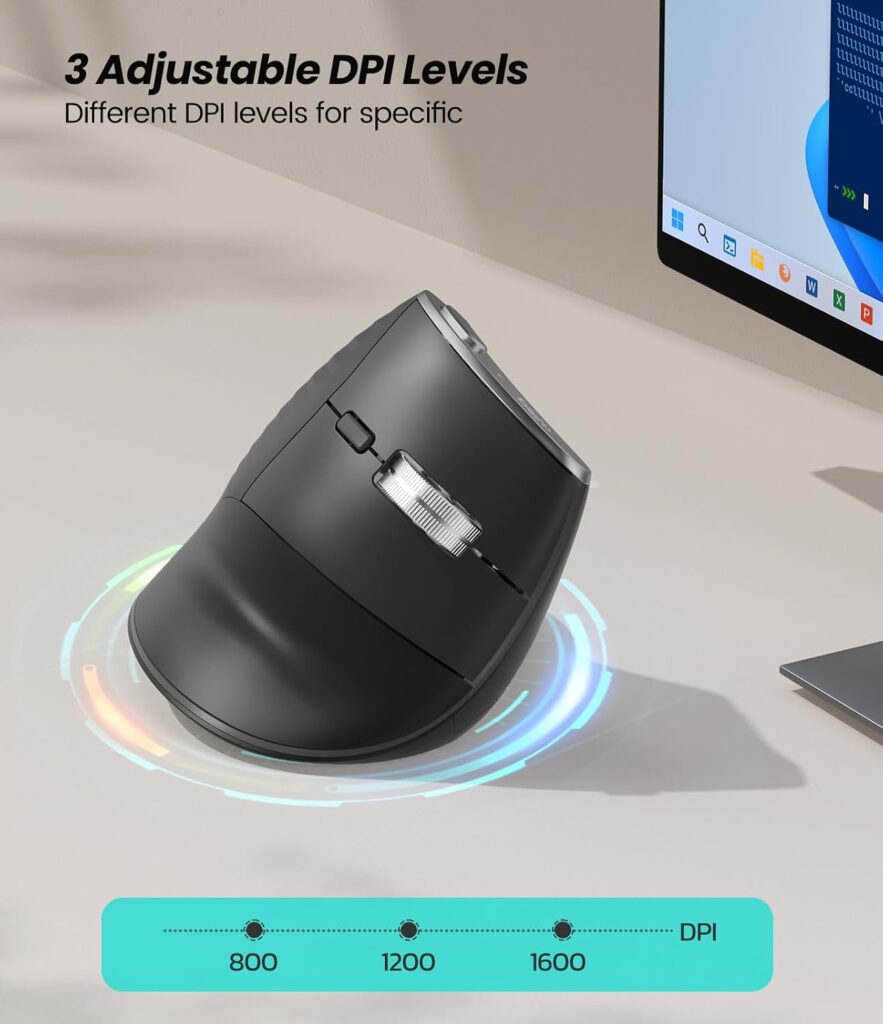
Quick Verdict: The Nulea M510 is a straightforward 2.4GHz vertical mouse with a stated 57° angle, a single AA battery and six buttons. It sits between the budget and mid-priced models and competes closely with the Anker.
Best For: Buyers who want a stated angle and common AA batteries without Bluetooth.
Key Specifications:
- Stated angle: 57°
- Connectivity: 2.4GHz USB receiver; range about 10 m
- Power: one AA battery, not included
- DPI: 800, 1200 and 1600; six buttons including a “back to desktop” key
- Weight: 5.3 oz
- Warranty: 12 months
What We Like:
- The angle is stated, so you know what you’re getting.
- AA batteries are easy to find.
- A metal scroll wheel and extra navigation buttons.
What We Don’t Like:
- The battery isn’t included, and the maximum is 1600 DPI.
- No Bluetooth, and the 12-month warranty is on the short side.
Ergonomic Analysis: Its 57° design matches the TECKNET’s stated angle, so the grip steps apply the same way. The extra navigation buttons can reduce reaching for keyboard shortcuts.
Who Should Buy It? Readers who prefer swappable AA batteries and a 2.4GHz-only mouse.
Who Should Skip It? Anyone who wants a rechargeable mouse or Bluetooth; the TECKNET offers both for less.
Value for Money: At about $26 it’s fair, but it’s close to the Anker in concept. The Anker has far more reviews, while the Nulea states its angle and costs a few dollars less on the listings I reviewed.
🛒 Check Price on Amazon7. Razer Orochi V2: Conventional Fallback (Not a Vertical Mouse)
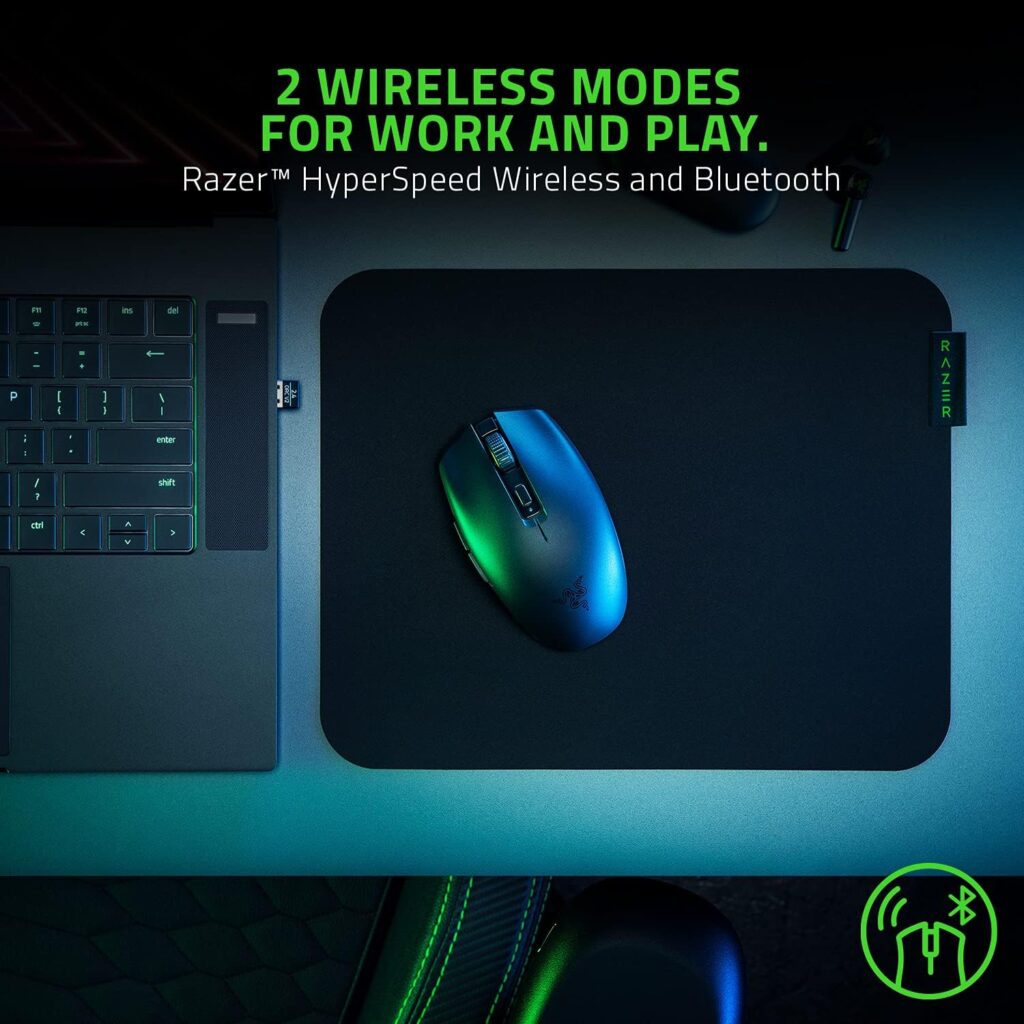
Quick Verdict: The Razer Orochi V2 is not a vertical mouse, and I’m including it for a different reason. If you try the handshake grip and decide it isn’t for you, a compact, light conventional mouse is a sensible fallback. It’s also a useful companion during the first week of adaptation.
Best For: Readers who want a small conventional mouse alongside, or instead of, a vertical one.
Key Specifications:
- Style: compact conventional mouse with a palm-down grip
- Connectivity: Razer HyperSpeed 2.4GHz and Bluetooth
- Power: one AA or AAA battery; listed up to 950 hours on Bluetooth and 425 hours on HyperSpeed
- DPI: the listing shows 18K DPI in its features and 16,000 in the specifications table
- Weight and size: 2.08 oz; 4.26″ L × 1.52″ W
- Warranty: 2 years
What We Like:
- Very light and portable.
- Very long listed battery life.
- Two wireless modes.
What We Don’t Like:
- No vertical angle, so it doesn’t deliver the handshake position.
- The small body may encourage a fingertip grip, depending on your hand.
- It’s marketed as a gaming mouse, and a high DPI figure isn’t a comfort feature.
Ergonomic Analysis: A flat mouse holds the forearm near full pronation, so it doesn’t address what vertical mice are designed to change. I’d treat this as a precision or travel tool, not an ergonomic upgrade.
Who Should Buy It? Readers who want a compact conventional mouse as a fallback or travel companion.
Who Should Skip It? Anyone buying specifically for a handshake grip.
Value for Money: About $30 is reasonable for a light, long-lasting wireless mouse, but it isn’t a vertical-mouse purchase.
🛒 Check Price on AmazonComparison Table: Grip-Relevant Specifications
| Product | Angle / Key Feature | Connectivity | Power | Weight | Listed Price | Amazon Rating |
|---|---|---|---|---|---|---|
| TECKNET TK-MS063 | 57°; quiet clicks | Bluetooth 5.3 + 2.4GHz (3 devices) | Rechargeable | 5.6 oz | $18.99 | 4.6 (1,190) |
| Redragon BM4235 | Angle not stated; hands up to 7.5 in | Bluetooth + 2.4GHz (3 devices) | Rechargeable (Type-C) | 5 oz | $21.99 | 4.6 (3,756) |
| Kensington K75575WW | Pinky ledge; Mid-Size and Full-Size | 2.4GHz nano receiver | 1 AA (included) | Not listed | $22.99 (Mid) / $39.99 (Full) | 4.1 (2,363) |
| AOC MS610 | 52°; quiet left/right clicks | Bluetooth 5.4 + 2.4GHz + wired | Rechargeable (Type-C) | 3.68 oz | $29.98 | 4.4 (258) |
| Anker 2.4G Vertical Mouse | Angle not stated; 120 × 62.8 × 74.8 mm | 2.4GHz receiver | 2 AAA (not included) | 4.5 oz (listing also says 3.4 oz) | $29.99 | 4.2 (53,488) |
| Nulea M510 | 57°; six buttons | 2.4GHz receiver | 1 AA (not included) | 5.3 oz | $25.99 | 4.4 (1,068) |
| Razer Orochi V2 | Conventional compact mouse (not vertical) | HyperSpeed 2.4GHz + Bluetooth | 1 AA or AAA | 2.08 oz | $29.99 | 4.4 (5,645) |
Which Vertical Mouse Should You Buy?
- Choose the TECKNET TK-MS063 if you want the best overall balance of price, rechargeable power and connectivity.
- Choose the Redragon BM4235 if your hands are small to medium and you want clear sizing guidance and a 2-year warranty.
- Choose the Kensington K75575WW if you have larger hands, or you aren’t sure of your size and want the option to pick.
- Choose the AOC MS610 if you have smaller hands and want wired, Bluetooth and 2.4GHz modes with a lightweight body.
- Choose the Anker if you’d rather rely on a model with a very large review history, and you don’t need Bluetooth.
- Choose the Nulea M510 if you want a stated 57° angle with a swappable AA battery.
- Choose the Razer Orochi V2 if you decide a vertical shape isn’t for you and want a compact conventional mouse.
Emily Richardson’s tip: When two mice look similar on paper, pick the one that fits your hand length, then check it against your desk. A product should complement your workspace instead of making you adapt around it.
Alternatives If a Vertical Mouse Doesn’t Work for You
- A trackball. It keeps your hand still and moves only your thumb or fingers. Our vertical mouse vs trackball comparison covers the trade-offs.
- A conventional low-profile mouse. If you’re weighing the two shapes, read ergonomic mouse vs regular mouse.
- A smaller vertical mouse. If the problem is size, the Redragon or AOC are the compact options in this list.
- Better desk setup. Sometimes the mouse isn’t the main issue. Height, distance and chair position often matter just as much.
Best Practices for Using a Vertical Mouse Day to Day
- Take short breaks from the mouse, stand up and change position. The evidence on break schedules is not clear-cut: a Cochrane protocol on work-break schedules notes that some studies report less perceived discomfort with more frequent or micro breaks, while objective findings are still scarce. Treat breaks as a sensible habit, not a guaranteed fix.
- Use keyboard shortcuts for repeat actions so you click less.
- Keep a light grip and relaxed shoulders, especially during long tasks.
- Recheck your setup after changing chairs, monitors or desks.
- Alternate hands occasionally if your setup allows it.
- Pair the mouse with other basics, such as proper chair support. Our guide on whether an ergonomic mouse helps wrist pain looks at what the evidence does and doesn’t say.
- See a healthcare professional if discomfort persists. A mouse can’t replace medical advice.
Frequently Asked Questions
How should you hold a vertical mouse?
Place your hand beside the mouse with your thumb pointing up, then slide it onto the mouse in a handshake position. Rest your thumb on the thumb ledge, let your fingers settle on the buttons, and keep your wrist straight. Rest the outer edge of your hand lightly on the desk and grip gently rather than squeezing.
What is the correct vertical mouse handshake position?
The handshake position is the posture you’d use to shake hands: thumb up, palm facing sideways. A vertical mouse holds your forearm closer to this position than a flat mouse, where the palm faces the desk. Your wrist, hand and forearm should line up without bending sideways or upwards.
Where should my wrist go when using a vertical mouse?
Keep your wrist straight, with the outer edge of your hand resting lightly on the desk or the mouse base. Avoid lifting the wrist or resting the heel of your palm on a thick pad that props it up. A floating wrist can increase wrist extension.
Which fingers go where on a vertical mouse?
Your thumb rests on the thumb ledge, your index and middle fingers rest on the left and right buttons, and your ring and little fingers rest against the side. On a model with a pinky ledge, such as the Kensington K75575WW, the little finger rests on that ledge. Don’t hold your fingers in the air above the buttons.
How long does it take to get used to a vertical mouse?
It varies by person. Redragon suggests allowing about two weeks, and in the Human Factors study the untrained group was slower on the alternative mouse than on a standard one. A sensible approach is to build up gradually, using it for lighter tasks first. If you feel pain, stop and speak to a healthcare professional.
Is a vertical mouse good for long hours?
It may feel more comfortable for some people because it reduces forearm rotation, but it isn’t automatically better. A 2015 literature review in the journal Work found inconsistent results across studies for some alternative pointing devices and said it is unclear whether many existing designs are effective. Fit, grip and desk setup matter, and so do regular breaks, whichever mouse you use.
Why does my hand feel awkward or sore with a vertical mouse?
The most common causes are a floating wrist, a tight grip, a mouse that’s too big or small for your hand, or a mouse placed too far away. Run through the common mistakes above first. If discomfort continues or you feel numbness or tingling, stop using it and speak to a healthcare professional.
Can a vertical mouse help with wrist pain or carpal tunnel?
I can’t promise that. A vertical mouse may help some people by reducing forearm twisting, but it is an ergonomic accessory, not a medical treatment. Our evidence review on ergonomic mice and wrist pain covers the research. For persistent or severe symptoms, see a healthcare professional.
How far should a vertical mouse be from the keyboard?
Keep it close, right beside the keyboard, so your upper arm stays near your body and your wrist remains straight. OSHA recommends keeping the pointing device close to the keyboard. If you use a full-size keyboard with a number pad, a more compact keyboard can bring the mouse closer.
Can left-handed people use a vertical mouse?
Yes, but you need a left-handed model. Every mouse I reviewed here is listed as right-handed. Some manufacturers sell left-handed vertical mice, so check the listing’s hand orientation before you buy.
Final Verdict
If you want a low-risk way to try the handshake grip, start with the TECKNET TK-MS063. It has the best overall mix of price, rechargeable power, connectivity and warranty, and a stated 57° angle.
If your hands are small to medium and you want clearer sizing guidance, the Redragon BM4235 is the better fit. If your hands are larger, or you can’t tell which size you need, the Kensington K75575WW is the one to look at because it comes in two sizes. The AOC MS610 makes sense if you want the most connection options in a light body and your hands aren’t large.
Whichever you choose, most of the benefit comes from how you hold it: set up the desk, approach the mouse from the side, support the outer edge of your hand, grip lightly and give yourself about two weeks. If it still doesn’t feel right, a compact conventional mouse like the Razer Orochi V2 is a reasonable fallback, and a desk adjustment may help more than a new mouse.