Ergonomic Mouse Setup: How to Position Your Mouse for a Comfortable, Neutral Wrist
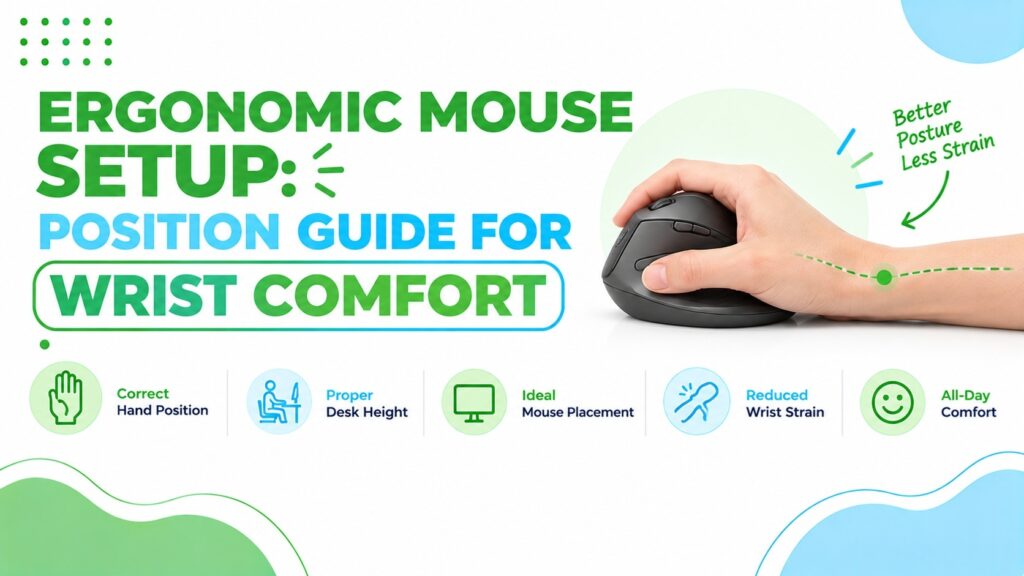
Most wrist discomfort at a desk does not start with the mouse alone. It starts with the whole arrangement: a desk that is too high, a mouse that sits too far away, a pad pushed to the wrong spot, and a hand that never gets to rest in a straight line.
I see this often in home offices. Someone buys a new ergonomic mouse, keeps the same awkward layout, and feels only a small difference. A good device placed badly can still leave your shoulder lifted and your wrist bent.
Research insight: A Cochrane systematic review (2018 update) of randomised trials in office workers described the evidence for ergonomic interventions as unclear, and reported inconsistent evidence for arm supports and alternative mouse designs.
What this means: no one can honestly promise that a particular mouse or desk change will prevent pain. Workplace guidance from OSHA and CCOHS still points toward neutral wrist posture and varied working positions, so I treat setup as the first step and a new mouse as an optional second step.
Practical example: if your shoulder aches by mid-afternoon, check your reach distance and desk height before blaming the mouse model.
This guide starts with positioning, because it costs nothing and it applies to every mouse. After that, I cover how to choose a mouse that suits your hand, and I compare seven options from the Amazon listings. If you want the evidence behind ergonomic mice first, read our guide on whether an ergonomic mouse really helps wrist pain.
A note on health: ergonomic changes may improve comfort and posture, but they are not medical treatment. If you have persistent, severe or worsening pain, numbness or tingling, please speak to a qualified healthcare professional.
⚡ Quick Answer: The Best Ergonomic Mouse Setup
Short answer: place the mouse at elbow height or just below it, directly beside the keyboard, so your forearm stays straight and your elbow stays close to your body. Keep the wrist in line with the forearm, hold the mouse lightly, and set the pointer speed so small movements cross the screen. If the mouse itself forces your hand into an awkward angle, a vertical mouse or trackball may fit better. Prices below are the listed Amazon prices at the time of writing and can change.


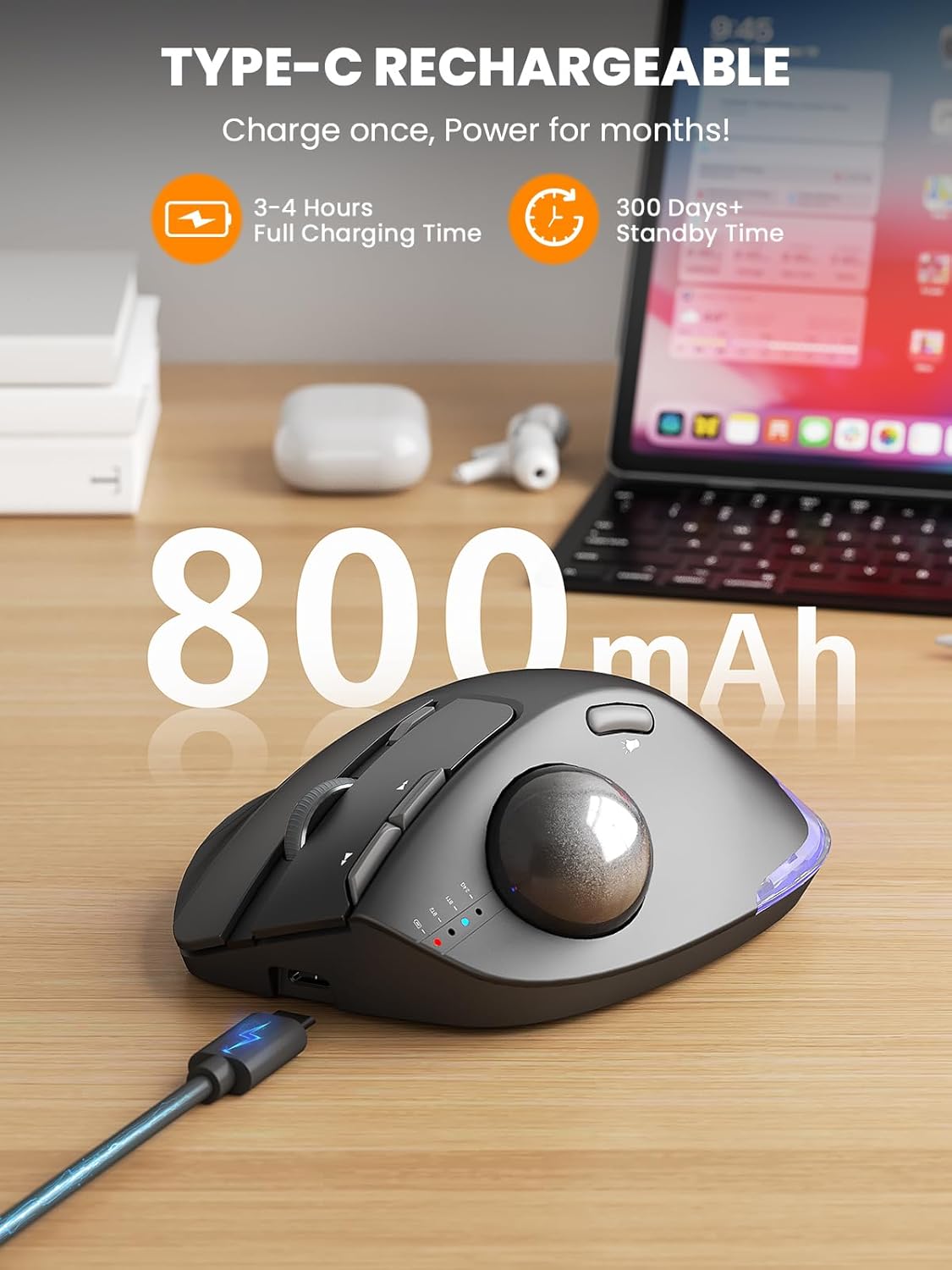
Quick Verdict Table
| Product | Best For | Main Strength | Main Limitation | Rating | Link |
|---|---|---|---|---|---|
| Uineer A9 Vertical | Budget first-time vertical users | Light, tri-mode wireless, low price | Hand-size guidance and some specs are unclear | 4.4/5 | Check Price |
| J-Tech Digital V638 | A mild angle with palm support | Removable palm rest, familiar shape | Less upright than a true vertical mouse | 4.0/5 | Check Price |
| Logitech G502 HERO | Keeping a conventional mouse | Build quality, adjustable weights, many buttons | Not designed for forearm or wrist comfort | 3.6/5 | Check Price |
| E-YOOSO X-31 | Large hands on a tight budget | Full-size body with finger rests | Standard flat posture, no vertical angle | 3.8/5 | Check Price |
| DELUX M618PLUS | Large hands wanting a vertical mouse | Full-size vertical shape, removable wrist rest | Wired and fairly heavy at about 7.4 oz | 4.2/5 | Check Price |
| TECKNET TK-MS007 | Most people trying a vertical mouse | Published dimensions, 3-device wireless, USB-C | Medium-to-large hands only; some clicks are audible | 4.4/5 | Check Price |
| SABLUTE MAM1 Pro | Small desks, limited reach | Stationary body, 0°/18° tilt | Heavy at about 12.6 oz; thumb-driven learning curve | 4.3/5 | Check Price |
The Ergonomic Mouse Setup Checklist (Step by Step)
An ergonomic mouse setup is a desk arrangement that keeps your wrist, forearm and shoulder close to a neutral position while you use the mouse. Work through these steps in order, because each one affects the next.
Step 1: Set Your Chair and Desk Height First
Everything else depends on where your elbow sits. OSHA’s computer workstation guidance describes a neutral working posture with hands, wrists and forearms straight, in line and roughly parallel to the floor, shoulders relaxed and elbows bent between 90 and 120 degrees.
Sit back in your chair, let your upper arms hang naturally, and bend your elbows. That is your target height. If your desk is higher than your elbow, raise the chair and use a footrest if your feet no longer reach the floor.
Step 2: Get the Mouse Height Right
For a good ergonomic mouse height, aim for the mouse to sit at elbow height or slightly below, on the same level as the keyboard. A university ergonomics guide, Boston University’s environmental health and safety page, recommends placing the mouse just below elbow height, on a keyboard tray or next to the keyboard.
If the mouse sits higher than your elbow, your shoulder tends to lift and your wrist tends to bend upward. A mouse that is too low pulls the shoulder forward. Neither feels dramatic for ten minutes, but both add up over a long day.
Step 3: Keep the Mouse Close to the Keyboard
This is the proper mouse position on the desk: directly beside the keyboard, not out at arm’s length. OSHA’s pointer and mouse guidance lists keeping the pointer close to the keyboard as a first quick tip, because reaching away from your body stresses the shoulder and arm.
Here is a simple reach test:
- Rest your hands on the keyboard.
- Slide your mouse hand across to the mouse without moving your elbow far from your side.
- If your elbow flares out or your shoulder rises, move the mouse closer.
A compact or tenkeyless keyboard can help, since removing the number pad brings the mouse several centimetres closer to your body.
Step 4: Place the Mouse Pad Correctly
The mouse pad position that suits your wrist is flat, level with the keyboard, and close enough that your forearm can move the mouse without stretching. Keep the pad away from the desk edge, so your forearm is supported by the desk surface rather than hanging off a sharp edge.
A few practical points:
- Choose a pad that fits your desk. An oversized pad that overlaps the keyboard tray or desk edge tends to push the mouse out of position.
- Keep your wrist off hard edges. Set the pad far enough back that your wrist is not resting on the desk edge.
- Check your wrist angle from the side. Your hand should stay level with your forearm, not tilted upward.
- Treat any rest as support for the heel of the hand. OSHA notes that a mouse pad with a wrist or palm rest can promote a neutral wrist posture, but the evidence and advice on wrist rests are not one-sided, as the next callout explains.
Research insight: The Canadian Centre for Occupational Health and Safety (CCOHS) describes wrist rests as debated. It says that leaning the wrists on a rest or desk edge for long periods can put pressure on the carpal tunnel area and restrict blood flow, while also noting evidence that wrist rests can ease tension in the neck and shoulders. Its advice, drawing on OSHA, is to choose a soft, rounded support at least 3.8 cm (1.5 in) deep and to let the pad touch the heel or palm of the hand, not the wrist. Separately, a laboratory study of 21 people with carpal tunnel syndrome, published in Applied Ergonomics, found that a gel mouse pad and a gliding palm support decreased wrist extension, yet none of the ergonomic devices tested reduced carpal tunnel pressure.
What this means: a pad or rest can change your wrist angle, but that is not the same as showing it protects the nerve. A rest is optional. If you use one, make it soft, keep the pressure on the heel of your hand and avoid using it as a pivot.
Practical example: if you use a gel pad, look at your hand from the side. If your wrist sits in line with your forearm and the heel of your hand is on the pad, the setup is reasonable. If you have to lift or bend the wrist to move the mouse, move the mouse from your elbow instead.
Step 5: Align Your Wrist and Forearm
Your hand, wrist and forearm should form a roughly straight line. Watch for two common deviations:
- Wrist extension: the back of your hand tilts upward, often because the mouse is too tall or the desk is too high.
- Ulnar deviation: your wrist bends toward the little finger, often because the mouse sits too far to the side.
Look at your arm from above. If you see a visible bend at the wrist, adjust the mouse position before changing anything else.
Step 6: Tune Pointer Speed and Grip
A mouse that is too slow forces large arm movements. OSHA advises that the pointer should be able to cover the full screen while the wrist stays straight and neutral, and that most devices let you adjust sensitivity in the system settings. The same page also advises avoiding a tight grip.
Raise the pointer speed until a small movement reaches the screen edges, while still being accurate enough for clicking small targets. Then relax your fingers. You should be resting your hand on the mouse, not clamping it. CCOHS gives the same advice in its mouse selection and use fact sheet: hold the mouse loosely, keep the forearm, wrist and fingers in a straight line, and move the mouse from the elbow rather than only the wrist.
Step 7: Alternate Hands and Vary Your Position
OSHA’s quick tips include alternating the hand you use for the mouse. Not everyone can do this for precision work, but even switching for light browsing may reduce repetitive load on one arm. Also change your sitting position, and stand up for a short break at regular intervals.
When the Mouse Itself Is the Problem
You can do everything above and still feel strain if the mouse shape forces your forearm to rotate with the palm facing down. This rotation is called pronation, and a standard flat mouse requires it.
Research insight: A CDC-hosted study, Evaluation of flat, angled, and vertical computer mice and their effects on wrist posture, found that all of the angled and vertical concept mice reduced forearm pronation compared with a flat mouse. The fully vertical design reduced pronation but had the poorest pointing performance.
What this means: a tilted or vertical mouse changes how your forearm sits, but a steeper angle is not automatically better. Accuracy and comfort both matter.
Practical example: if you do detailed work such as spreadsheets or photo editing, a moderate angle may suit you better than the most upright shape.
Research insight: Another CDC-hosted study on an alternative mouse and training reported lower forearm pronation with the alternative mouse (up to 11.5 degrees lower), and that pronation fell further when participants were given instructions on how to hold it. Wrist extensor muscle activity was also lower with the alternative mouse.
What this means: how you hold the mouse matters as well as which mouse you own. Our guide on how to hold a vertical mouse correctly covers the grip in detail.
Mixed findings to be aware of: one study of slanted mouse angles found that larger slant angles produced greater wrist extension and higher activity in a forearm extensor muscle. The carpal tunnel evidence is mixed as well. In the peer-reviewed study of 21 people with carpal tunnel syndrome mentioned above, a vertical mouse significantly reduced ulnar deviation, but none of the devices tested reduced carpal tunnel pressure. The authors did not endorse a strong recommendation for or against any of them and noted that device choice remains a matter of personal preference.
What this means: changing wrist position and lowering pressure inside the carpal tunnel are different outcomes, and a device can do the first without clearly doing the second. I would not treat any mouse as a guaranteed fix. These studies looked at design types, not the specific models listed below, so none of them show that a particular product will work for you.
How to Choose an Ergonomic Mouse (Buying Guide)
Once your desk is set up, these are the factors I would check before buying.
- Hand size. Fit matters more than any feature. CCOHS advises choosing a mouse that supports the natural curve of your hand, and notes that a larger mouse that still fits in the palm helps you use the larger arm muscles rather than the smaller wrist muscles. Measure from your wrist crease to your middle fingertip. The DELUX listing, for example, recommends hand lengths of 170–190 mm (6.7–7.5 in) for its design.
- Shape and angle. A flat mouse requires pronation. A handshake or vertical shape is designed to reduce it, at the cost of a learning curve. CCOHS lists vertical mice among the designs that keep the hand and wrist in a neutral handshake position, and recommends trying different models to see which suits you.
- Weight. Heavier mice need more effort to move, but can feel steadier. In this set, weights run from roughly 3.2 oz to 12.6 oz.
- Connectivity. Bluetooth, a 2.4 GHz USB receiver, or a cable. Wired designs avoid battery charging but add a cable to manage.
- Pointer speed (DPI). Adjustable DPI lets you shorten your hand movements. Look for at least a few steps between 800 and 3200.
- Button placement and noise. Side buttons help web navigation, and quiet clicks suit shared spaces. Check the compatibility with macOS, because several listings say side buttons or drivers do not work on Mac.
- Palm support. A removable palm or wrist rest can reduce drag, but it can also encourage pivoting. Decide whether you will use it.
- Return policy and warranty. An adaptation period is normal, so a clear return window and warranty are useful.
Ergonomic Mouse Reviews: 7 Options Compared
At ErgoFixes, our product evaluations combine manufacturer specifications, verified retailer and Amazon listing data, customer feedback, review patterns, and ergonomic design analysis. We assess products across factors such as comfort, adjustability, materials, functionality, durability, and overall value, using multiple sources to provide a balanced and practical recommendation.
1. Uineer A9 Ergonomic Wireless Vertical Mouse
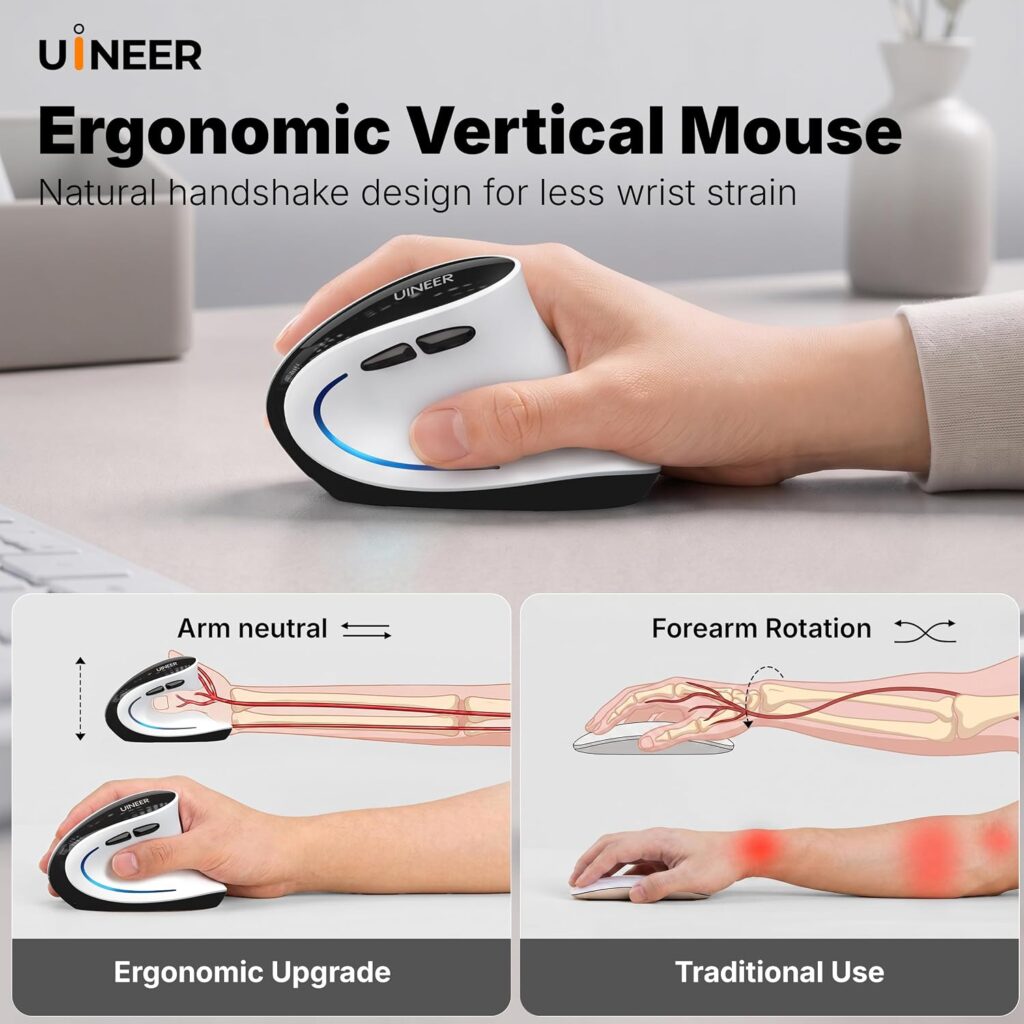
Quick Verdict: The Uineer A9 is a lightweight, low-priced vertical mouse with Bluetooth, 2.4 GHz and three-device switching. It suits people who want to try a vertical shape without spending much. The listing leaves some details unclear, so read it carefully before buying.
Best For: Budget-conscious users trying a vertical mouse for the first time.
Key Specifications:
- Type: right-handed vertical mouse
- Connectivity: Bluetooth 5.0, Bluetooth 4.0 and 2.4 GHz USB-A receiver, with three-device switching
- DPI: four levels, 800 / 1600 / 2400 / 3200 (listed in the description)
- Battery: 500 mAh rechargeable, Type-C charging in about two hours (per the listing)
- Weight: 105 g in the description; the spec table shows 3.2 oz
- Extras: silent left and right buttons, side scroll wheel, forward and back buttons, RGB lighting
- Listed price: $22.99, 4.4 stars from 508 ratings
What We Like:
- Very light, which keeps arm effort low.
- Tri-mode wireless is useful for switching between a laptop and a tablet.
- Quiet main buttons suit shared offices.
What We Don’t Like:
- The listing does not state dimensions or recommended hand size, which makes fit harder to judge.
- Some specifications conflict (for example, the maximum DPI and the battery type differ between sections), so check the current listing.
- Fewer ratings than most other options here.
Ergonomic Analysis: A vertical shape is designed to turn the hand toward a handshake position, which reduces the palm-down rotation of a flat mouse. Light weight helps because less force is needed to move it. As the listing itself says, expect one to two weeks to adapt.
Who Should Buy It: People who want the lowest-risk way to try a vertical mouse.
Who Should Skip It: Anyone who needs published size guidance, or who prefers a larger body.
Value for Money: Good, provided the size works for your hand.
🛒 Check Price on Amazon2. J-Tech Digital V638 Ergonomic Wireless Mouse
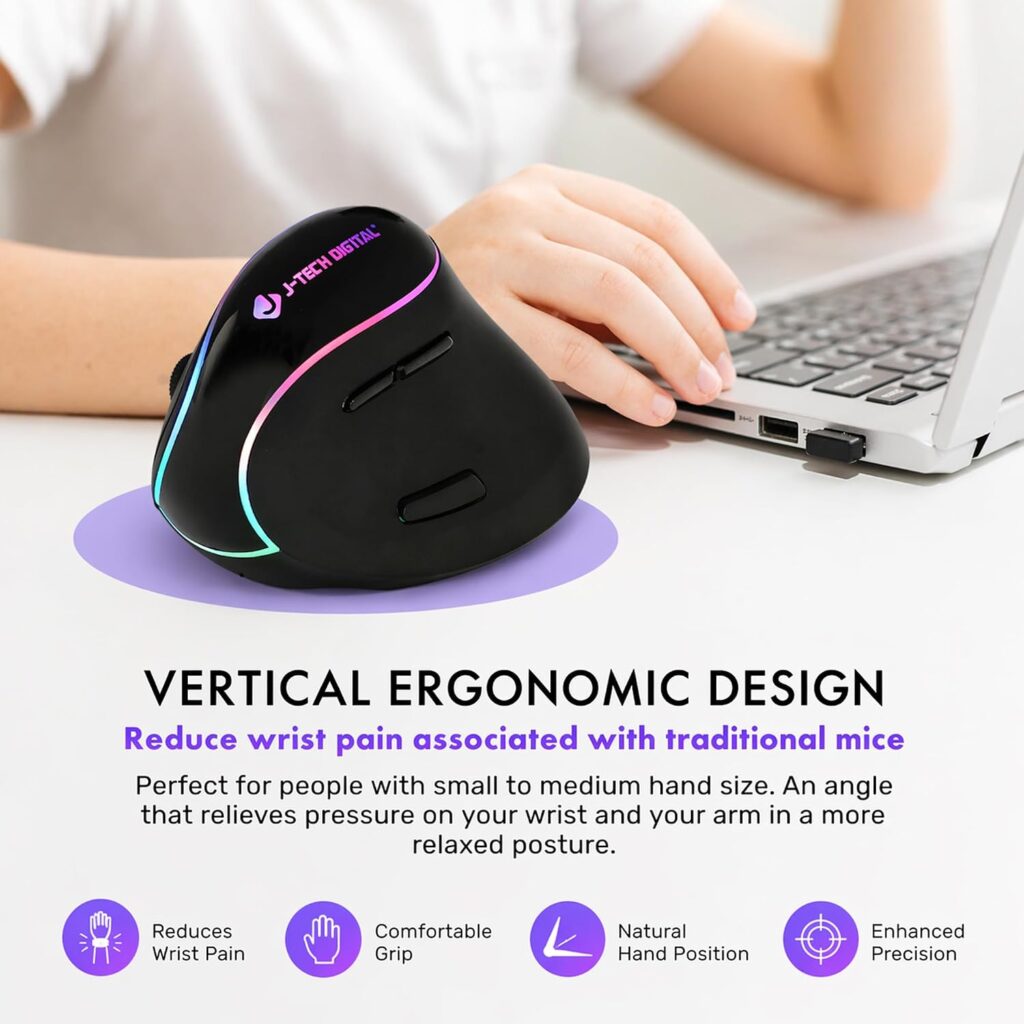
Quick Verdict: The J-Tech Digital V638 uses a handshake-style shape with a removable palm rest. It is a gentler change from a standard mouse than a fully upright design, and it has the largest review base among the vertical-style mice here (3,185 ratings).
Best For: People who want a moderate angle and a palm rest at a low price.
Key Specifications:
- Type: right-handed handshake-style ergonomic mouse
- Connectivity: wireless via USB receiver (a wired version is also sold)
- DPI: 800 / 1200 / 1600 / 3200
- Buttons: six, including back and forward thumb buttons
- Size: 5.83 in L x 3.74 in W
- Battery: built-in rechargeable lithium battery
- Warranty: one year, per the listing
- Listed price: $23.36, 4.0 stars from 3,185 ratings
What We Like:
- The removable palm rest suits different hand sizes and preferences.
- Thumb buttons can be reassigned through third-party software, per the listing.
- A wired variant exists for people who prefer no battery.
What We Don’t Like:
- It is less upright than a true vertical mouse, so the pronation reduction may be smaller.
- No Bluetooth is listed for the wireless version.
- The weight figure in the listing looks unreliable, so I would not rely on it.
Ergonomic Analysis: The handshake angle is designed to rotate the forearm part of the way toward neutral. The palm rest can reduce friction, but as discussed in the setup steps, keep moving from the elbow rather than pivoting on it.
Who Should Buy It: Users who find fully vertical mice too strange.
Who Should Skip It: Anyone who wants Bluetooth, or who needs the strongest forearm rotation.
Value for Money: Fair to good. The price is low, but the 4.0 rating is the lowest of the ergonomic designs here.
🛒 Check Price on Amazon3. Logitech G502 HERO Wired Gaming Mouse

Quick Verdict: The Logitech G502 HERO is not an ergonomic mouse. I include it because many readers already own a conventional mouse and want to know whether setup changes alone are enough. It is well built and highly adjustable, but it does nothing special for forearm rotation.
Best For: People who want to keep a conventional shape and focus on desk setup first.
Key Specifications:
- Type: wired conventional gaming mouse, right-handed
- Sensor: HERO, up to 25,600 DPI
- Buttons: 11 programmable
- Weight: 4.3 oz, with adjustable weights (up to five 3.6 g weights)
- Listed price: $37.99, 4.6 stars from 58,761 ratings
What We Like:
- Excellent track record, with a very large review base.
- High DPI range makes it easy to shorten arm movements.
- Adjustable weights let you fine-tune the feel.
What We Don’t Like:
- It is designed for gaming performance, not for reducing pronation.
- Wired, which adds cable drag.
- Many programmable buttons are useful only if you need them.
Ergonomic Analysis: A conventional mouse like this keeps the hand palm-down. If you pair it with correct height, distance and a light grip, it can still work well for many people. If you feel forearm strain even with a good setup, a different shape may be the next step.
Who Should Buy It: Users who prefer a standard mouse and want a durable, adjustable one.
Who Should Skip It: Anyone shopping specifically for an ergonomic design.
Value for Money: Strong as a conventional mouse, weak as an ergonomic purchase.
🛒 Check Price on Amazon4. E-YOOSO X-31 Large Wireless Mouse
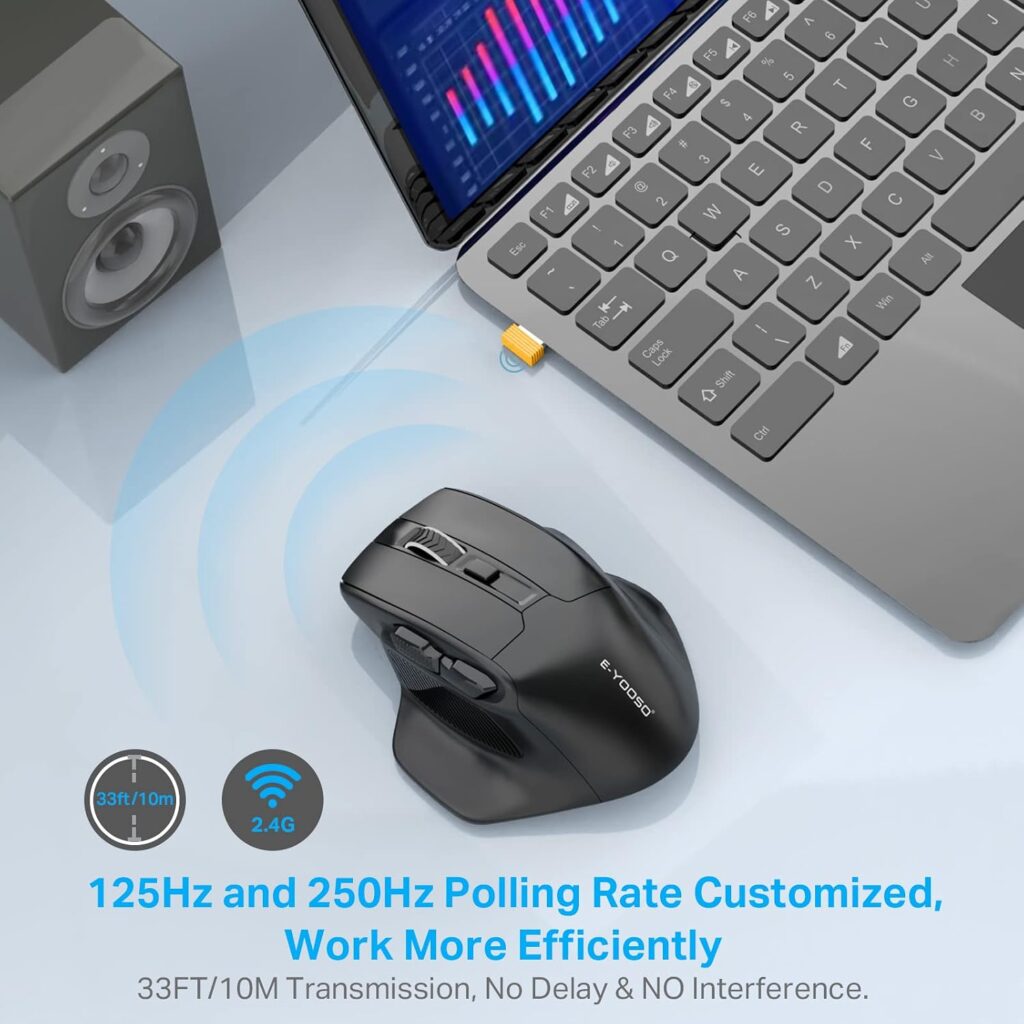
Quick Verdict: The E-YOOSO X-31 is a full-size, conventionally shaped mouse with finger rests, aimed at big hands. It is the cheapest mouse in this set. It does not change your forearm angle, so treat it as a fit upgrade rather than a posture change.
Best For: Large hands that cramp on small, compact mice.
Key Specifications:
- Type: right-handed full-size wireless mouse
- Connectivity: 2.4 GHz USB nano receiver (stores in the base)
- DPI: 800 / 1200 / 1600 / 2000 / 4800
- Size: 4.96 in L x 3.85 in W
- Weight: 5.9 oz, powered by one AA battery
- Listed price: $18.99, 4.3 stars from 2,283 ratings
What We Like:
- Large body and side finger rests suit bigger hands.
- Low price.
- Receiver storage makes it easy to carry.
What We Don’t Like:
- A conventional flat posture, so no reduction in pronation.
- Side buttons do not work on Mac, according to the listing.
- AA battery adds weight.
Ergonomic Analysis: Hand fit is an ergonomic factor in its own right. A larger body can reduce the tight claw grip that small mice sometimes cause, which supports the light-grip advice in Step 6.
Who Should Buy It: People with large hands who want an inexpensive, roomy mouse.
Who Should Skip It: Anyone looking for a vertical or angled design, or Mac users who need the side buttons.
Value for Money: Very good for the price, within its limits.
🛒 Check Price on Amazon5. DELUX M618PLUS Wired Ergonomic Vertical Mouse
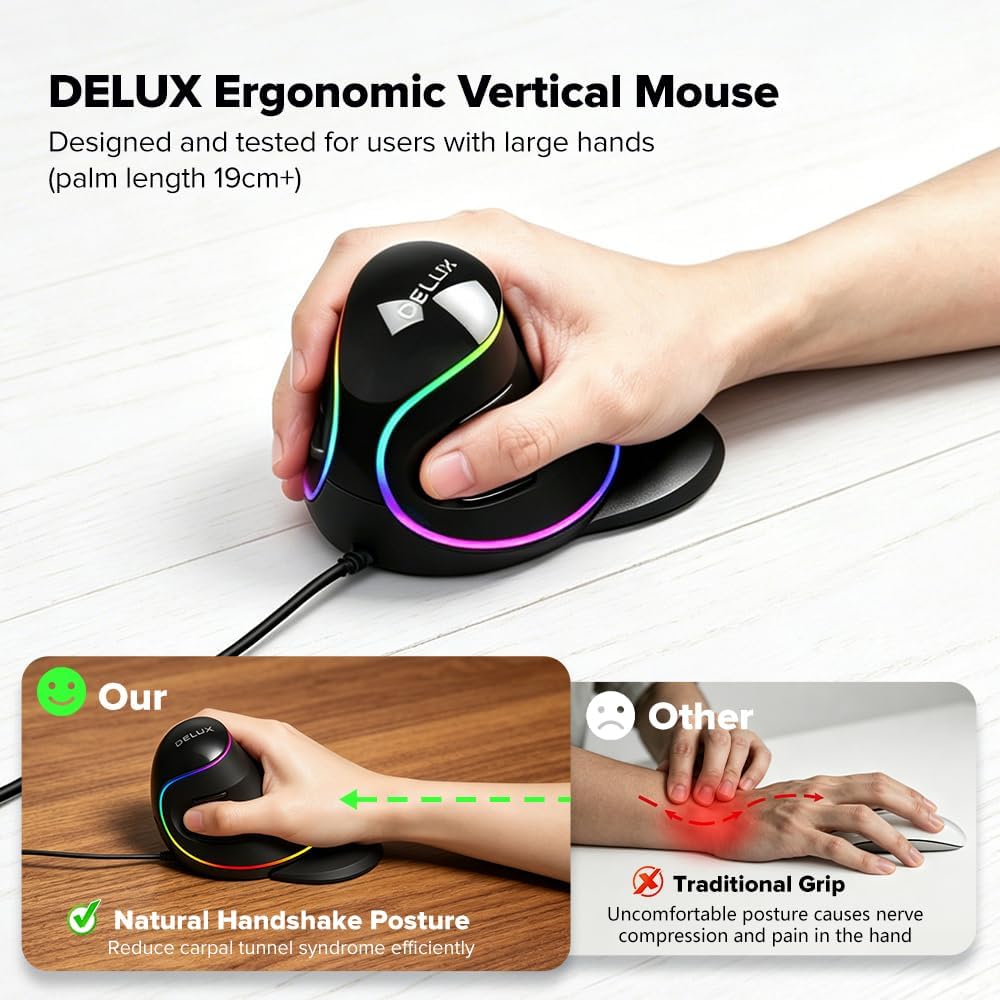
Quick Verdict: The DELUX M618PLUS is a full-size vertical mouse with a removable wrist rest, silent clicks and clear hand-size guidance for large hands. It is wired and heavier than most alternatives here.
Best For: Users with large hands who want a vertical mouse.
Key Specifications:
- Type: right-handed wired vertical mouse (wireless and Bluetooth variants are sold at higher prices)
- Recommended hand size: 170–190 mm length, 80–100 mm width (per the listing)
- Dimensions: 130.6 x 68.9 x 42.5 mm; weight 210 g (about 7.4 oz)
- DPI: six levels from 400 to 4000, up to 12,800 with the driver
- Cable: 1.6 m
- Extras: six programmable buttons, silent clicks, RGB lighting
- Warranty: one year; listed price $27.99 (RGB wired version), 4.3 stars from 3,390 ratings
What We Like:
- Specific hand-size guidance helps you decide before ordering.
- The removable wrist rest lifts the wrist off the desk.
- No batteries to charge.
What We Don’t Like:
- At about 7.4 oz, it is heavier than the other vertical mice here.
- The cable can restrict placement.
- Driver and side buttons are not available on Mac or iOS, per the listing.
- Not suited to small hands.
Ergonomic Analysis: A full-size vertical shape holds the hand in a handshake position. Because the body is larger, it should feel more supportive for bigger hands, whereas a small hand may need to stretch.
Who Should Buy It: Large-handed users who want a vertical mouse and do not mind a cable.
Who Should Skip It: Small or medium hands, travellers, and Mac users who rely on side buttons.
Value for Money: Good, and the wired design avoids battery upkeep.
🛒 Check Price on Amazon6. TECKNET TK-MS007 Wireless Vertical Mouse
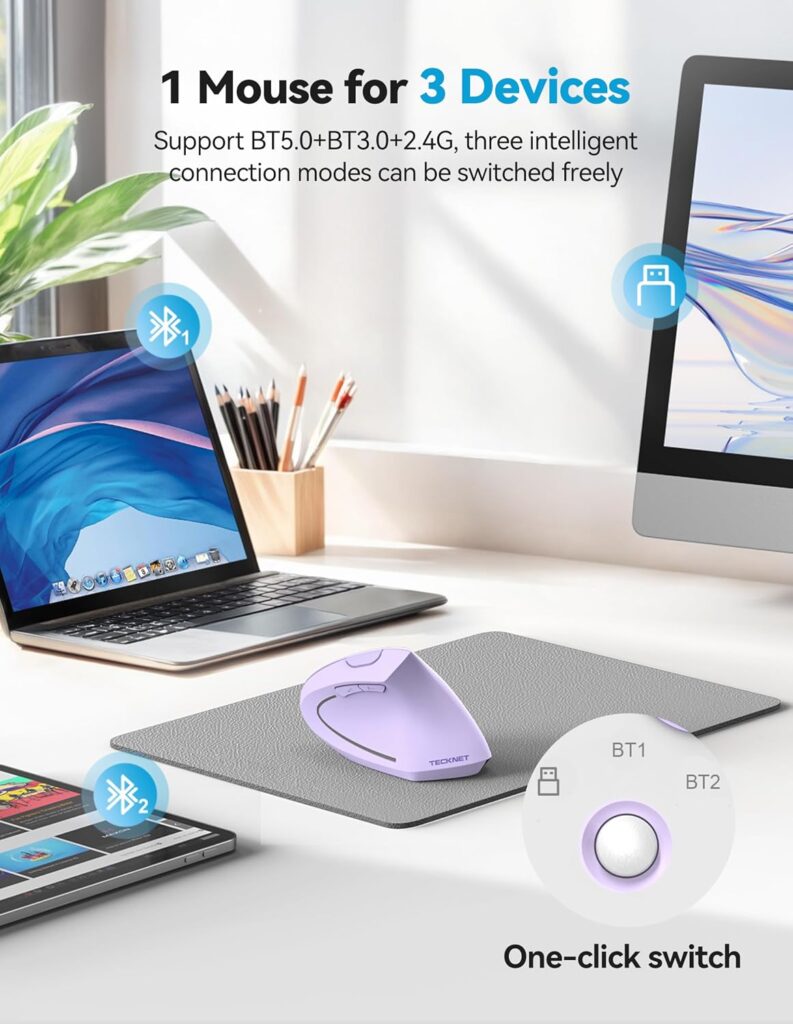
Quick Verdict: The TECKNET TK-MS007 is my pick for most people trying a vertical mouse. It publishes its size (4.73 x 2.96 x 2.48 in), says who it is meant for (medium to large right hands), and covers the connectivity most people need at a modest price.
Best For: Medium to large right hands that want a wireless vertical mouse.
Key Specifications:
- Type: right-handed wireless vertical mouse
- Connectivity: Bluetooth 5.0, Bluetooth 3.0 and 2.4 GHz USB-A receiver
- DPI: 800 to 4800 (six levels)
- Battery: rechargeable via USB-C; the listing mentions a 1.5-hour charge and one to two months of use
- Weight: 4.2 oz; seven buttons
- Support: 36 months for registered users, per the listing
- Listed price: $23.99 (colour dependent), 4.3 stars from 2,884 ratings
What We Like:
- Clear dimensions and a recommendation to measure your hand first.
- Three-device switching.
- Moderate weight with easy USB-C charging.
What We Don’t Like:
- Designed for medium to large hands, so small hands may find it a stretch.
- Only the left and right buttons are silent. Other buttons make audible clicks.
- Side buttons are not compatible with Mac, and buttons are not programmable.
Ergonomic Analysis: The upright design is meant to let the forearm rest closer to a neutral rotation. Honest hand-size guidance is itself useful, because a mouse that fits is easier to hold lightly.
Who Should Buy It: Anyone with medium to large hands who wants a well-rounded first vertical mouse.
Who Should Skip It: Small hands, left-handed users, and anyone who needs programmable buttons.
Value for Money: Good. It offers more connectivity and clearer specifications than its price suggests.
🛒 Check Price on Amazon7. SABLUTE MAM1 Pro Wireless Thumb Trackball
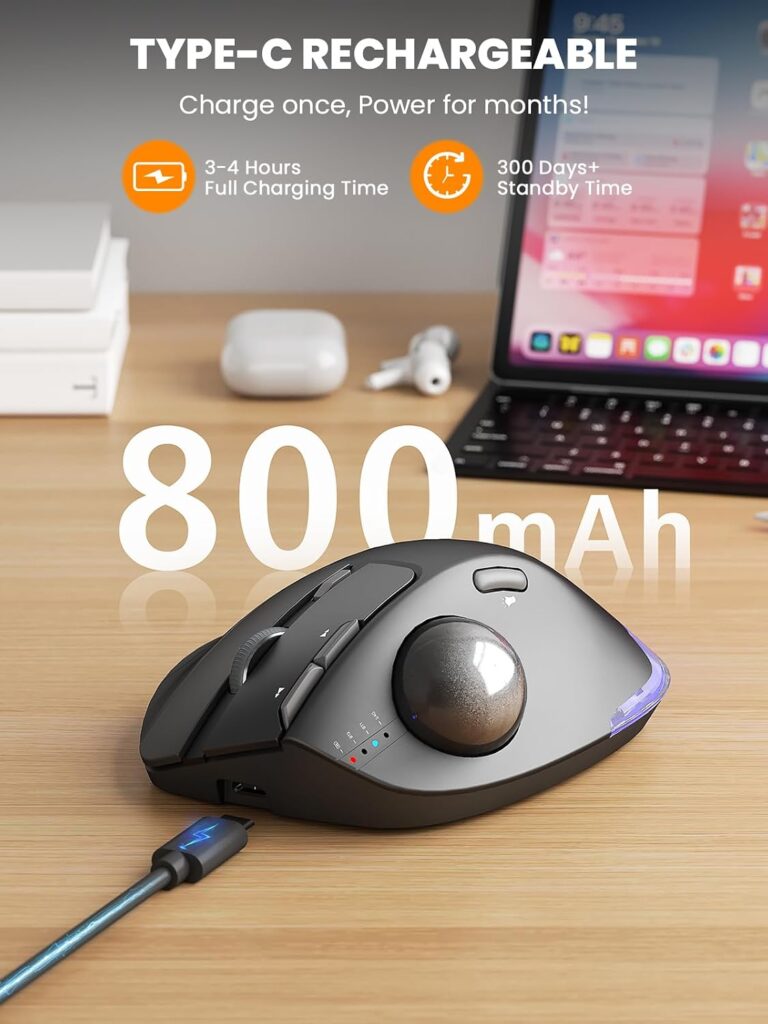
Quick Verdict: The SABLUTE MAM1 Pro keeps the mouse body still while your thumb moves the ball. That can help when desk space is limited or when large arm sweeps bother you. It is the heaviest and most expensive option here, and it takes time to learn.
Best For: Small desks, limited reach, and people who want less arm movement.
Key Specifications:
- Type: right-handed thumb trackball
- Angle: adjustable 0° or 18° tilt
- Connectivity: Bluetooth plus 2.4 GHz, with three-device switching
- DPI: five levels from 800 to 4800
- Battery: rechargeable via USB-C
- Size and weight: 5.36 in L x 3.94 in W; 12.6 oz
- Warranty: two years, per the listing
- Listed price: $39.99 (gray ball version), 4.4 stars from 641 ratings
What We Like:
- Cursor control without moving the arm, which suits cramped desks.
- The 18° tilt option offers a more natural hand angle.
- Quiet buttons and three-device pairing.
What We Don’t Like:
- Heavy for a pointing device, so it is not a travel choice.
- The listing suggests one to two weeks to adapt.
- The driver is not compatible with Mac.
- Thumb-only control suits some people, and may feel tiring for others.
Ergonomic Analysis: A stationary body removes the arm sweep that a mouse needs. It shifts effort to the thumb, which is a trade-off rather than a free benefit. Our ergonomic mouse buyer’s guide explains how trackballs differ from vertical mice. CCOHS also lists trackballs as useful in workstations with limited space, because only the ball moves.
Who Should Buy It: People with tight desks or reach limits who are willing to learn a new control style.
Who Should Skip It: Anyone who does fast, precise pointer work such as design, or who dislikes thumb control.
Value for Money: Fair. You pay more for a different control method, not simply for more features.
🛒 Check Price on AmazonComparison Table
| Product | Best For | Type | Key Ergonomic Feature | Weight | Connectivity | Rating |
|---|---|---|---|---|---|---|
| Uineer A9 | Budget first try | Vertical | Upright handshake grip | 105 g listed (spec table: 3.2 oz) | Bluetooth + 2.4 GHz | 4.4/5 |
| J-Tech Digital V638 | Mild angle + palm rest | Handshake | Removable palm rest | Not reliably listed | 2.4 GHz (or wired) | 4.0/5 |
| Logitech G502 HERO | Keeping a standard mouse | Conventional | Adjustable weights, wide DPI | 4.3 oz | Wired USB | 3.6/5 |
| E-YOOSO X-31 | Large hands, low price | Conventional (large) | Full-size body, finger rests | 5.9 oz | 2.4 GHz | 3.8/5 |
| DELUX M618PLUS | Large-hand vertical | Vertical | Full-size vertical shape, wrist rest | 7.4 oz (210 g) | Wired USB | 4.2/5 |
| TECKNET TK-MS007 | Most first-time vertical users | Vertical | Upright shape, published size | 4.2 oz | Bluetooth + 2.4 GHz | 4.4/5 |
| SABLUTE MAM1 Pro | Small desks, limited reach | Thumb trackball | Stationary body, 0°/18° tilt | 12.6 oz | Bluetooth + 2.4 GHz | 4.3/5 |
Which Mouse Should You Buy? (Decision Framework)
Choose the TECKNET TK-MS007 if you have medium to large hands and want the most balanced first vertical mouse.
Choose the Uineer A9 if you want the lowest-cost way to try a vertical shape and you are comfortable checking the listing details.
Choose the DELUX M618PLUS if you have large hands (roughly 170–190 mm hand length) and you do not mind a cable.
Choose the J-Tech Digital V638 if you want a mild angle and a palm rest rather than a steeply upright mouse.
Choose the SABLUTE MAM1 Pro if your desk is cramped or large arm movements bother you, and you are willing to learn thumb control.
Choose the E-YOOSO X-31 if your hands are large, your budget is small and you only need a better-fitting standard mouse.
Keep the Logitech G502 HERO if you already own it or prefer a conventional shape. Fix the setup first and see how you feel.
Common Ergonomic Mouse Setup Mistakes
- Placing the mouse too far away. A long reach lifts the shoulder and straightens the elbow, so keep the mouse next to the keyboard.
- Setting the desk too high. If your shoulders rise when you type or click, the desk or chair needs adjusting.
- Resting the wrist itself on a hard edge or rest. CCOHS advises that any rest should touch the heel or palm of the hand, not the wrist, and that the support should be soft and rounded.
- Pivoting from the wrist. CCOHS recommends moving the mouse from the elbow rather than only the wrist. Check that your hand stays level with your forearm.
- Buying the wrong size. Both too-small and too-large mice can encourage awkward grips. Measure your hand.
- Gripping tightly. Squeezing the mouse adds constant muscle effort. Let the hand rest.
- Leaving the pointer speed too low. A slow pointer needs bigger arm sweeps. Raise the speed until small movements work.
- Assuming “ergonomic” on a listing guarantees comfort. The word is a marketing term. The shape has to suit your hand and your desk.
Best Practices for a Comfortable Mouse Setup
- Set chair and desk height so your elbows sit between 90 and 120 degrees.
- Keep the mouse level with the keyboard, at or just below elbow height.
- Make sure your elbow stays close to your body when you reach for the mouse.
- Keep your wrist in line with your forearm. Avoid bending it up or toward the little finger.
- Use keyboard shortcuts for repeated actions to reduce the number of clicks.
- Alternate hands for lighter tasks when you can.
- Change position and take short movement breaks regularly.
- Give a new vertical or trackball mouse a one-to-two-week adjustment period.
- Stop and seek professional advice if you notice numbness, tingling or pain that does not ease.
Alternatives Worth Considering
- Smaller or lighter option: the Uineer A9 is the lightest here, but check that the size suits you.
- Budget alternative: the E-YOOSO X-31 is the cheapest, though it keeps a standard flat posture.
- Limited desk space: the SABLUTE MAM1 Pro keeps the body stationary.
- Wired and large hands: the DELUX M618PLUS avoids batteries.
- Want to learn more first? Our complete ergonomic mouse buyer’s guide explains the main designs before you spend money.
Frequently Asked Questions
What is the correct ergonomic mouse position on a desk?
Place the mouse directly beside the keyboard, at elbow height or slightly below, with your elbow close to your body. Your forearm, wrist and hand should form a roughly straight line. If you need to lift your shoulder or flare your elbow to reach it, move the mouse closer.
How high should a mouse be for ergonomic use?
A common guideline is for the mouse to sit at or just below elbow height, level with the keyboard. If the mouse is higher than your elbow, your shoulder may lift and your wrist may bend upward. Adjust your chair height first, then add a footrest if needed.
How far should the mouse be from the keyboard?
As close as is practical. OSHA’s guidance suggests keeping the pointing device close to the keyboard. A good check is to move your hand from the keyboard to the mouse without your elbow leaving your side. A compact or tenkeyless keyboard can bring the mouse closer.
Where should I put my mouse pad?
Put it flat on the desk, level with the keyboard and a little back from the desk edge, so your wrist is not resting on a hard edge. Check from the side that your wrist stays in line with your forearm. Make sure the pad is large enough for your movements but does not push the mouse out of position.
Should I use a wrist rest with a mouse?
Opinion is divided. OSHA notes that a pad with a wrist or palm rest can promote neutral wrist posture, while CCOHS warns that leaning the wrists on a rest or hard edge for long periods can press on the carpal tunnel area. If you use one, choose a soft, rounded support, rest the heel of your hand on it and move the mouse from your elbow.
Is a vertical mouse better for the wrist?
A vertical mouse is designed to reduce forearm pronation, and CDC-hosted research found that more upright and angled mice reduced pronation compared with a flat mouse. Evidence on pain or specific conditions is mixed. In one study of people with carpal tunnel syndrome, a vertical mouse reduced ulnar deviation but not carpal tunnel pressure. A steeper angle can also reduce pointing accuracy, so fit and comfort still matter.
How long does it take to get used to a vertical mouse?
Several listings in this guide suggest one to two weeks, and I think that is a reasonable expectation. Use the new mouse for light tasks first, keep your old mouse available, and follow a relaxed grip. If it still feels uncomfortable after a fair trial, use the return window.
Can a mouse setup fix wrist pain?
Not reliably, and I would not promise it. A better setup may reduce unnecessary strain and improve comfort, but a Cochrane review of office-worker trials found the evidence for ergonomic interventions unclear, and ergonomic products are not medical treatments. If you have persistent, severe or worsening pain, numbness or tingling, please consult a healthcare professional.
What mouse size should I choose for my hand?
Measure from your wrist crease to your middle fingertip, then compare with the listing. DELUX suggests 170–190 mm for its M618PLUS, and TECKNET describes its TK-MS007 as suited to medium to large hands. If a listing gives no size guidance, check the dimensions and the return policy.
Is a trackball a good option if my desk is small?
It can be. A trackball stays in place while your thumb moves the pointer, so it needs less desk room and less arm movement. The trade-offs are a learning curve and more work for the thumb. Try it for light tasks first.
Final Verdict
If you only change one thing, fix the setup: keep the mouse at elbow height or just below, close to the keyboard, with a straight wrist and a light grip. That costs nothing and applies to every mouse.
If you also want a mouse that changes your forearm angle, the TECKNET TK-MS007 is my overall pick for medium to large hands. The Uineer A9 is the cheaper way to try a vertical shape, as long as you check the details. The DELUX M618PLUS suits large hands and is worth considering if a cable does not bother you. Choose the SABLUTE MAM1 Pro when space or reach is the real problem.
And if none of these suits you, I would rather you keep your current mouse and improve your desk than buy something that does not fit.