Kensington Expert Trackball Mouse Review 2026: Is It Still the Best Kensington Trackball?
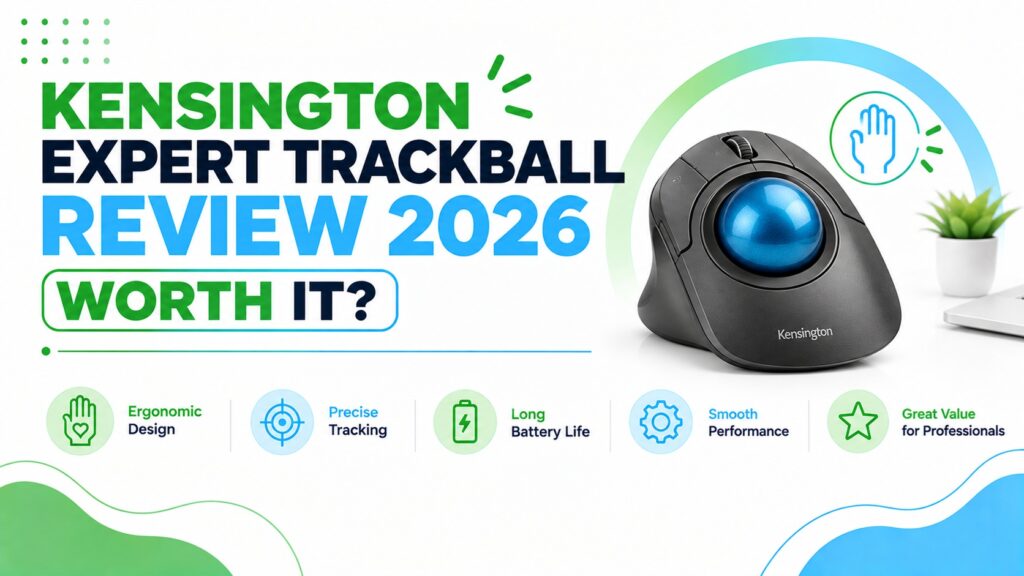
If your hand or wrist starts to ache after a long day of moving a regular mouse across the desk, a trackball can offer a different approach to cursor control by reducing the amount of arm movement required. Kensington has been making trackballs for decades, with options designed around different control styles, sizes, and desk setups. The Kensington Expert Wireless Trackball (K72359WW) is one of the brand’s established models, but it isn’t the only option worth considering.
In this guide, we compare Kensington’s current trackball options, including the Expert Wireless, Orbit models, thumb-operated TB450, and SlimBlade models. We look at the factors that matter for everyday use, including ball size, wrist support, connectivity, precision, and desk footprint, so you can identify which model best matches your preferences and workspace.
Quick Answer
🖱️Best Kensington Trackballs 2026
A short summary before we get into the detail, these are our picks based on ergonomic design, build quality and who each model actually suits.


Quick Verdict Table
| Product | Best For | Main Strength | Main Limitation | Rating | Link |
|---|---|---|---|---|---|
| Kensington Expert Wireless | All-round ergonomic use | Large ball + detachable wrist rest | Bulkier footprint, higher price | 4.2/5 | View price |
| Kensington Orbit Wireless | Everyday budget use | Compact scroll ring, low price | Small 40mm ball limits precision | 4.2/5 | View price |
| Kensington Orbit Wireless Black-Red | Amazon’s Choice buyers | Same Orbit design, top-selling color | Costs more than the Black-Grey listing | 4.2/5 | View price |
| Kensington Orbit Touch Scroll | Small to average hands | Smallest, lightest footprint | Only 2 buttons, basic feature set | 4.2/5 | View price |
| Kensington SlimBlade (Wired) | Zero-latency, low-profile use | Laser sensor, no wireless lag | Desk cable, older design | 4.3/5 | View price |
| Kensington SlimBlade Pro Wireless | Power users, multi-device setups | Rechargeable, dual sensors | Most expensive model here | 4.2/5 | View price |
| Kensington Pro Fit Ergo TB450 | Thumb-control preference, travel | 45° tilt, very lightweight | Right-hand orientation only | 4.3/5 | View price |
Buying Guide: What Actually Matters in a Trackball
Before comparing individual models, it helps to understand why a trackball changes how your hand works in the first place, and which specs are worth paying attention to.
Ball operation style: finger vs thumb
Kensington trackballs split into two control styles. Finger-operated models (Expert, Orbit, both SlimBlades) use a large ball you roll with your fingers while your palm rests on the device. Thumb-operated models (TB450) use a smaller ball worked with the thumb while the fingers rest on buttons. Finger operation tends to suit people who want a larger surface to roll their fingers across; thumb operation tends to feel closer to a conventional mouse grip, which can shorten the learning curve.
Wrist and forearm support
A trackball removes the need to slide your whole hand and arm across the desk, but it does not automatically put your wrist in a neutral position. Look for a detachable or built-in wrist rest, and check whether the device tilts the hand (like the TB450’s 45° angle) or keeps it flat (like the SlimBlade’s low-profile shape). Neither approach is objectively “correct”; it depends on which posture feels more natural for your hand.
What research actually shows: Ergonomics research generally describes the wrist’s neutral zone as roughly 5–7° of ulnar deviation and 7–9° of extension, and muscle activity within that zone can be substantially lower than in more deviated postures, according to a review of slanted mouse research published in Applied Ergonomics. Against that baseline, a commonly cited wrist posture study published on PubMed found that trackballs reduced ulnar deviation compared with a standard mouse, but tended to increase wrist extension instead, with considerable variation between individual users. A separate Applied Ergonomics study hosted by the CDC comparing four pointing devices found the trackball produced the greatest forearm muscle activity of the devices tested. What this means: none of this research tested a specific Kensington model, and a trackball is not a guaranteed fix for wrist pain; it trades one type of strain for another, and the right device genuinely depends on your hand and how you already sit at your desk. Practical example: if you notice your wrist bending upward (extension) rather than sideways while using a trackball, a wrist rest or a lower desk/hand position can help bring it back closer to that neutral zone. If you’re dealing with ongoing discomfort, it’s worth reading a broader comparison of ergonomic vs. regular mouse designs. before assuming any single device will solve it.
Ball size and sensor type
Ball sizes across this lineup range from 32mm (Orbit Touch Scroll) up to 55mm (Expert, SlimBlade, SlimBlade Pro). A bigger ball generally means more surface area to roll and can feel steadier for larger hands, but it also takes up more desk space. Sensor type matters too: optical sensors (Expert, Orbit, TB450) are the Kensington standard, while the SlimBlade uses a laser sensor, and the SlimBlade Pro uses dual sensors for more consistent tracking.
Connectivity and battery life
Most current Kensington trackballs offer both Bluetooth Low Energy and a 2.4GHz USB receiver, so you can typically connect to more than one device and switch between them. Battery life varies a lot by model, the TB450 is rated for up to 18 months on 2.4GHz, while the rechargeable SlimBlade Pro is rated closer to 4 months per charge. If you’d rather not think about batteries at all, the wired SlimBlade removes the question entirely.
Buttons and software customization
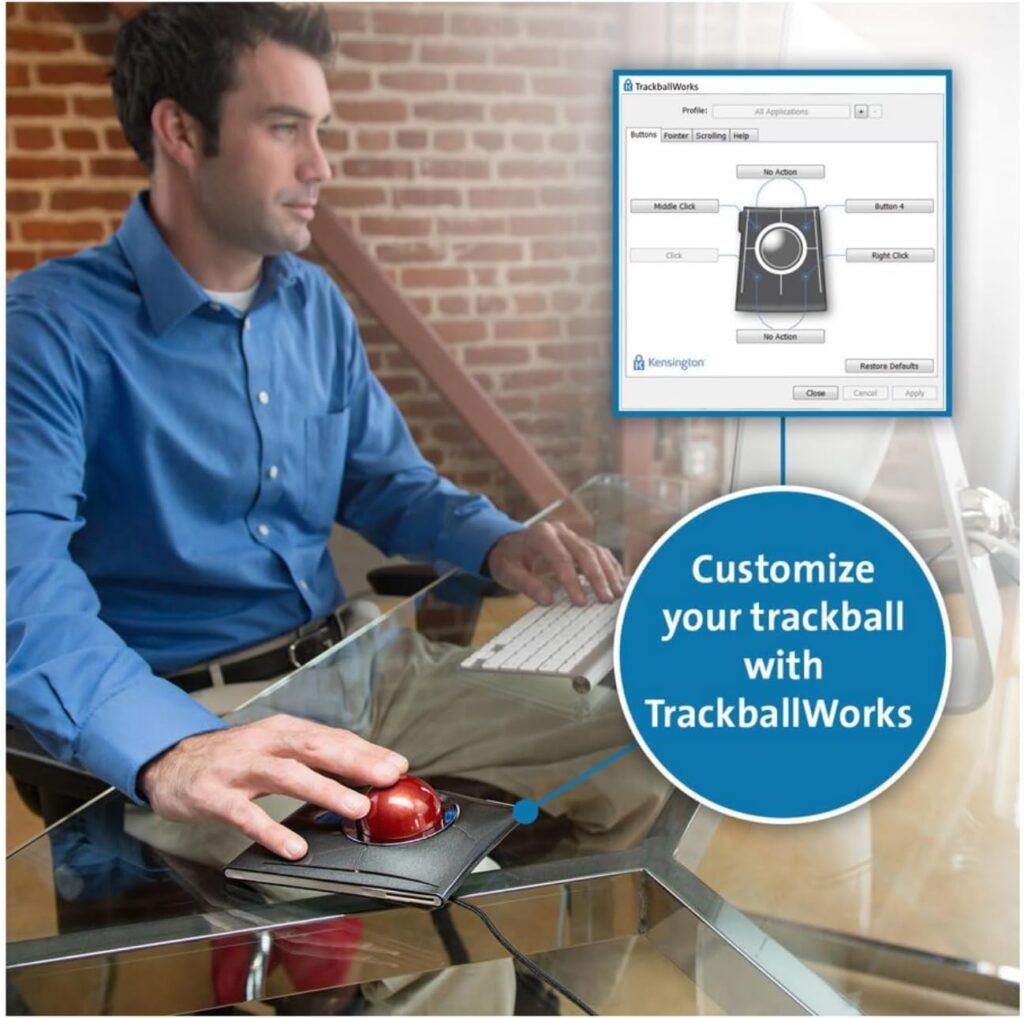
Button counts range from 2 (Orbit models) to 6 (TB450). All current models work with Kensington’s free KensingtonWorks or KensingtonKonnect software, which lets you remap buttons and adjust DPI and scroll speed, worth checking if you rely on custom shortcuts for work.
Desk space and portability
A trackball generally needs less desk space than a mouse because your hand doesn’t travel with it. Still, the larger 55mm-ball models (Expert, SlimBlade, SlimBlade Pro) are noticeably bigger objects than the compact Orbit or TB450 models, which matters if your desk is small or you carry your setup between locations.
Compatibility, warranty and support
Please check the minimum OS requirements before buying. Several current Kensington listings specify Windows 11 or macOS 14 Sonoma as the minimum tested version and note that Windows ARM-based computers are not currently supported by KensingtonKonnect software. Warranty coverage is generally 2–3 years depending on the model; specifications can vary by region, so it’s worth confirming on the current listing.
For a broader look at trackball options beyond the Kensington range, our best trackball mouse for ergonomics guide covers other brands as well.
Product Reviews
1. Kensington Expert Wireless Trackball (K72359WW); Best Overall
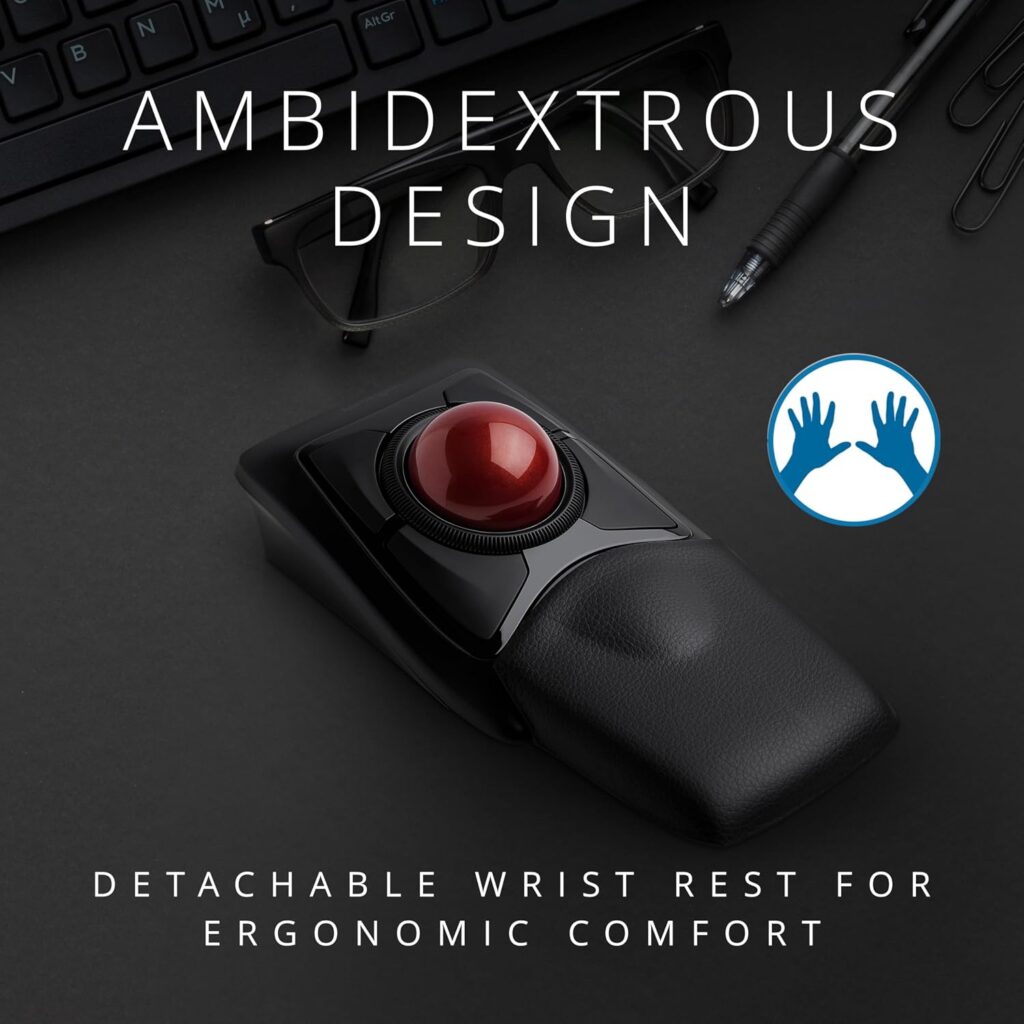
Quick Verdict: The Expert Wireless is Kensington’s flagship finger-operated trackball, built around a large 55mm ball, a detachable wrist rest, and a scroll ring for page navigation. It’s the model most people land on when searching for a “Kensington trackball,” and for a general-purpose office setup, it’s a reasonable starting point.
Best For: Office and home-office users who want a full-size trackball with proper wrist support and don’t mind the larger footprint.
Key Specifications:
- 55mm ball with Diamond Eye optical tracking
- Detachable, ergonomic wrist rest
- 4 programmable buttons, ambidextrous shape
- Bluetooth LE or 2.4GHz USB dongle; wired version also available
- 3-year warranty with lifetime technical support (per listing)
- Weight and dimensions can vary slightly by connection type, check the current listing
What We Like:
- Detachable wrist rest gives real support during long sessions
- Large ball is comfortable for medium to large hands
- Scroll ring is genuinely convenient for long documents and web pages
- Wide compatibility across Windows, macOS and Chrome OS
What We Don’t Like:
- Noticeably larger footprint than the Orbit or TB450, not ideal for tight desks
- At roughly double the price of the Orbit line, the jump in features is real but not massive
- KensingtonKonnect software currently doesn’t support Windows ARM devices
Ergonomic Analysis: The Expert Wireless keeps the palm resting on a stable surface while the fingers do the work of rolling the ball, which limits how far the shoulder and forearm need to travel compared with a full-size mouse. Emily Richardson, an ergonomics and work-from-home product specialist, notes that a detachable wrist rest like this one is worth using consistently rather than only during long sessions, inconsistent support tends to undercut the benefit.
Who Should Buy It? Anyone replacing a standard mouse because of general hand or wrist fatigue, and who has enough desk space for a slightly larger device.
Who Should Skip It? Anyone on a tight desk, anyone who prefers thumb-operated control, or anyone mainly looking for the cheapest way to try a trackball.
Value for Money: At around $90, it sits in the middle of this Kensington lineup, more than the Orbit or TB450, less than the SlimBlade Pro. Given the wrist rest and build quality, it’s a fair price for a daily-use device, though not the most affordable way to try a trackball for the first time.
🛒 Check Price on Amazon2. Kensington Orbit Wireless Trackball with Scroll Ring; Best Value
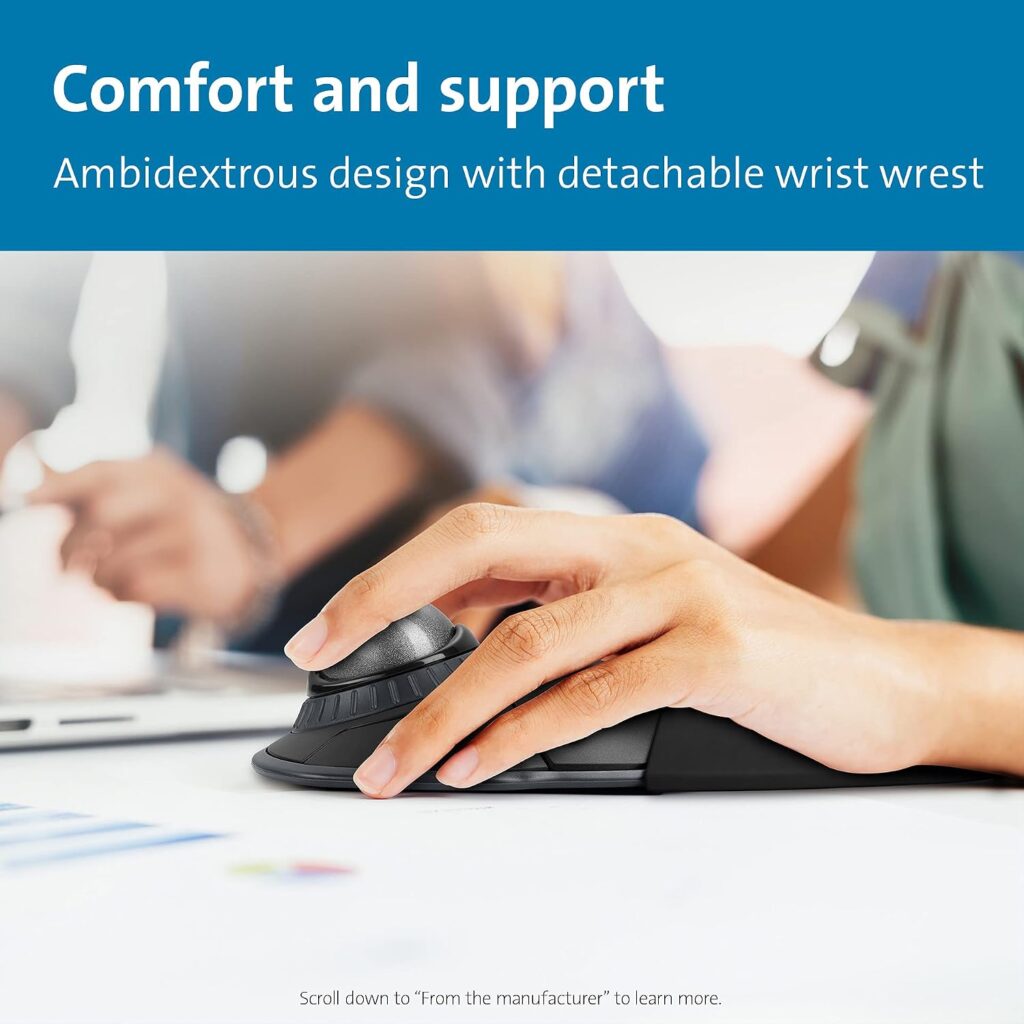
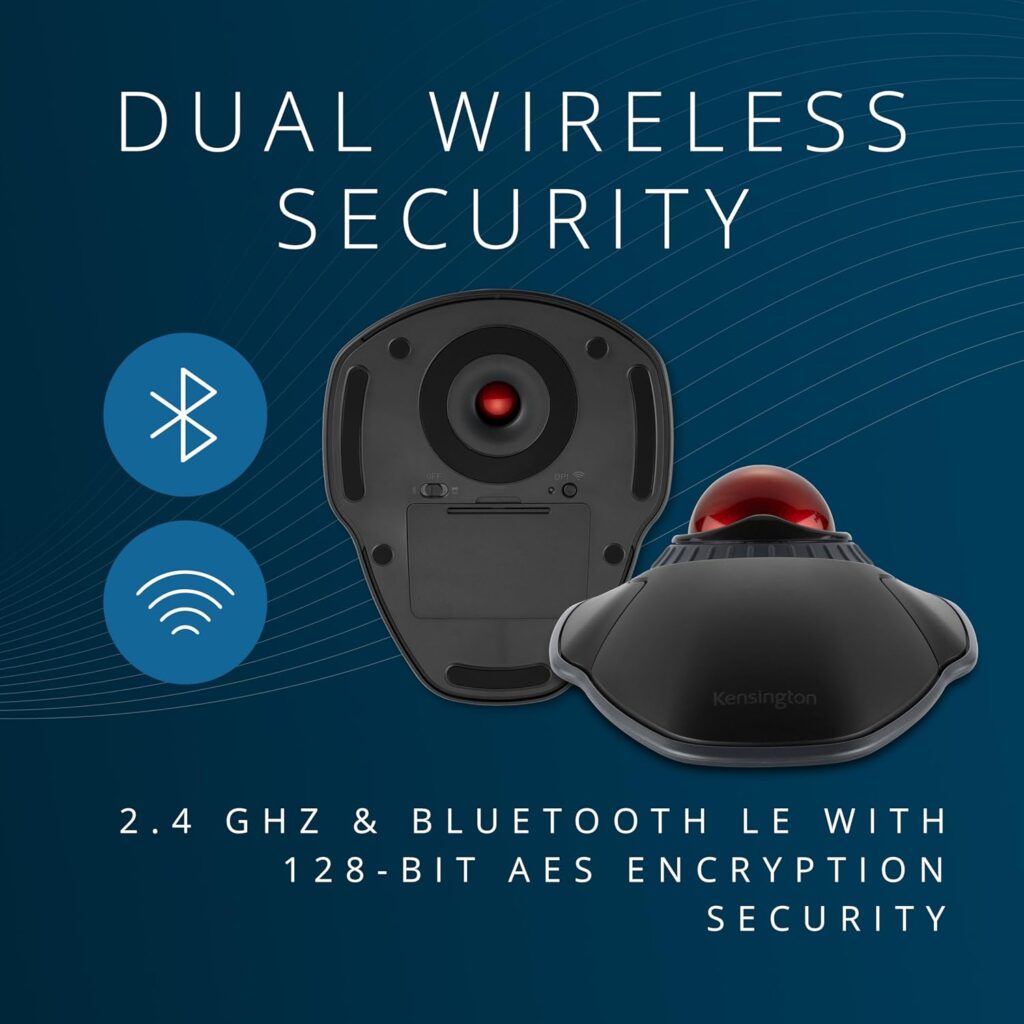
Quick Verdict: The Orbit is a smaller, simpler trackball that keeps the scroll ring and dual wireless connectivity of the Expert line at less than half the price. It’s the easiest way to find out whether trackball use suits you before spending more.
Best For: Budget-conscious buyers and anyone trying a trackball for the first time.
Key Specifications:
- 40mm ball with optical tracking
- Scroll ring for document and web navigation
- 2 buttons, ambidextrous design
- Bluetooth or 2.4GHz USB connectivity; 128-bit AES encryption
- Roughly 16.5-month battery life (per listing, Space Gray variant)
- Available in multiple colors, priced from around $45–$50 depending on the option
What We Like:
- Genuinely compact, takes up noticeably less desk space than the Expert
- Scroll ring works the same as the pricier model
- Detachable wrist rest included on several color variants
- Low entry price for anyone unsure if a trackball will suit them
What We Don’t Like:
- Smaller 40mm ball offers less precision for detailed work like photo editing
- Only 2 buttons limits how much you can customize
- Some color variants differ slightly in included accessories, so double-check the exact listing
Ergonomic Analysis: The smaller ball and lighter overall size make the Orbit easy to position close to the keyboard, which helps avoid the reaching motion that OSHA’s computer workstation guidance flags as a common source of awkward shoulder posture. It won’t offer the same precision as a larger ball for detail work, but for general browsing, email and document work it’s a comfortable everyday option.
Who Should Buy It? First-time trackball users, anyone on a budget, or anyone who mainly does general computer work rather than detailed design or editing tasks.
Who Should Skip It? Users who need fine cursor precision for graphic design, CAD, or similar detailed work, the smaller ball and 2-button layout are limiting there.
Value for Money: This is the strongest value pick in the range. You get most of the core trackball experience, scroll ring, dual wireless, and decent battery life, for less than half the price of the Expert.
🛒 Check Price on Amazon3. Kensington Orbit Touch Scroll (K72352US); Best for Small Hands
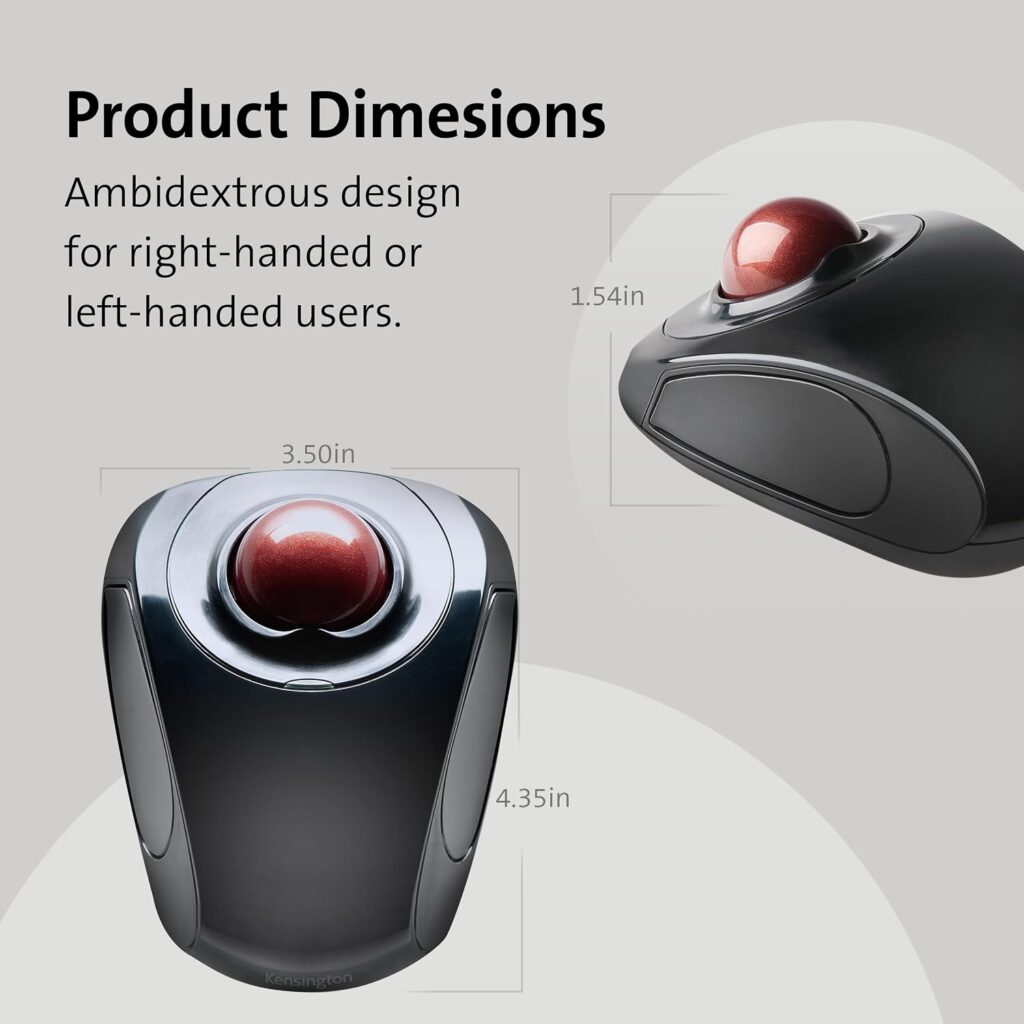
Quick Verdict: This is the smallest ball in the Kensington range at 32mm, paired with a touch-sensitive scroll ring instead of a mechanical one. Kensington markets it specifically as comfortable for small to average-sized hands, and the compact shape backs that up.
Best For: Users with smaller hands, tighter desks, or anyone who wants the most compact trackball on this list.
Key Specifications:
- 32mm ball with optical tracking
- Touch scroll ring (no moving parts)
- 2 buttons, ambidextrous, plug-and-play
- Wireless via Bluetooth LE or 2.4GHz USB receiver
- Around $43 at time of research
What We Like:
- Most compact footprint of any model in this comparison
- Comfortable for smaller hands where the Expert or SlimBlade may feel oversized
- Touch scroll ring feels smooth and requires very little force
- Simple plug-and-play setup, no driver installation required
What We Don’t Like:
- The smallest ball here also means the least precision of the group
- Only 2 buttons and no wrist rest included
- May feel undersized for users with larger hands, even though it’s ambidextrous
Ergonomic Analysis: A smaller device isn’t automatically less ergonomic, for a hand that’s proportionally smaller, a large 55mm ball can actually force an awkward, over-stretched grip. Emily Richardson’s tip: a compact ergonomic accessory can be a better fit for a small home office or a smaller hand than a larger premium product that assumes a bigger grip.
Who Should Buy It? Anyone with smaller hands, a compact desk setup, or a preference for the lightest possible trackball.
Who Should Skip It? Anyone doing detailed cursor work who needs the extra precision of a larger ball and more buttons.
Value for Money: Reasonable for what it is; a simple, compact wireless trackball, but the Orbit with Scroll Ring offers a similar price with a larger ball and mechanical scroll wheel, so this one earns its place mainly through its smaller size.
🛒 Check Price on Amazon4. Kensington SlimBlade Wired Trackball (K72327U); Best Wired / Precision
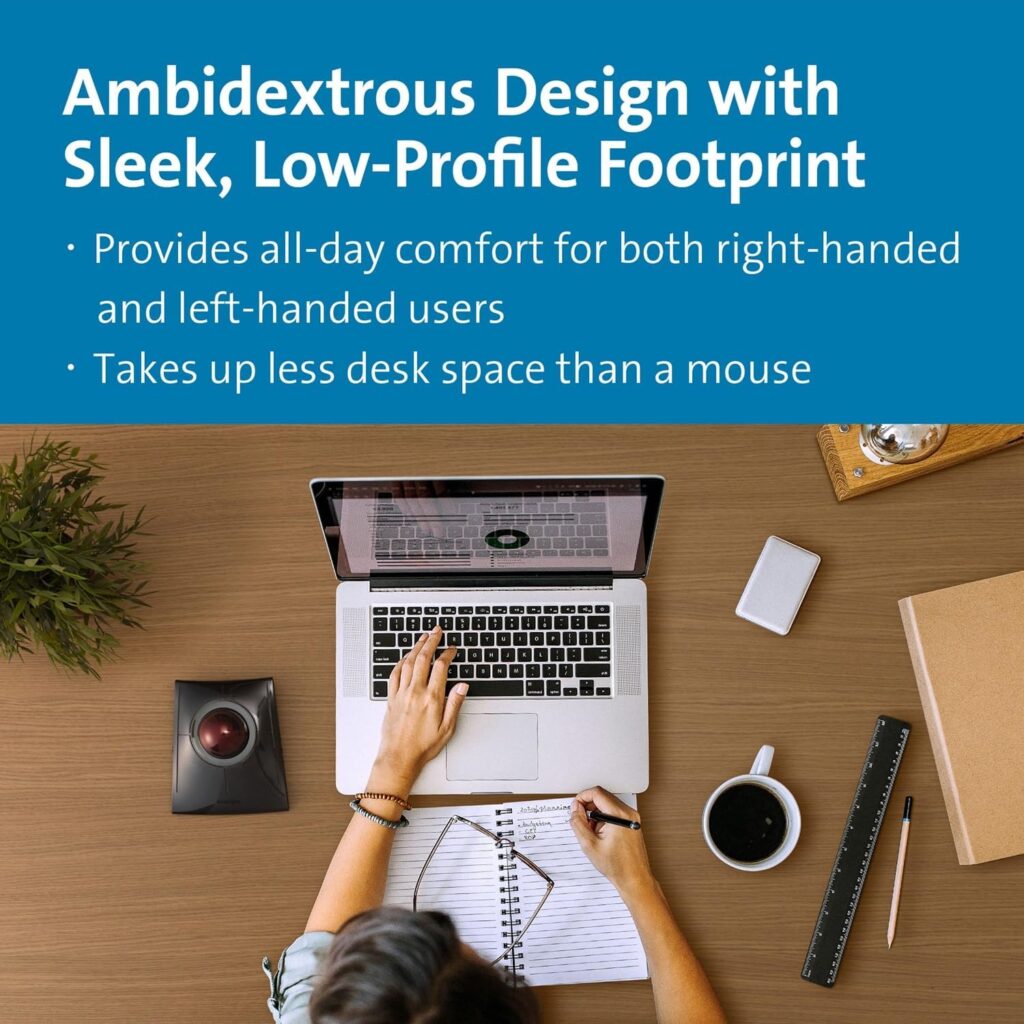
Quick Verdict: The SlimBlade is the only wired model in this comparison, pairing a large 55mm ball with laser tracking in a distinctive low-profile metallic shape. If you’d rather not worry about batteries or wireless interference, this is the pick.
Best For: Users who want zero-latency, always-on tracking and don’t mind a permanent USB cable.
Key Specifications:
- 55mm ball with laser sensor
- Wired USB connection
- 4 programmable buttons, ambidextrous
- Low-profile shape, silver metallic finish
- 2-year warranty when purchased through authorized Kensington resellers (per listing)
What We Like:
- Laser sensor gives precise, consistent tracking without wireless dropouts
- Low-profile shape takes up less desk footprint than its ball size suggests
- No batteries to replace or recharge, ever
- Ambidextrous shape works for right- or left-handed users
What We Don’t Like:
- A permanent cable limits desk flexibility compared with wireless models
- The warranty is explicitly tied to buying from an authorized reseller, worth confirming before purchase
- Design is older than the rest of the lineup and hasn’t been significantly updated
Ergonomic Analysis: Removing the wireless variable doesn’t change wrist posture directly, but it does remove one common source of frustration, dropped connections mid-task that lead to repeated, jerky corrective movements. The low-profile shape also keeps the wrist closer to a flat, supported position on the desk surface.
Who Should Buy It? Anyone who prioritizes tracking consistency over wireless convenience, or who works in an environment with a lot of wireless interference.
Who Should Skip It? Anyone who values a clutter-free desk or regularly switches which device they’re using, a cable makes that more awkward.
Value for Money: Priced close to the Expert Wireless, so you’re really choosing between wireless-with-wrist-rest (Expert) and wired-with-laser-precision (SlimBlade) rather than one being clearly cheaper.
🛒 Check Price on Amazon5. Kensington SlimBlade Pro Wireless Trackball (K72080WW); Best Premium
Quick Verdict: The SlimBlade Pro takes the SlimBlade’s low-profile shape and adds a rechargeable battery, dual sensors and three connection modes, Bluetooth, 2.4GHz, and wired USB-C. It’s the most flexible and most expensive model in this comparison.
Best For: Power users who switch between multiple devices and want maximum connectivity options in one trackball.
Key Specifications:
- 55mm ball with dual-sensor tracking
- Rechargeable battery via USB-C, roughly 4 months per charge (per listing)
- Bluetooth 4.0/5.0, 2.4GHz dongle, or wired USB-C
- 4 programmable buttons, low-profile shape
- Around $120 at full price
What We Like:
- Three connection modes cover almost any setup scenario
- Dual sensors give noticeably steady, accurate tracking
- Rechargeable battery avoids the ongoing cost of AA batteries
- Low-profile design keeps a flatter wrist angle than the taller Expert
What We Don’t Like:
- The most expensive trackball in this comparison by a clear margin
- 4-month battery life per charge is shorter than the AA-powered TB450’s rated life
- The extra connectivity options are genuinely useful only if you actually switch between devices often
Ergonomic Analysis: The low-profile shape here follows the same principle as the standard SlimBlade, a flatter resting angle for the wrist rather than a raised one. Whether that suits you better than the Expert’s raised, wrist-rest-supported design really comes down to personal preference; neither is inherently more correct.
Who Should Buy It? Professionals who regularly switch between a laptop, desktop and tablet and want one device that follows them across all three.
Who Should Skip It? Anyone who only uses one computer, the Expert Wireless or SlimBlade Wired cover the same core comfort at a lower price.
Value for Money: The premium price is justified mainly by connectivity flexibility rather than by ergonomics alone. If multi-device switching genuinely matters to your workflow, it earns the extra cost; if not, it’s paying for features you may not use.
🛒 Check Price on Amazon6. Kensington Pro Fit Ergo TB450; Best for Thumb Control
Quick Verdict: The TB450 is Kensington’s thumb-operated trackball, tilted at a 45° angle to encourage a more neutral forearm position. It’s the lightest, most compact, and closest in feel to a conventional mouse grip of any model here.
Best For: Users who want a shorter learning curve than a full finger-operated trackball, or who need a lighter device for travel.
Key Specifications:
- 34mm thumb-operated ball with optical tracking
- 45° tilt for wrist and forearm alignment
- 6 programmable buttons, the most of any model in this comparison
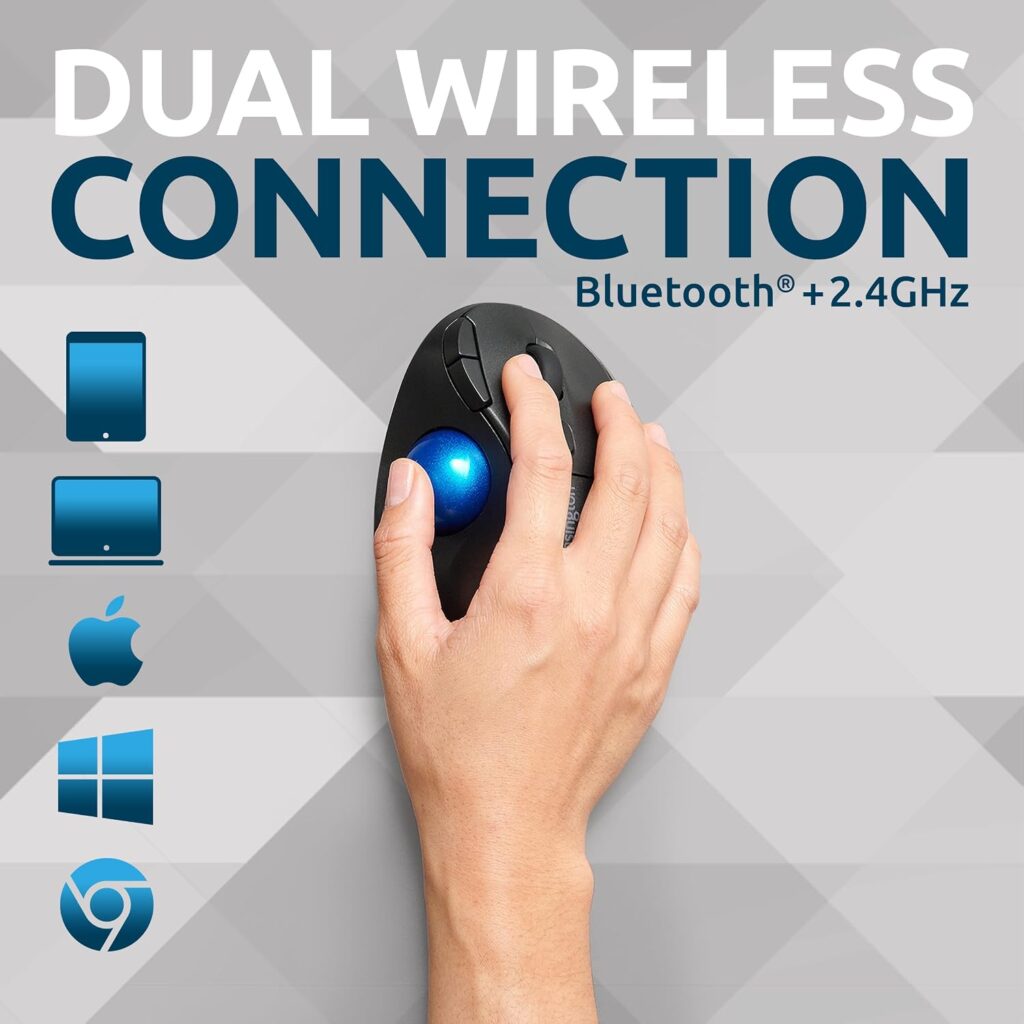
- Dual wireless (Bluetooth LE and 2.4GHz), up to 18 months battery life on 2.4GHz
- Right-hand orientation only
- 3-year limited warranty (per listing)
What We Like:
- 45° tilt is a genuinely different ergonomic approach from the flat-ball models
- Lightest and most compact device in the lineup, easy to pack for travel
- 6 buttons is the most customizable option here
- Long battery life on the 2.4GHz connection
What We Don’t Like:
- Right-hand orientation only; not an option for left-handed users
- Thumb-operated control takes some people longer to adjust to than finger control
- Smaller ball offers less raw precision than the 55mm models
Ergonomic Analysis: The 45° tilt is meant to reduce forearm pronation by angling the hand rather than keeping it flat. Separately from any Kensington-specific testing, a systematic review of controlled trials on alternative mouse designs found that slanted devices in the 25–30° range were associated with measurably lower forearm pronation and reduced muscle activity compared with flat, non-slanted designs. That research was conducted on slanted mice rather than tilted trackballs, so it supports the general design principle rather than proving the TB450 itself delivers the same result, but it’s a reasonable indication that angling the hand, rather than keeping it flat, is a sound ergonomic direction. One detail that’s easy to overlook: because the thumb does the pointing work here, your fingers stay free for the six programmable buttons, which some users find speeds up repetitive tasks.
Who Should Buy It? Right-handed users who want a lighter, more portable trackball, or who are switching from a mouse and want the closest possible feel.
Who Should Skip It? Left-handed users, and anyone who specifically wants the finger-rolling motion of a larger ball.
Value for Money: At under $40, it’s the cheapest trackball in this lineup and arguably the best entry point for someone who isn’t sure whether the tilted, thumb-operated style will suit them.
🛒 Check Price on Amazon7. Kensington Pro Fit Ergo TB450; Best for Thumb Control
Quick Verdict: The TB450 is Kensington’s thumb-operated trackball, tilted at a 45° angle to encourage a more neutral forearm position. It’s the lightest, most compact, and closest in feel to a conventional mouse grip of any model here.
Best For: Users who want a shorter learning curve than a full finger-operated trackball, or who need a lighter device for travel.
Key Specifications:
- 34mm thumb-operated ball with optical tracking
- 45° tilt for wrist and forearm alignment
- 6 programmable buttons, the most of any model in this comparison
- Dual wireless (Bluetooth LE and 2.4GHz), up to 18 months battery life on 2.4GHz
- Right-hand orientation only
- 3-year limited warranty (per listing)
What We Like:
- 45° tilt is a genuinely different ergonomic approach from the flat-ball models
- Lightest and most compact device in the lineup, easy to pack for travel
- 6 buttons is the most customizable option here
- Long battery life on the 2.4GHz connection
What We Don’t Like:
- Right-hand orientation only, not an option for left-handed users
- Thumb-operated control takes some people longer to adjust to than finger control
- Smaller ball offers less raw precision than the 55mm models
Ergonomic Analysis: The 45° tilt is meant to reduce forearm pronation by angling the hand rather than keeping it flat. Separately from any Kensington-specific testing, a systematic review of controlled trials on alternative mouse designs found that slanted devices in the 25–30° range were associated with measurably lower forearm pronation and reduced muscle activity compared with flat, non-slanted designs. That research was conducted on slanted mice rather than tilted trackballs, so it supports the general design principle rather than proving the TB450 itself delivers the same result, but it’s a reasonable indication that angling the hand, rather than keeping it flat, is a sound ergonomic direction. One detail that’s easy to overlook: because the thumb does the pointing work here, your fingers stay free for the six programmable buttons, which some users find speeds up repetitive tasks.
Who Should Buy It? Right-handed users who want a lighter, more portable trackball, or who are switching from a mouse and want the closest possible feel.
Who Should Skip It? Left-handed users, and anyone who specifically wants the finger-rolling motion of a larger ball.
Value for Money: At under $40, it’s the cheapest trackball in this lineup and arguably the best entry point for someone who isn’t sure whether the tilted, thumb-operated style will suit them.
🛒 Check Price on AmazonComparison Table
| Product | Best For | Type | Key Ergonomic Feature | Weight | Connectivity | Rating |
|---|---|---|---|---|---|---|
| Expert Wireless | All-round use | Finger, 55mm ball | Detachable wrist rest | Not specified-check listing | Bluetooth / 2.4GHz / Wired | 4.2/5 |
| Orbit Wireless | Budget / first trackball | Finger, 40mm ball | Scroll ring, some colors include wrist rest | 5.6 oz | Bluetooth / 2.4GHz | 4.2/5 |
| Orbit Wireless-Black-Red | Amazon’s Choice buyers | Finger, 40mm ball | Same as Orbit Wireless above | Not specified-check listing | Bluetooth / 2.4GHz | 4.2/5 |
| Orbit Touch Scroll | Small hands | Finger, 32mm ball | Compact, low-effort touch scroll | Not specified-check listing | Bluetooth / 2.4GHz | 4.2/5 |
| SlimBlade (Wired) | Precision, no batteries | Finger, 55mm ball | Low-profile flat wrist angle | 11.2 oz | Wired USB | 4.3/5 |
| SlimBlade Pro Wireless | Multi-device power users | Finger, 55mm ball | Low-profile, dual sensors | Not specified-check listing | Bluetooth / 2.4GHz / Wired | 4.2/5 |
| Pro Fit Ergo TB450 | Thumb control, travel | Thumb, 34mm ball | 45° tilt, right-hand only | 4.6 oz | Bluetooth / 2.4GHz | 4.3/5 |
Which Kensington Trackball Should You Buy?
Choose the Expert Wireless if: you want the closest thing to an all-purpose Kensington trackball, with a real wrist rest and enough desk presence to feel substantial without being niche.
Choose the Orbit Wireless if: you’re trying a trackball for the first time and want to keep the cost down without giving up the scroll ring or dual wireless.
Choose the Orbit Touch Scroll if: your hands are on the smaller side, or your desk simply doesn’t have room for a larger device.
Choose the SlimBlade (Wired) if: consistent, lag-free tracking matters more to you than wireless convenience.
Choose the SlimBlade Pro Wireless if: you regularly switch between a laptop, desktop and tablet, and want one trackball that follows you across all of them.
Choose the Pro Fit Ergo TB450 if: you’re right-handed, want the lightest and most portable option, and prefer a thumb-operated feel closer to a conventional mouse.
Common Mistakes When Buying a Trackball
- Assuming any trackball will “fix” wrist pain rather than simply changing which movements you’re doing
- Ignoring hand size and buying a 55mm-ball model when a smaller device would actually be more comfortable
- Choosing based only on star rating without checking whether the operation style (finger vs thumb) suits you
- Overlooking that the TB450 is right-hand only if you’re left-handed
- Skipping the OS compatibility check, especially for Windows ARM devices with KensingtonKonnect
- Buying the most expensive model assuming more features automatically means more comfort
- Not checking whether your desk actually has room for a larger 55mm-ball device
Best Practices for Trackball Use
- Position the trackball close to your keyboard so you’re not reaching across the desk to use it
- Keep your wrist as close to a straight, neutral line with your forearm as you can, whichever model you choose
- Use the wrist rest consistently if your model includes one, rather than only during long sessions
- Take short movement breaks regularly. Even with an ergonomic device, OSHA’s computer workstation guidance recommends standing, stretching your fingers, hands and arms, and walking around for a few minutes periodically, rather than holding one posture for extended periods. For example, standing up during a phone call or between tasks is an easy way to work this in without disrupting your workflow.
- Adjust the DPI setting to match the task, lower for precision editing, higher for general browsing
- Set your chair and desk height first; a trackball can’t compensate for a workstation that’s the wrong height overall
Alternatives Worth Considering
If a trackball’s rolling motion doesn’t feel right for your hand, a vertical mouse is the other common ergonomic route, it keeps the forearm in a more neutral, handshake-like position rather than removing hand travel the way a trackball does. Our Evoluent Vertical Mouse review covers a premium option in that category if you’d like to compare the two approaches directly.
Frequently Asked Questions
Is the Kensington Expert Trackball worth it in 2026?
For most people replacing a standard mouse because of general hand or wrist fatigue, yes, the detachable wrist rest and large 55mm ball make it a solid all-round option. It’s not the cheapest way to try a trackball, so if you’re unsure whether the format suits you, the Orbit Wireless is a lower-cost way to test it first.
What’s the difference between the Kensington Expert and Kensington Orbit trackballs?
The Expert uses a larger 55mm ball with a detachable wrist rest and sits at a higher price point, while the Orbit uses a smaller 40mm ball, is more compact, and costs roughly half as much. The Orbit is a reasonable starting point; the Expert is more of a long-term daily-use device.
Can a Kensington trackball help with wrist pain?
Trackballs may reduce sideways wrist deviation compared with a standard mouse, but research shows they can increase wrist extension and, in at least one study, produced the highest forearm muscle activity among the devices tested. They may improve comfort for some users, but they are not a medical treatment, and persistent pain should be discussed with a healthcare professional.
Is a trackball better than a regular mouse for long work hours?
It depends on the individual. A trackball reduces how far your arm has to travel across the desk, which some users find more comfortable over long sessions. Others find the rolling motion takes longer to adjust to and prefer a slanted or vertical mouse instead.
How long does it take to get used to a trackball?
Most users report a noticeable adjustment period of one to two weeks, particularly for finger-operated models with a large ball. Thumb-operated models like the TB450 tend to feel more familiar sooner because the grip is closer to a conventional mouse.
Are Kensington trackballs compatible with Mac and Windows?
Yes, the current lineup supports both Windows and macOS, and several models also list Chrome OS compatibility. Check the specific minimum OS version on the listing, since some models require Windows 11 or macOS 14 Sonoma or later.
Which Kensington trackball is best for small hands?
The Orbit Touch Scroll, with its 32mm ball and compact shape, is built specifically with smaller to average-sized hands in mind. The Expert and both SlimBlade models, with their 55mm balls, tend to suit medium to larger hands better.
Do trackballs work well for gaming?
Some of these trackballs, like the SlimBlade Pro, are positioned with gaming-adjacent features, but precision-focused genres like first-person shooters generally still favor a conventional gaming mouse. A trackball tends to suit general productivity and browsing better than fast-paced gaming.
What is the difference between a wired and wireless Kensington trackball?
Wired models like the SlimBlade avoid battery management and wireless interference entirely, at the cost of a permanent cable. Wireless models offer more desk flexibility and, in most cases here, the option to switch between Bluetooth and a 2.4GHz USB receiver.
Do I need special software to use a Kensington trackball?
No, all models work as plug-and-play devices out of the box. Kensington’s free KensingtonWorks or KensingtonKonnect software is optional and adds button remapping, DPI adjustment and scroll speed customisation, but Windows ARM-based computers are not currently supported by that software.
Final Verdict
If you want the single most balanced Kensington trackball for daily office use, the Expert Wireless is the one to buy, the detachable wrist rest and 55mm ball make it the most complete package here. If keeping costs down matters more, the Orbit Wireless covers most of the same basics for less than half the price. Smaller hands are better served by the Orbit Touch Scroll, precision-focused or battery-averse users should look at the SlimBlade Wired, multi-device users get the most flexibility from the SlimBlade Pro Wireless, and anyone who prefers a lighter, thumb-operated feel should consider the Pro Fit Ergo TB450.
None of these will replace good desk setup habits on their own, pair whichever one you choose with correct desk height, monitor position and regular movement breaks for the best result.
Compare the latest prices and availability before making your decision, since Amazon pricing, colors and stock can change.