Best Ergonomic Mouse for Programmers in 2026
If you spend most of your day moving between an IDE, a browser, and a terminal, your wrist is doing more repetitive work than you probably realise. Long coding sessions mean thousands of small clicks and scrolls, often with the forearm twisted flat against the desk. An ergonomic mouse for programmers is built to change that angle, so your hand rests in a more natural, handshake-like position instead of a fully pronated one.
This guide compares seven ergonomic mice that suit different coding setups, from cramped desks to multi-monitor workstations, and explains what actually matters when you’re choosing one, beyond the marketing copy on the product page.
Quick Answer
The best ergonomic mouse for programmers in 2026 is the TECKNET Ergonomic Vertical Mouse, thanks to its 57° tilt, silent clicks, adjustable DPI, and low price. If you want a smaller footprint for a tight desk, the Nulea M505A trackball is worth considering instead, since it barely needs to move at all.🖱️ Best Ergonomic Mice for Programmers
Here’s the short version. Each pick below is explained in more detail further down the page, including who it fits and who should look elsewhere.




Quick Verdict Table
| Product | Best For | Main Strength | Main Limitation | Rating | Link |
|---|---|---|---|---|---|
| TECKNET Ergonomic Vertical Mouse | Overall use | 57° tilt, silent, rechargeable | Side buttons don’t work on macOS | 4.6/5 | View |
| Nulea M505A Trackball | Small desks | Minimal arm movement | Learning curve for trackball control | 4.4/5 | View |
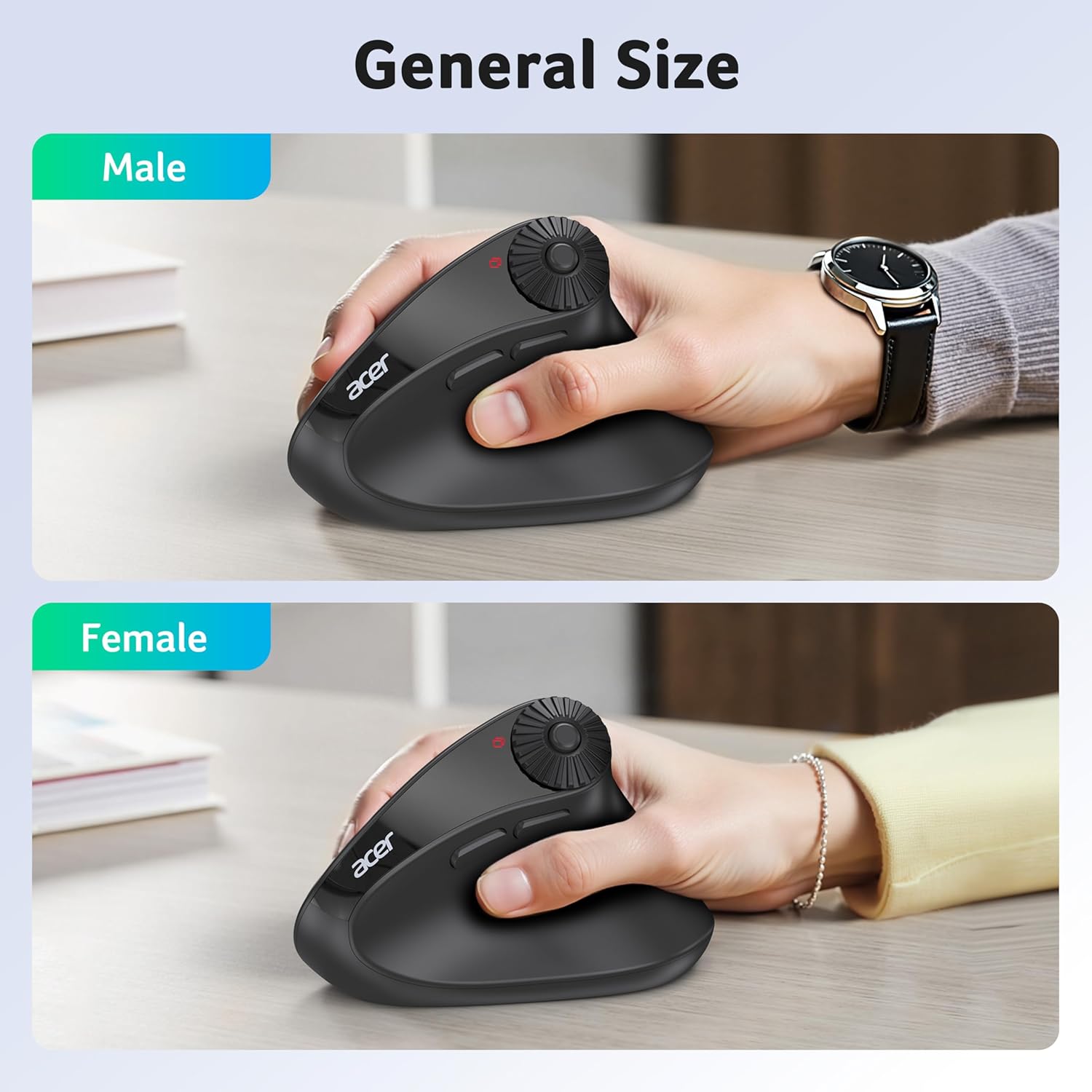
| Acer Ergonomic Vertical Mouse | Smaller hands | Light, steep 59° tilt | Not rechargeable, needs AAA battery | 4.2/5 | View |
| Logitech MX Master 2S | Multi-computer workflow | Flow cross-computer control | Older model, check current stock | 4.5/5 | View |
| CITLLA Wireless Bluetooth Mouse | Shortcut-heavy coding | 5 programmable buttons | Standard shape, not vertical | 4.1/5 | View |
| XBG B15 Pro | Value + silent office use | LED battery/DPI display | Lesser-known brand, limited track record | 4.3/5 | View |
| iClever Wireless Mouse | Budget, portability | Slim, USB-C rechargeable | Not a vertical ergonomic shape | 4.0/5 | View |
Why Programmers Need to Think About Mouse Ergonomics Differently
Programming work has a specific ergonomic profile. You’re not doing constant fine-precision clicking like a designer working in Figma, but you’re also not typing continuously like a writer. Instead, you’re switching between keyboard and mouse constantly, scrolling through files, clicking through tabs, dragging debugger windows, and jumping across multiple monitors.
That repeated switching, combined with a flat wrist position on a standard mouse, is what tends to cause the dull ache many developers feel by the afternoon. A vertical mouse is designed to keep the forearm in a more neutral position than a traditional mouse, since the hand rests in a handshake-like grip rather than fully rotated flat against the desk. A trackball goes a step further by removing most arm movement, which matters if your desk is shared or cramped.
It’s worth being precise about what this actually changes, rather than repeating the marketing story. A laboratory study published in Applied Ergonomics found that switching to a vertical mouse reduced forearm pronation and lowered wrist extensor muscle activity compared with a standard flat mouse, though it also took users longer to reach the same pointing performance while they adjusted. That lines up with what we’d expect: less twisting in the forearm, but a real adjustment period.
Where the marketing claims get ahead of the evidence is carpal tunnel pressure specifically. A controlled study in patients with diagnosed carpal tunnel syndrome found that a vertical mouse changed wrist position as expected, but did not significantly reduce pressure inside the carpal tunnel. In plain terms: a vertical mouse can change the angle of your wrist, but that alone hasn’t been shown to relieve the internal pressure associated with carpal tunnel syndrome. If you already have a diagnosed condition, this is a comfort tool to pair with medical guidance, not a replacement for it.
None of this means an ergonomic mouse is pointless, a more neutral posture and lower muscle activity are genuinely useful outcomes for a long workday, even without a proven effect on carpal tunnel pressure. It’s one part of a setup that also includes chair height, keyboard position, and monitor placement. If wrist discomfort is persistent or worsening, that’s a conversation for a doctor or physiotherapist, not a product review.
Buying Guide: What Actually Matters for Coding Work
1. Vertical Tilt Angle and Wrist Position
Most ergonomic mice sit somewhere between 45° and 60° of tilt. A steeper angle, like the Acer’s 59°, puts your hand closer to a true handshake position, but it can also feel unfamiliar for the first week or two. A moderate angle, around 55–57°, is usually easier to adapt to if you’ve never used a vertical mouse before.
2. Grip Style and Hand Size
Vertical mice generally suit a palm grip better than a fingertip grip. If you have smaller hands, a bulky vertical mouse can feel like it’s forcing an awkward stretch rather than supporting your hand, check the manufacturer’s stated hand-size range before buying.
3. Trackball vs. Traditional Vertical Design
A trackball keeps your hand almost stationary, which is genuinely useful on a small desk or when working next to a second monitor arm. The trade-off is a learning curve, moving the cursor with your thumb or index finger takes practice, and precision can feel different at first compared to a standard sensor.
It’s also worth knowing the evidence isn’t entirely one-sided in favor of trackballs. A Harvard-affiliated laboratory study comparing pointing devices found that, among a conventional mouse, a trackball, a touchpad, and a centrally placed rollermouse, the trackball was actually associated with the highest forearm extensor muscle activity of the group tested. Less arm travel doesn’t automatically mean less muscle effort, the fine motor control needed to operate a trackball can load the forearm differently, not necessarily less.
4. Programmable Buttons for IDE Shortcuts
Extra buttons aren’t just a gaming feature. Mapping shortcuts like “go to definition,” “toggle terminal,” or “next tab” to side buttons can genuinely reduce keyboard reaching over a full workday.
5. Connectivity and Multi-Device Switching
Many programmers move between a laptop, a desktop, and sometimes a tablet during the day. Mice that support quick Bluetooth switching between two or three paired devices save the hassle of re-pairing every time you change machines.
6. Battery Life and Charging
Rechargeable mice are more convenient day to day, but a mouse that takes AA or AAA batteries can be a reasonable backup option if you don’t want to worry about charging schedules, as long as you’re comfortable buying batteries occasionally.
7. Click Noise
If you work in a shared office, alongside teammates on a call, or do pair programming, a mouse with genuinely quiet clicks is worth prioritizing over one with louder, more tactile feedback.
8. Weight and Portability
If you split time between a home office and a coworking space or coffee shop, a lighter, more compact mouse is easier to carry without adding noticeable bulk to a laptop bag.
Research Insight: The CDC’s National Institute for Occupational Safety and Health (NIOSH) identifies sustained force, repetitive motion, and awkward postures as recognized risk factors for work-related musculoskeletal disorders. What this means: keeping the wrist in a more neutral position and taking regular breaks both address different parts of that risk, a mouse shape only changes posture, not repetition. Practical example: pairing a vertical or trackball mouse with a habit of standing up every 45–60 minutes addresses both the postural and the repetitive-motion side of the issue, rather than relying on the mouse alone.
Product Reviews
1. TECKNET Ergonomic Vertical Mouse, Best Overall
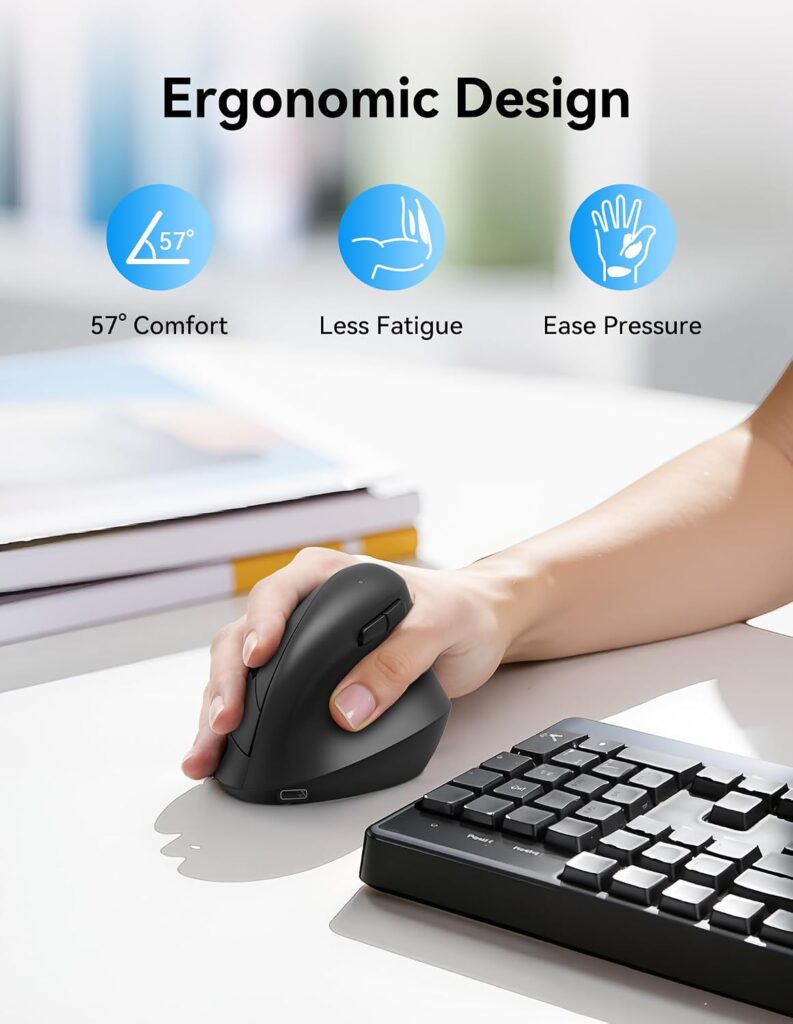
Quick Verdict: A well-rounded vertical mouse with a 57° tilt, adjustable DPI, and genuinely quiet clicks at a price that’s easy to justify. It’s the mouse we’d recommend to most programmers switching from a standard mouse for the first time.
Best For: Developers who want a moderate, easy-to-adapt vertical angle without paying a premium price.
Key Specifications
- Connectivity: Bluetooth 5.3/3.0 and 2.4GHz USB receiver, switches between 3 devices
- DPI: 6 levels (800–4800)
- Buttons: 6
- Battery: Rechargeable, roughly 3 months per charge based on 2 hours daily use
- Weight: 5.6 oz (159 g)
- Compatibility: Windows, macOS, Chrome OS, Linux (side buttons not supported on macOS)
What We Like
- 57° tilt is moderate enough for a comfortable adjustment period
- Silent clicks, useful for shared offices or video calls
- Three-device Bluetooth switching without re-pairing
What We Don’t Like
- Side buttons don’t function on macOS, which limits shortcut mapping for Mac-based developers
- Plastic build feels functional rather than premium
Ergonomic Analysis: The 57° angle sits in the sweet spot for programmers new to vertical mice, steep enough to reduce forearm rotation, but not so extreme that it feels foreign on day one. The adjustable DPI is genuinely useful across multiple monitors, since higher sensitivity reduces the physical distance your hand needs to travel.
Who Should Buy It? Programmers trying a vertical mouse for the first time, or anyone who wants dependable ergonomic basics without paying for premium extras.
Who Should Skip It? macOS-only developers who rely heavily on side-button shortcuts, since those buttons aren’t supported on Mac according to the product listing.
Value for Money: At around $21, this is one of the more complete ergonomic packages in this list, DPI adjustment, silent clicks, and multi-device switching in one mouse. Check the current Amazon listing, as pricing and available colors can change.
🛒 Check Price on Amazon2. Nulea M505A Trackball Mouse, Best for Small Desks
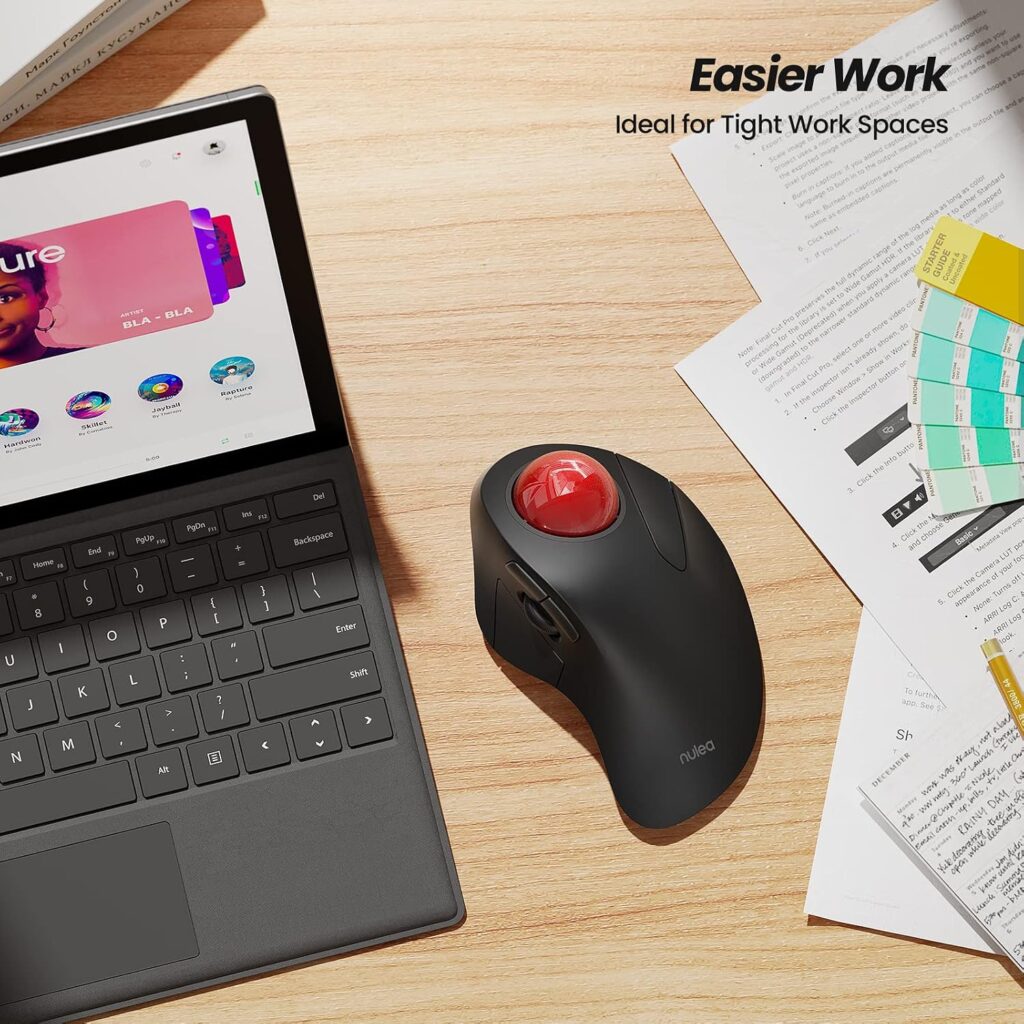
Quick Verdict: An index-finger trackball that barely needs to move, which makes it a strong pick for anyone working on a tight desk or next to a second monitor stand. It takes longer to get used to than a vertical mouse, but many users settle in within a couple of weeks.
Best For: Programmers with limited desk space, or anyone who wants to minimize repetitive arm movement.
Key Specifications
- Connectivity: Bluetooth and USB receiver, up to 3 devices
- DPI: 5 levels, up to 1600
- Buttons: 6
- Battery: Rechargeable, up to roughly 60–90 days per charge depending on use
- Weight: 6.9 oz (196 g)
- Compatibility: Windows, macOS
What We Like
- Index-finger trackball requires almost no arm or wrist movement
- Works on nearly any surface, including a couch cushion or a cluttered desk
- Long battery life between charges
What We Don’t Like
- The trackball control style takes real practice; cursor precision feels different from a standard mouse at first
- Maximum 1600 DPI is lower than some competitors, which can feel slow across very large or multi-monitor setups
Ergonomic Analysis: A trackball design shifts the physical work from your whole arm to your index finger, which can feel more comfortable for programmers who move the cursor constantly throughout the day and don’t want to reach across a mousepad. That said, comparative research on pointing devices has found trackballs can produce higher forearm extensor muscle activity than a standard mouse in some tasks, so “less arm movement” doesn’t automatically mean “less muscular effort” for everyone. We’d frame this as a comfort-focused design that may suit small desks and reduce reaching, rather than a guaranteed fix for existing wrist discomfort, for persistent pain, a healthcare professional is the right person to consult, not a product listing.
Who Should Buy It? Anyone on a small desk, or developers who’ve tried vertical mice and want to explore a different ergonomic approach.
Who Should Skip It? Programmers who need fast, high-precision cursor movement across very high-resolution multi-monitor setups, where the lower maximum DPI may feel limiting.
Value for Money: At around $39, it’s priced a little above the vertical mice on this list, but the near-zero desk footprint and long battery life justify it for the right setup.
🛒 Check Price on Amazon3. Acer Ergonomic Vertical Mouse, Best for Smaller Hands
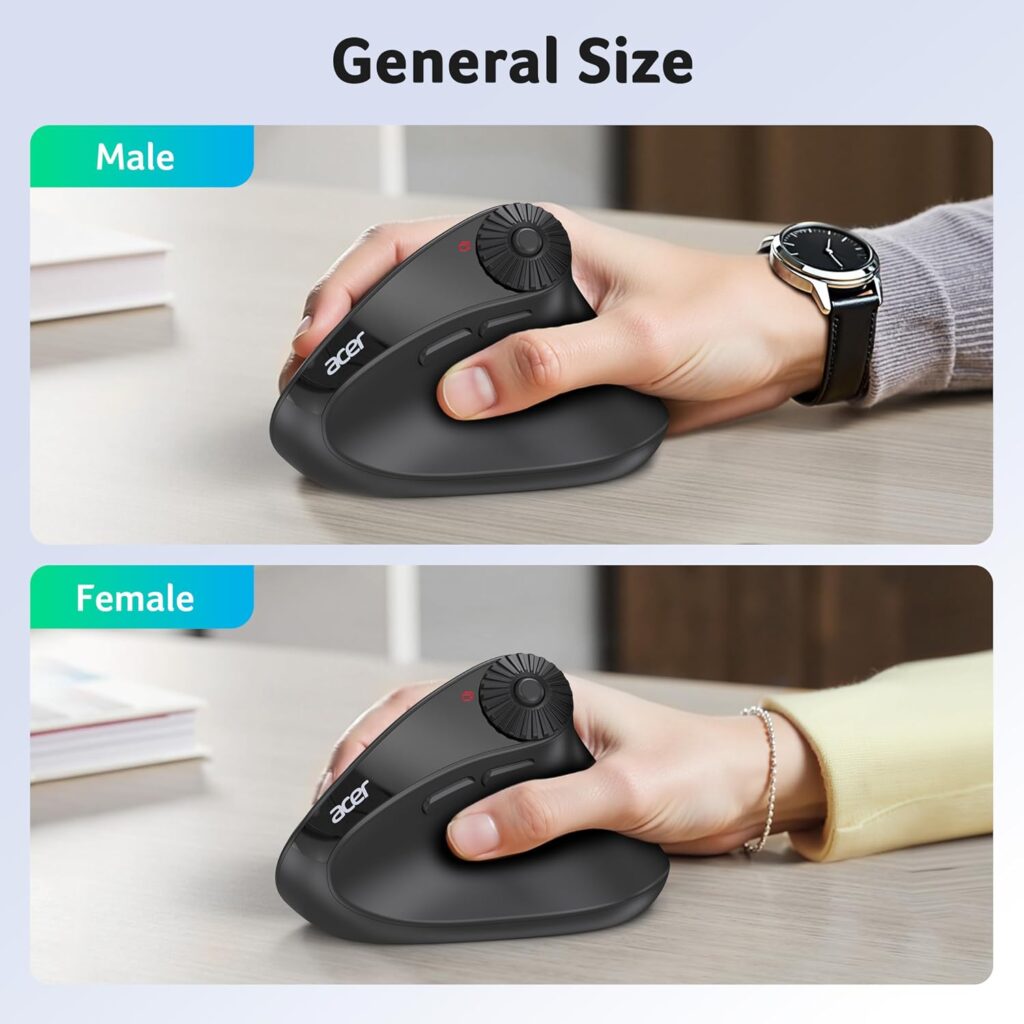
Quick Verdict: A steep 59° vertical tilt in a lightweight body that the manufacturer specifically markets toward small to medium-sized hands. It’s a good option if bulkier ergonomic mice have felt oversized for your grip.
Best For: Programmers with smaller or medium hands who want a pronounced vertical angle.
Key Specifications
- Connectivity: Bluetooth 5.2 and 2.4GHz, up to 3 devices
- DPI: 4 levels (1200–4000)
- Buttons: 8, including a 3-way side scroll wheel
- Battery: Non-rechargeable, requires AAA batteries (not included)
- Weight: 4.9 oz (139 g)
- Compatibility: Windows, Chrome OS, Linux
What We Like
- Steep 59° tilt for a more pronounced neutral wrist position
- Lightweight body, one of the lighter options in this comparison
- Side scroll wheel adds horizontal scrolling and zoom shortcuts, useful for wide code files
What We Don’t Like
- Not rechargeable, you’ll need to keep AAA batteries on hand, and they’re not included in the box
- The manufacturer notes the steep tilt may need one to two weeks of adjustment, and it’s specifically sized for small to medium hands rather than larger ones
Ergonomic Analysis: The 59° tilt is one of the steeper angles in this comparison, positioning the hand closer to a true handshake grip. That can feel more supportive once you’re adjusted, but it’s also a bigger change from a standard mouse than a moderate 45–50° tilt would be, worth knowing if you want a gentler transition.
Who Should Buy It? Programmers with smaller to medium hands who want a stronger vertical angle and don’t mind managing AAA batteries.
Who Should Skip It? Anyone with larger hands, since the manufacturer specifically positions this for smaller grips, or anyone who strongly prefers a rechargeable mouse.
Value for Money: At around $26 with the current discount, it’s reasonably priced, though the missing batteries and lack of recharging are worth factoring into the real cost.
🛒 Check Price on Amazon4. Logitech MX Master 2S, Best Premium Option
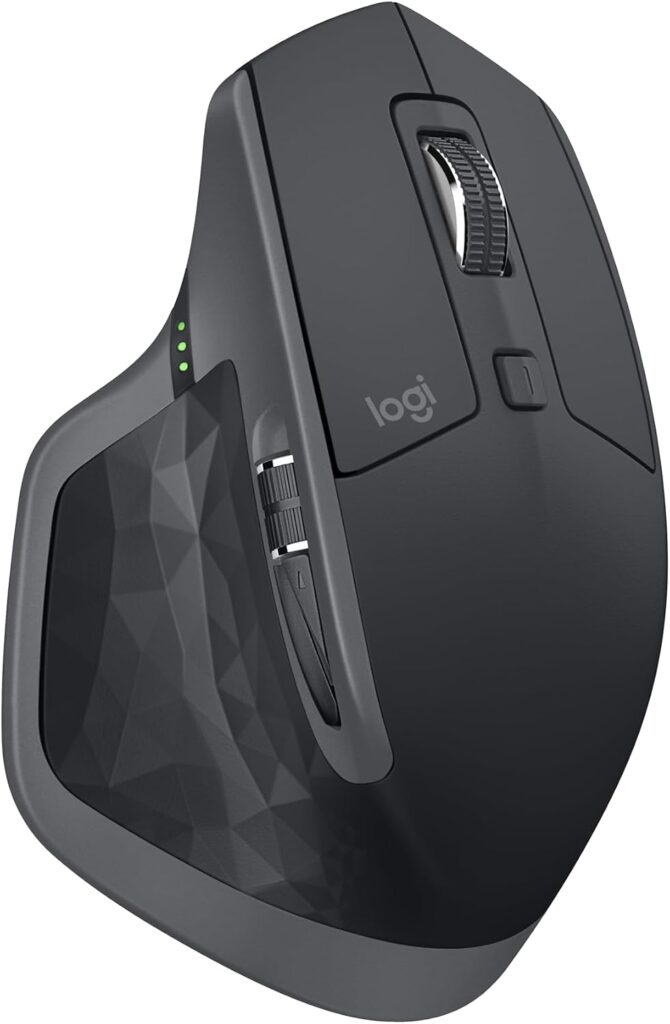
Quick Verdict: Logitech’s Flow feature lets you move the cursor across multiple computers and even copy-paste text between them, which is genuinely useful if you regularly work across a laptop and a desktop. It’s an older model in the MX Master line, so it’s worth double-checking current stock and pricing before buying.
Best For: Programmers who regularly work across two or three computers and want smooth handoff between them.
Key Specifications
- Connectivity: Bluetooth
- Buttons: 7
- Battery: Rechargeable via Micro-USB, rated for roughly 1,680 hours of use
- Weight: 5.1 oz (145 g)
- Compatibility: Windows 8/10
What We Like
- Flow feature allows cursor movement and copy-paste across up to 3 paired computers
- Long battery life between charges
- Comfortable curved shape for extended sessions, even though it’s not a vertical design
What We Don’t Like
- This is an older (2017) model in Logitech’s lineup, which means availability and pricing can vary more than with a current-generation product
- It’s not a vertical ergonomic mouse, the ergonomic benefit here comes from its curved shape and Flow workflow, not a neutral wrist angle
A note on accuracy: the specification data we sourced for this listing labels the sensor as a trackball, which doesn’t match how this mouse is actually built or marketed, it uses a standard optical/laser sensor rather than a trackball. We’re flagging that discrepancy here rather than repeating it as fact. Specifications can vary by listing, so check the manufacturer’s current documentation before purchasing.
Ergonomic Analysis: The MX Master 2S isn’t a vertical mouse, so it won’t reposition your wrist the way the TECKNET or Acer options do. Its ergonomic value comes from a shape designed to support the palm during long sessions and from reducing the friction of switching between multiple machines, which itself cuts down on reaching for a second mouse or keyboard.
Who Should Buy It? Developers who work across multiple computers daily and value smooth handoff over a strict vertical wrist angle.
Who Should Skip It? Anyone specifically looking for a vertical, wrist-neutral design, the best vertical mouse roundup covers more purpose-built options for that.
Value for Money: At around $66, it’s the most expensive mouse in this comparison. The Flow feature is the main reason to pay the premium, if you only ever use one computer, it’s harder to justify over the TECKNET.
🛒 Check Price on Amazon5. CITLLA Wireless Bluetooth Mouse, Best for Coding Shortcuts
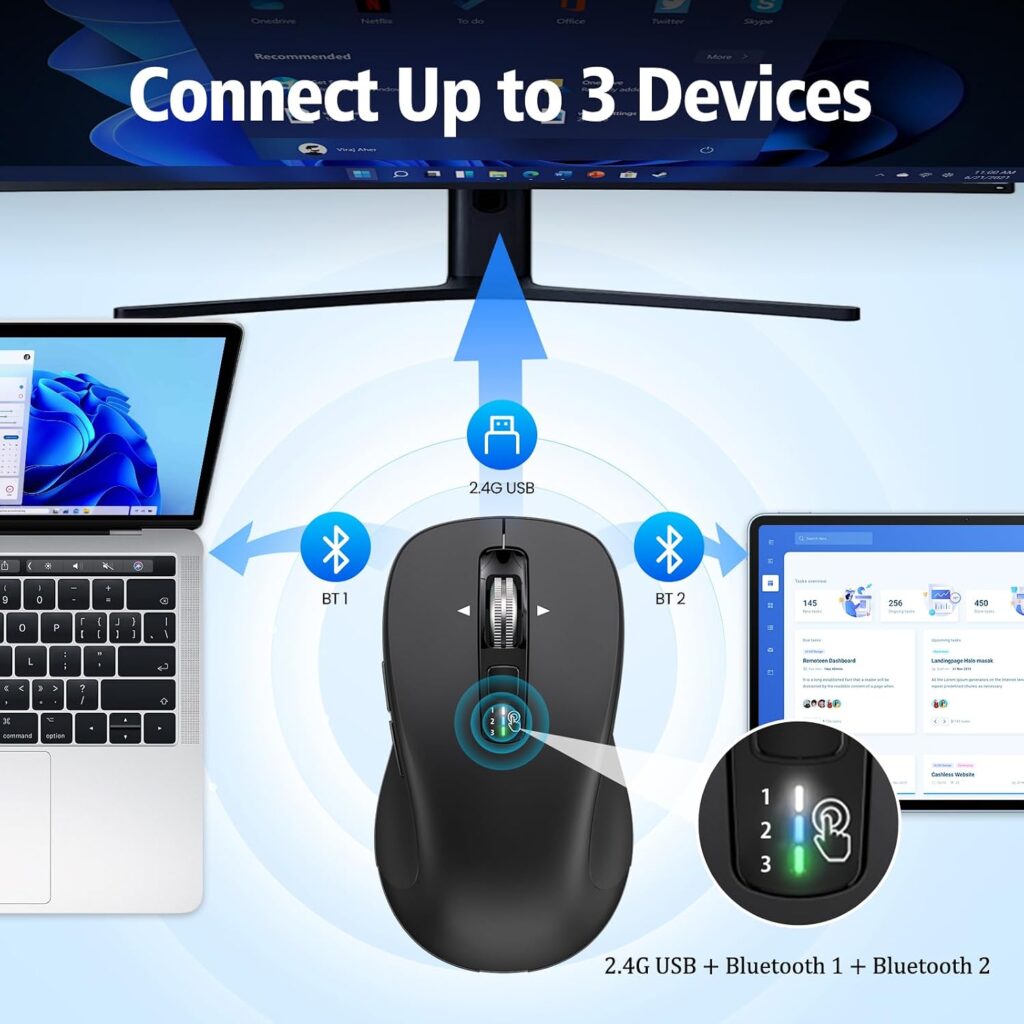
Quick Verdict: With five programmable buttons and a metal 4-way scroll wheel, this is the pick for developers who want to offload more shortcuts onto the mouse. It’s a standard mouse shape rather than a vertical one, so the ergonomic benefit is more about reduced keyboard reaching than wrist angle.
Best For: Programmers who want to map custom macros and shortcuts to physical buttons.
Key Specifications
- Connectivity: Bluetooth (dual) and 2.4GHz USB receiver
- DPI: 4 levels (1000–3000)
- Buttons: 10, including 5 programmable
- Battery: 2x AA batteries (included), long stated battery life
- Weight: 6 oz (170 g)
- Compatibility: Windows, macOS, Linux, Chrome OS, iOS
What We Like
- Five programmable buttons for custom IDE or OS shortcuts
- 4-way metal scroll wheel adds horizontal scrolling, handy for wide code or spreadsheets
- Very wide OS compatibility, useful if you dual-boot or switch between machines
What We Don’t Like
- This is a standard full-size mouse shape, not a vertical or angled ergonomic design, so it won’t reposition your wrist the way the TECKNET or Acer will
- Uses replaceable AA batteries rather than a rechargeable battery
Ergonomic Analysis: The ergonomic value here comes mainly from reducing keyboard reaching, not from wrist positioning. If your main strain comes from repeatedly reaching for keyboard shortcuts rather than from wrist angle, offloading those actions to programmable buttons can meaningfully cut down on repetitive reaching.
Who Should Buy It? Developers who lean heavily on keyboard shortcuts and want to move some of that load onto a mouse, without needing a vertical shape.
Who Should Skip It? Anyone specifically looking for a wrist-neutral vertical design, this mouse won’t deliver that on its own.
Value for Money: At under $20, it’s the most affordable option here, and the button programmability adds practical value beyond the price point.
🛒 Check Price on Amazon6. XBG B15 Pro, Best Value
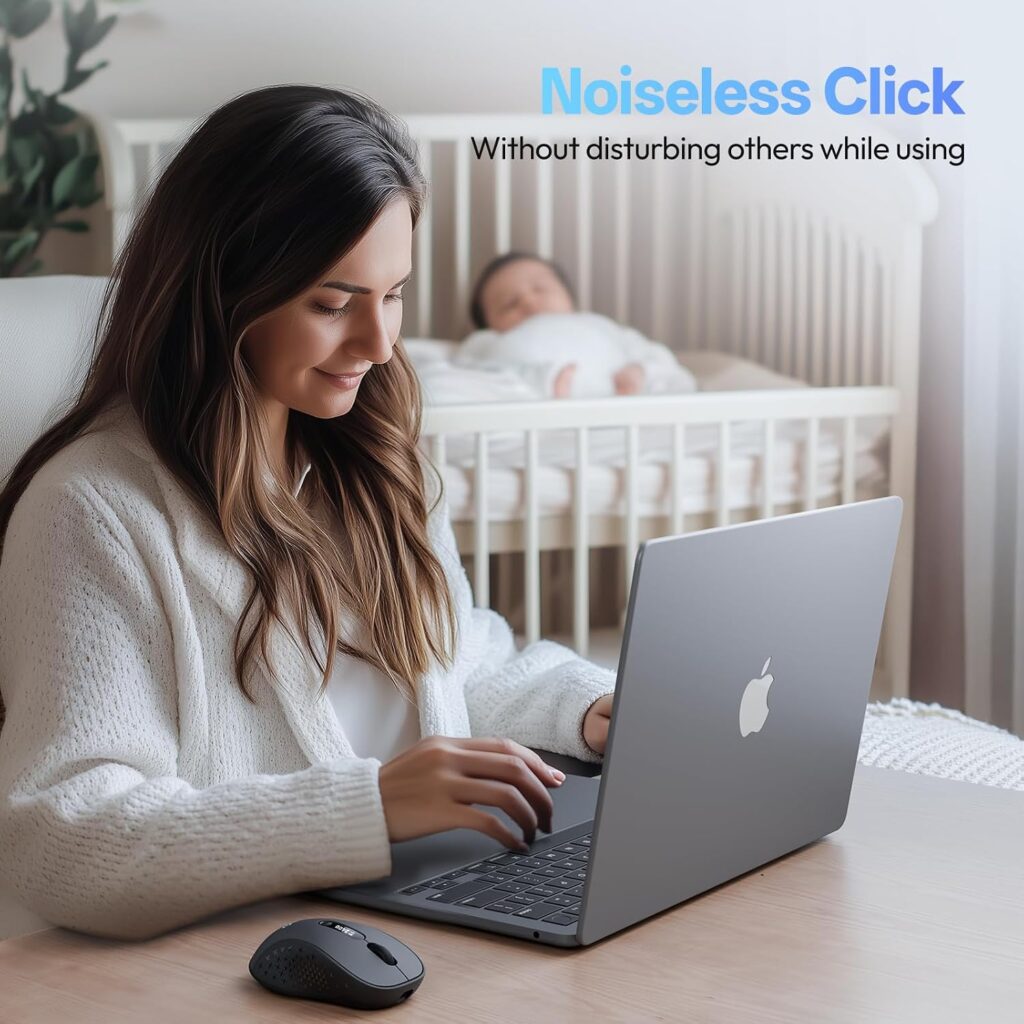
Quick Verdict: A tri-mode wireless mouse with a small LED display showing battery percentage, DPI, and connection mode, plus a contoured thumb rest for comfort during long sessions. It’s a good value pick from a less established brand.
Best For: Programmers who want silent clicks, quick device switching, and a clear at-a-glance display, on a moderate budget.
Key Specifications
- Connectivity: Bluetooth 5.0/4.0 and 2.4GHz
- DPI: 5 levels (800–2400)
- Buttons: 6
- Battery: Rechargeable via USB-C, roughly one month between charges based on typical use
- Weight: 2.65 oz (75 g)
- Compatibility: Windows, macOS, Chrome OS, Linux
What We Like
- LED display removes the guesswork around battery level, DPI setting, and connection mode
- Genuinely lightweight, one of the lightest mice in this comparison
- Silent clicks and fast 0.8-second device switching
What We Don’t Like
- XBG is a less established brand compared to Logitech or TECKNET, so long-term reliability data is limited
- Roughly one month of battery life per charge is shorter than some rechargeable competitors on this list
Ergonomic Analysis: The contoured thumb rest and arched palm support aim to reduce pressure points during extended sessions, though this isn’t a steep-angle vertical mouse, it’s closer to a standard shape with ergonomic touches added. That makes it a reasonable middle ground for programmers who find fully vertical mice too big an adjustment.
Who Should Buy It? Developers who want useful extras like the LED display and fast switching without paying a premium price.
Who Should Skip It? Anyone who wants a well-established brand with a longer review history, or a steeper vertical angle for wrist positioning.
Value for Money: At around $26, the LED display and build quality feel above what the price usually buys in this category.
🛒 Check Price on Amazon7. iClever Wireless Mouse, Best Budget Compact
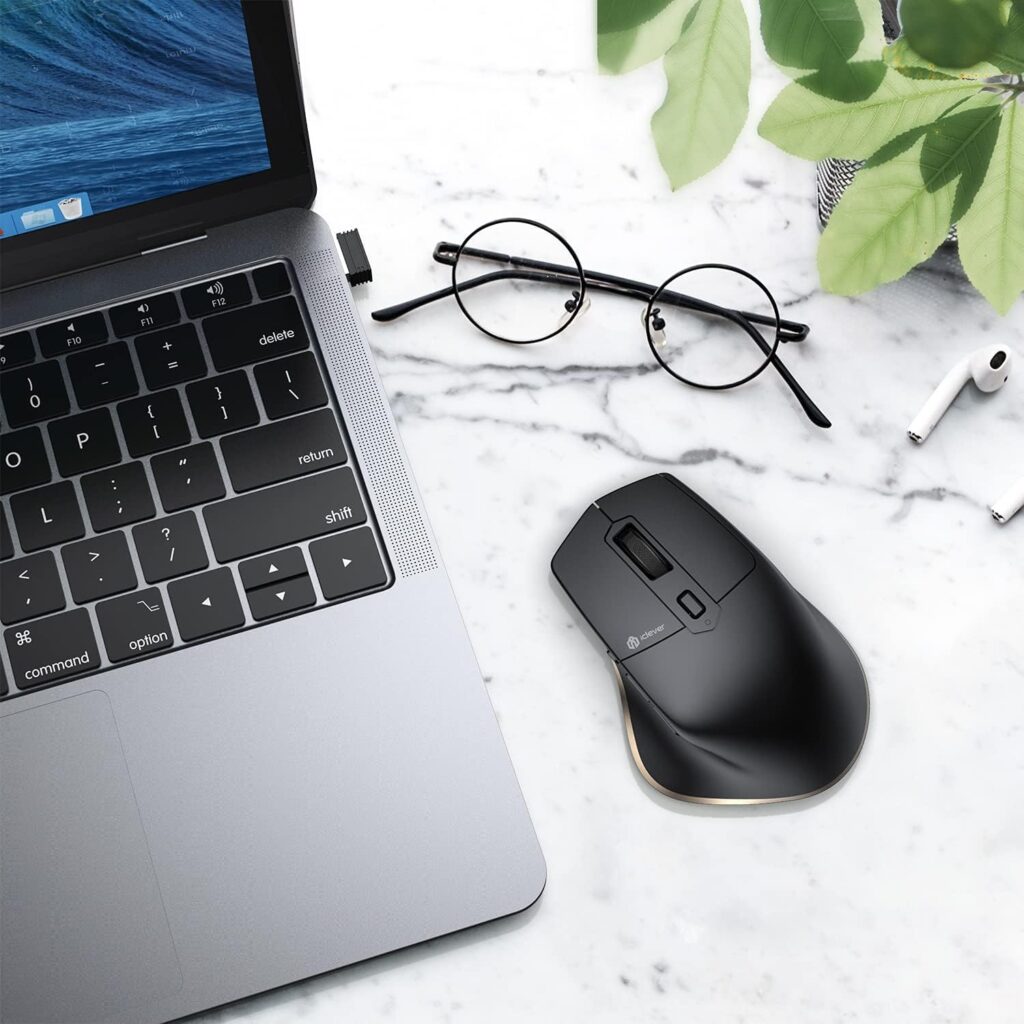
Quick Verdict: A slim, USB-C rechargeable mouse that’s easy to toss in a laptop bag. It’s a lighter-touch ergonomic option compared to the vertical mice on this list, better suited to programmers who split time between a desk and a laptop on the go.
Best For: Developers who want a compact, portable mouse for hybrid or travel-heavy coding work.
Key Specifications
- Connectivity: Bluetooth 5.1/2.4GHz, up to 3 devices
- DPI: 5 levels (800–2400)
- Buttons: 6
- Battery: Rechargeable via USB-C
- Compatibility: Windows, macOS, iOS, Android
What We Like
- USB-C rechargeable, convenient for anyone already carrying a USB-C laptop charger
- Silent click technology, suitable for shared workspaces
- Compact size makes it easy to pack
What We Don’t Like
- This is a general-purpose ergonomic-leaning shape rather than a true vertical mouse, so the wrist-angle benefit is smaller than with the TECKNET or Acer
- Maximum DPI of 2400 is on the lower end for multi-monitor setups
Ergonomic Analysis: iClever markets this as ergonomic, but the shape is closer to a standard contoured mouse than a vertical design. It can still feel more comfortable than a flat, boxy mouse for shorter sessions, but programmers doing full workdays at a desk may get more benefit from a steeper-angle option like the TECKNET.
Who Should Buy It? Developers who travel or work from multiple locations and want something light and easy to pack.
Who Should Skip It? Anyone doing long, stationary desk sessions who wants a stronger wrist-angle benefit, a vertical mouse will do more for that specific need.
Value for Money: At around $29, it’s reasonably priced for a portable option, though it competes with more purpose-built ergonomic mice at a similar cost.
🛒 Check Price on AmazonComparison Table
| Product | Type | Key Ergonomic Feature | Weight | Connectivity | Rating |
|---|---|---|---|---|---|
| TECKNET Vertical Mouse | Vertical | 57° tilt | 5.6 oz | BT + 2.4GHz | 4.6/5 |
| Nulea M505A | Trackball | Near-zero arm movement | 6.9 oz | BT + USB | 4.4/5 |
| Acer Vertical Mouse | Vertical | 59° tilt | 4.9 oz | BT + 2.4GHz | 4.2/5 |
| Logitech MX Master 2S | Curved (non-vertical) | Multi-computer Flow control | 5.1 oz | Bluetooth | 4.5/5 |
| CITLLA Wireless Mouse | Standard shape | 5 programmable buttons | 6 oz | BT + 2.4GHz | 4.1/5 |
| XBG B15 Pro | Contoured | Thumb rest + LED display | 2.65 oz | BT + 2.4GHz | 4.3/5 |
| iClever Wireless Mouse | Compact contoured | Slim, portable design | Not listed | BT + 2.4GHz | 4.0/5 |
Decision Framework: Which Product Should You Buy?
Choose the TECKNET Ergonomic Vertical Mouse if: You want the best all-around balance of comfort, price, and features for daily coding work.
Choose the Nulea M505A Trackball if: Your desk space is limited, or you want to minimize arm movement over a full workday.
Choose the Acer Ergonomic Vertical Mouse if: You have smaller to medium hands and want a steeper, more pronounced vertical tilt.
Choose the Logitech MX Master 2S if: You regularly work across two or three computers and want smooth cursor and clipboard handoff between them.
Choose the CITLLA Wireless Bluetooth Mouse if: You want to offload keyboard shortcuts onto programmable mouse buttons and don’t need a vertical shape.
Choose the XBG B15 Pro if: You want useful extras like a battery/DPI display at a moderate price, from a newer brand.
Choose the iClever Wireless Mouse if: You need something compact and portable for hybrid or travel-based coding work.
Alternatives Worth Considering
If none of the picks above quite fit, a few related ErgoFixes guides cover adjacent needs:
- For a deeper look at vertical designs specifically, see our best vertical mouse roundup.
- If you mainly need a mouse that pairs well with multiple wireless devices, check our best wireless ergonomic mouse guide.
- If wrist discomfort is your main concern, our ergonomic mouse for carpal tunnel guide covers comfort-focused designs in more depth, with the same caution that these are comfort products, not medical treatment.
- Programmers who also game in the evenings may prefer our ergonomic mouse for gaming and work guide, which balances sensor performance with hand comfort.
- If your work leans toward CAD, 3D modeling, or design tools alongside code, our ergonomic mouse for CAD and design guide covers precision-focused options.
Common Mistakes When Choosing an Ergonomic Mouse for Coding
- Choosing based only on star ratings, without checking whether the hand-size range or grip style actually matches yours.
- Ignoring desk space when picking between a vertical mouse and a trackball, even though a trackball needs far less room to operate.
- Assuming a steeper tilt angle is automatically better, a very steep angle can feel uncomfortable if you’ve never used a vertical mouse before.
- Overlooking DPI needs for multi-monitor setups, where lower DPI can mean more physical hand movement to cross the screen.
- Skipping OS compatibility checks, especially for Linux or macOS, where some side buttons or software features may not work fully.
- Buying a non-rechargeable mouse without checking what battery type it needs, or whether batteries are included.
- Not checking button programmability if you specifically want to offload IDE shortcuts onto the mouse.
- Expecting instant comfort, most vertical mice and trackballs take one to two weeks to feel natural, and giving up too early is a common reason people go back to a standard mouse.
Best Practices for a More Comfortable Coding Setup
- Set your desk or chair height so your forearm is roughly parallel to the floor when your hand rests on the mouse.
- Keep the mouse close to your keyboard rather than reaching across the desk for it.
- Avoid resting your wrist on a hard desk edge for long stretches; a wrist rest can help distribute pressure.
- Take a short movement break every 45–60 minutes, even if it’s just standing up to stretch.
- Position your primary monitor at eye level to reduce the tendency to hunch forward, which indirectly affects arm and wrist position.
- Alternate between mouse and keyboard shortcuts where possible, so no single motion is repeated for hours at a time.
No single mouse replaces these habits, it works alongside them, not instead of them.
Frequently Asked Questions
Is an ergonomic mouse actually useful for programmers?
Yes, for most people. Programmers spend long hours alternating between keyboard and mouse, often with the wrist rotated flat. A vertical or trackball mouse can help keep the wrist in a more neutral position, which may reduce unnecessary strain over a full workday, though results vary by individual and setup.
What is the best ergonomic mouse for long coding sessions?
Based on this comparison, the TECKNET Ergonomic Vertical Mouse offers the best overall balance of a moderate tilt angle, silent clicks, and multi-device switching for extended daily use, though a trackball like the Nulea M505A is worth considering for smaller desks.
Are vertical mice better than trackball mice for developers?
Neither is universally “better”, they solve different problems. Vertical mice reposition the wrist angle while keeping normal cursor movement, which suits most desk setups. Trackballs remove nearly all arm movement, which suits small desks but requires more of a learning curve.
How long does it take to adjust to a vertical mouse?
Most users report needing one to two weeks to feel fully comfortable with a vertical mouse, particularly with steeper tilt angles like 58–59°. A moderate angle around 55–57° tends to feel more familiar sooner.
Do ergonomic mice help with wrist pain from typing and coding?
Ergonomic mice are designed to support a more neutral wrist position and can lower forearm muscle activity compared with a standard mouse, based on laboratory research on vertical mouse designs. However, a controlled study in carpal tunnel syndrome patients found that a vertical mouse changed wrist position without significantly lowering carpal tunnel pressure, so these products support comfort rather than treat a diagnosed condition. If you’re experiencing persistent or worsening pain, it’s worth speaking with a doctor or physiotherapist.
What DPI is good for programmers using multiple monitors?
Higher DPI settings, generally in the 2400–4800 range, reduce how far you need to physically move the mouse to cross wide multi-monitor setups. Lower DPI, around 800–1600, can feel more precise for detailed work but may require more arm movement on large screens.
Is a trackball mouse good for small desks?
Yes. Since a trackball is controlled with your thumb or index finger rather than moving the whole mouse body, it works well in tight spaces and doesn’t need a large mousepad or desk area to operate comfortably.
Can ergonomic mice be used with Mac and Linux?
Most of the mice in this guide list macOS and Linux compatibility, though some features, such as side buttons on the TECKNET, are noted as unsupported on macOS specifically. Always check the current compatibility details on the product listing before buying if you rely on a specific operating system.
Are wireless ergonomic mice good for programming, or is latency a concern?
Modern Bluetooth and 2.4GHz wireless mice generally offer response times fast enough for everyday coding, browsing, and general productivity work. Latency becomes more noticeable in fast-paced gaming, which is a different use case from typical programming tasks.
How much should I spend on an ergonomic mouse for programming?
Solid ergonomic mice for programming generally range from about $20 to $70. Budget options around $20–30, like the TECKNET or CITLLA, cover the core ergonomic basics well. Spending more, as with the Logitech MX Master 2S, mainly buys extra workflow features like multi-computer control rather than a fundamentally different ergonomic benefit.
Final Verdict
If you want the best overall balance of comfort, adjustability, and price for daily coding work, the TECKNET Ergonomic Vertical Mouse is our pick. If desk space is tight, the Nulea M505A Trackball is a smart alternative that needs very little room to operate. Developers juggling multiple computers throughout the day will likely get more practical value from the Logitech MX Master 2S, even though it isn’t a vertical design.
There isn’t one single “best” ergonomic mouse for every programmer, the right choice depends on your hand size, your desk setup, and how many devices you switch between during the day. Whatever you choose, give it a genuine one-to-two-week adjustment period before deciding whether it’s working for you.
Compare the latest prices and availability before making your decision, since stock and pricing on Amazon can change.