How Long Ergonomic Mouse Fixes Wrist Pain? A Realistic Timeline
It’s Wednesday. You swapped to a vertical mouse two days ago. The cursor keeps overshooting, your forearm feels oddly tired, and your wrist still aches. Did you just buy the wrong thing?
Probably not, but it is a fair question, and almost everyone asks it. Most guides skip this moment by promising relief without saying when it arrives.
I won’t promise relief either. What I can do is pull apart two questions that get tangled together: how long you need to adapt to a new shape, and how long before your comfort changes, if it changes at all. The first has a fairly predictable answer. The second depends on far more than the mouse.
Below you’ll find a week-by-week timeline, what the research does and doesn’t show, and seven mice worth trying, each with the limitation I’d want to know about before buying.
An ergonomic mouse is a comfort and positioning tool, not a medical treatment. It may help reduce strain for some people, and it will not suit everyone. If your symptoms include tingling or numbness, our guide to the best ergonomic mouse for carpal tunnel symptoms can help you shortlist, but please have a healthcare professional look at them first.
At ErgoFixes, our product evaluations combine manufacturer specifications, verified retailer and Amazon listing data, customer feedback, review patterns, and ergonomic design analysis. We assess products across factors such as comfort, adjustability, materials, functionality, durability, and overall value, using multiple sources to provide a balanced and practical recommendation.
Quick Answer
How long does an ergonomic mouse take to help wrist pain?
There is no guaranteed timeline, and a mouse on its own may not fix wrist pain. Most vertical mouse makers suggest allowing about 1–2 weeks to adapt to the new shape. I would give it roughly 4–6 weeks of regular use before judging comfort. Numbness, tingling or worsening pain deserve a healthcare professional, not more waiting.
🖱️ Quick Picks: 7 Vertical and Ergonomic Mice Worth Trying
Each pick has a different reason to exist. Prices are what the Amazon listings showed when I reviewed them, and they can change.


Quick Comparison: Which Mouse Fits Which Person
| Product | Best For | Main Strength | Main Limitation | Rating | Link |
|---|---|---|---|---|---|
| ProtoArc EM11 NL | First-time vertical mouse users with small to medium hands | 58° angle, 1–2 week adaptation advice, 2-year warranty | Sized for hand length under 7.5 in; buttons not programmable | 4.5/5 | 🛒 Check Price |
| Nulea M510 | A simple plug-and-play 2.4G setup | 57° angle, metal scroll wheel, Back to Desktop key | AA battery not included; no Bluetooth | 4.0/5 | 🛒 Check Price |
| Kensington K75575WW | Buyers who want a mid-size or full-size choice | Little-finger ledge, two sizes, AA included | Lowest review score here (4.1); USB-A receiver only | 4.2/5 | 🛒 Check Price |
| seenda MOU-302 | People switching between laptop, tablet and desktop | 4.6/5 customer rating, three devices, USB-C charging | Listed for small to medium hands; battery details inconsistent | 4.4/5 | 🛒 Check Price |
| DELUX M618MINI | Small hands | Compact 4.2 oz body, silent clicks | No programmable buttons; limited Mac button support | 4.2/5 | 🛒 Check Price |
| Perixx PERIMICE-608II | A low-cost trial of a vertical shape | Lowest price in the set | Battery and weight details conflict in the listing; macOS not listed | 3.9/5 | 🛒 Check Price |
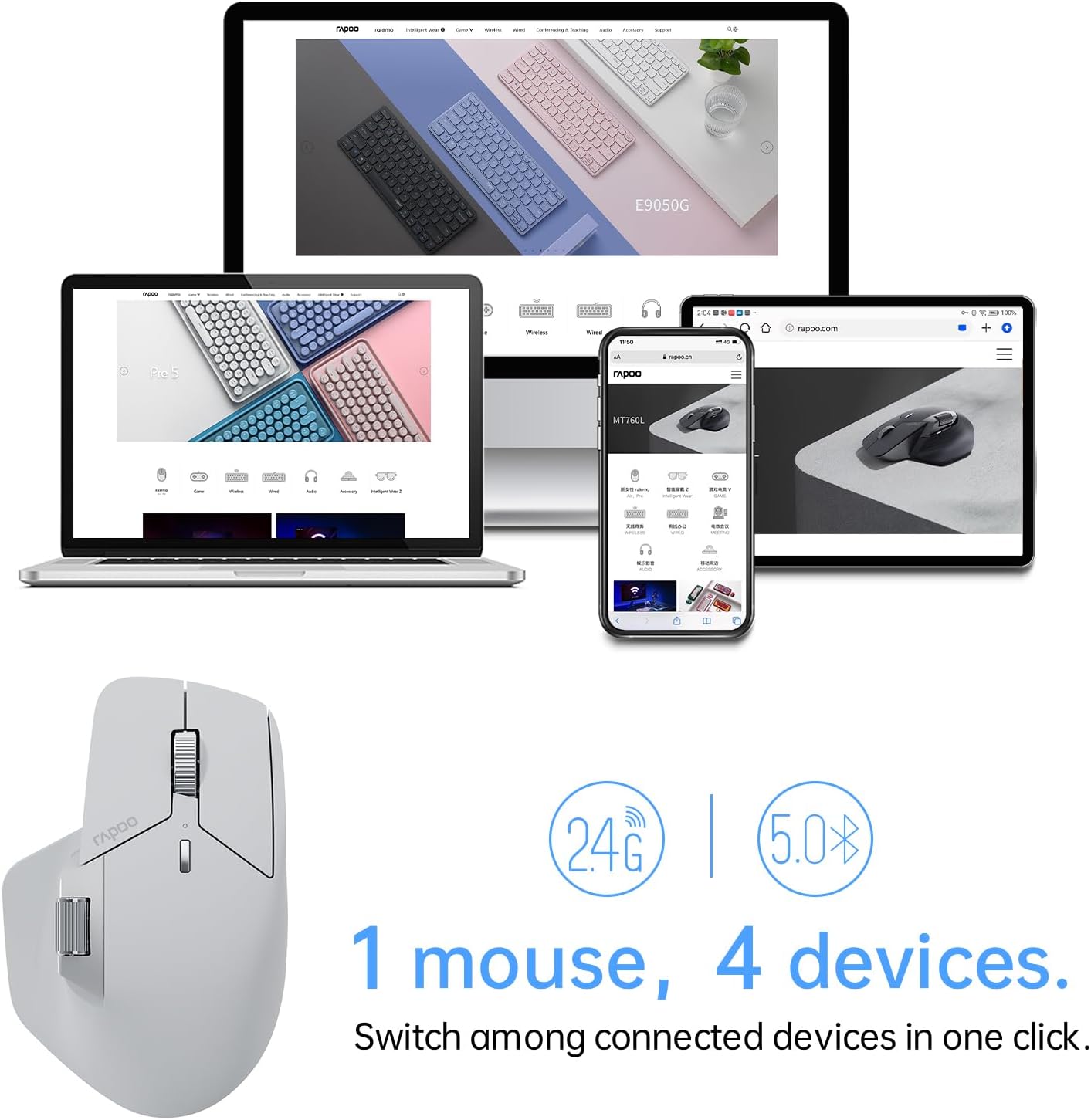
| Rapoo MT760 | Larger hands that want a gentler change | 11 programmable buttons, up to 4 devices | Not a vertical design; highest price here | 4.0/5 | 🛒 Check Price |
The Realistic Timeline: What to Expect and When
Here is how I would pace a switch to a vertical mouse. This is an editorial guideline built from manufacturer guidance and ergonomic reasoning. It is not a clinical timeline, and individual results vary.| Stage | What commonly happens | What I would do |
|---|---|---|
| Days 1–3 | Pointing feels clumsy. Clicks and fine movements are slower. The grip feels unfamiliar. | Use it in short sessions. Keep your old mouse for precision work. |
| Weeks 1–2 | Control improves. This is the adaptation window that makers such as ProtoArc point to. | Raise daily use gradually. Start a simple comfort log. |
| Weeks 2–4 | The first fair comfort check. Compare against your starting notes. | Adjust sensitivity, desk height and grip. Change one thing at a time. |
| Weeks 4–6 | Your decision window. Comfort is better, unchanged or worse. | Keep it, try a different size or shape, or look at other parts of your setup. |
| Any time | Numbness, tingling, night-time symptoms, or pain that keeps getting worse. | Stop relying on the mouse as the fix and speak to a healthcare professional. |
A few notes on this table:
- The 1–2 week figure is about adaptation, not recovery. Among the mice in this guide, ProtoArc is the one that publishes this advice, recommending 1–2 weeks to get used to the shape. The other brands do not state a figure.
- The 4–6 week window is my own rule of thumb. It is long enough to get past the awkward phase and short enough that you do not drift for months on a mouse that is not helping.
- Some pain can ease on its own. The NHS notes that carpal tunnel syndrome sometimes improves by itself over a few months. If your pain eases after a mouse change, the mouse may not be the only reason, which is another good argument for keeping a log.
What the log looks like in practice: rate your wrist comfort from 0 to 10 at the start and end of each workday, and note the hours you spent on the mouse. Three weeks of that tells you far more than how your wrist “feels” on a given afternoon.
What the Research Says (and What It Doesn’t)
I want to be straightforward here, because the evidence is more mixed than most product pages suggest.
Claim: A vertical mouse changes wrist and forearm position. Evidence: In a peer-reviewed study of 21 people with carpal tunnel syndrome, a vertical mouse significantly reduced ulnar deviation (the sideways bend of the wrist toward the little finger). However, none of the ergonomic devices tested reduced carpal tunnel pressure, and the authors did not endorse a strong recommendation for or against any of them. Simple explanation: The mouse changed posture. It did not change the pressure measure the researchers cared about. Practical example: If you pick a vertical mouse because your wrist bends sideways when you use a flat one, that is a reasonable design match. It is not proof that the mouse will resolve symptoms. What this means: Posture change is plausible. Symptom relief is not established by this study, and the study does not test any specific product in this guide.
Claim: A mouse alone may not move pain outcomes much. Evidence: A Cochrane Clinical Answers summary of reviews on office ergonomics reports moderate- to low-certainty evidence of little to no benefit from a vertical or trackball mouse alone, compared with non-ergonomic mice, for neck, shoulder and upper arm pain in people who use a computer at least 20 hours per week. In a randomised trial of engineers, a forearm support board was associated with lower right upper-limb discomfort, while the alternative mouse showed a protective but non-significant effect on new disorders. Simple explanation: Where you rest your arm and how you set up your desk may matter as much as the mouse shape. Practical example: If you changed your mouse but your elbow is still floating in the air, you have changed one variable and left a big one alone. What this means: Treat the mouse as one part of a setup, and be wary of any page, including a product listing, that promises a fix.
Claim: The link between mouse use and nerve-related wrist symptoms is itself uncertain, so a mouse swap should not be assumed to reverse them. Evidence: A systematic review in BMC Musculoskeletal Disorders found that all eight epidemiological studies it identified on computer work and carpal tunnel syndrome had limitations, so no firm conclusions could be drawn. It also reported that carpal tunnel pressure under typical computer use was below levels considered harmful, although one study showed an increase to potentially harmful levels during actual mouse use. A later overview of systematic reviews likewise concluded that the connection between computer work and carpal tunnel syndrome cannot be determined with certainty. Simple explanation: Researchers have not clearly established how much mouse use contributes, which makes it hard to predict how much changing the mouse will help any one person. Practical example: If your hands also do repetitive tasks outside work, a new mouse only changes part of your daily hand load. What this means: This is one more reason I frame the timeline as “adapt, then assess” rather than “wait for it to work”.
Claim: Placement and fit matter. Evidence: OSHA’s computer workstation guidance advises keeping the mouse close to the keyboard, maintaining a straight neutral wrist, choosing a device sized to your hand, avoiding a tight grip, and alternating hands where practical. What this means: Basic setup and size are worth getting right before you judge any mouse.
There is also a performance trade-off. A study in the journal Work found that a fully vertical mouse reduced forearm pronation but had the poorest pointing performance among the designs compared. That fits the slower, clumsier first days many people report. For a deeper look at the studies, see our evidence review on whether an ergonomic mouse really helps wrist pain.
Buying Guide: What to Check Before You Start the Clock
Choosing the wrong size or shape can make an adaptation period feel worse than it needs to be. These are the factors I would check first.
1. Hand size and fit
A mouse that is too small can cramp your fingers, and one that is too large can make you reach. The ProtoArc listing is specific, saying the EM11 NL is designed for hand lengths under 7.5 inches (19.05 cm). Kensington sells mid-size and full-size versions. Measure from your wrist crease to the tip of your middle finger before you order.
Fit is not just a comfort preference. A NIOSH-funded surface electromyography study of four mouse designs reported a significant effect of hand size on forearm and hand muscle activity, and lower pronator muscle activity with the ergonomic mice during static tasks. It was a laboratory test, and it did not involve the mice in this guide, so I treat it as support for checking fit rather than as a product claim.
Emily Richardson’s tip: Measure your hand before reading star ratings. A well-reviewed mouse can still be the wrong size for you.
2. Angle and shape
A vertical mouse tilts your hand toward a handshake position, which reduces the palm-down twist of forearm pronation. ProtoArc lists 58° and Nulea lists 57°. The other listings here do not state an angle, so do not assume they match. A steeper angle may reduce pronation more, but it may also feel stranger at first.
3. Grip and support
Look at where your thumb and little finger rest. The Kensington has a little-finger ledge, and the DELUX lists a concave thumb area. A gripping hand that has nowhere to settle tends to squeeze, and OSHA specifically advises against a tight grip.
4. Sensitivity (DPI)
Higher DPI lets you cross the screen with less hand travel. OSHA notes that low sensitivity can force larger wrist movements. Most mice here go to 2400 DPI, the Nulea tops out at 1600, and the DELUX and Rapoo reach 4000. You can also adjust pointer speed in your operating system.
5. Connectivity and power
Rechargeable models (ProtoArc, seenda, DELUX, Rapoo) save you replacing batteries. AA models (Nulea, Kensington, Perixx) can be simpler to keep running. Check whether you need Bluetooth, since the Nulea, Kensington and Perixx listings describe 2.4G USB receivers only.
6. Buttons and operating system
Several listings note that back and forward buttons do not work on macOS (ProtoArc, DELUX). The ProtoArc and DELUX listings state that their buttons are not programmable, and the Rapoo is the one that advertises programmable buttons, with driver software needed for some features. Check the other listings if this matters to you.
7. Warranty and returns
Warranties in these listings range from 12 months (Nulea) to 2 years (ProtoArc, seenda). A mouse you cannot return is a risky experiment, so check the return terms on the Amazon listing before you buy.
8. Your desk setup
A mouse cannot compensate for a desk that is too high or a mouse placed too far away. If your keyboard has a number pad, the mouse sits further from your body, which can add reach. Consider a compact keyboard if that applies to you.
Product Reviews
Prices, ratings and review counts below come from the Amazon listings and can change. Specifications can vary by model, region and colour, so check the manufacturer’s current specifications before purchasing.
1. ProtoArc EM11 NL; Best Overall for First-Time Vertical Mouse Users
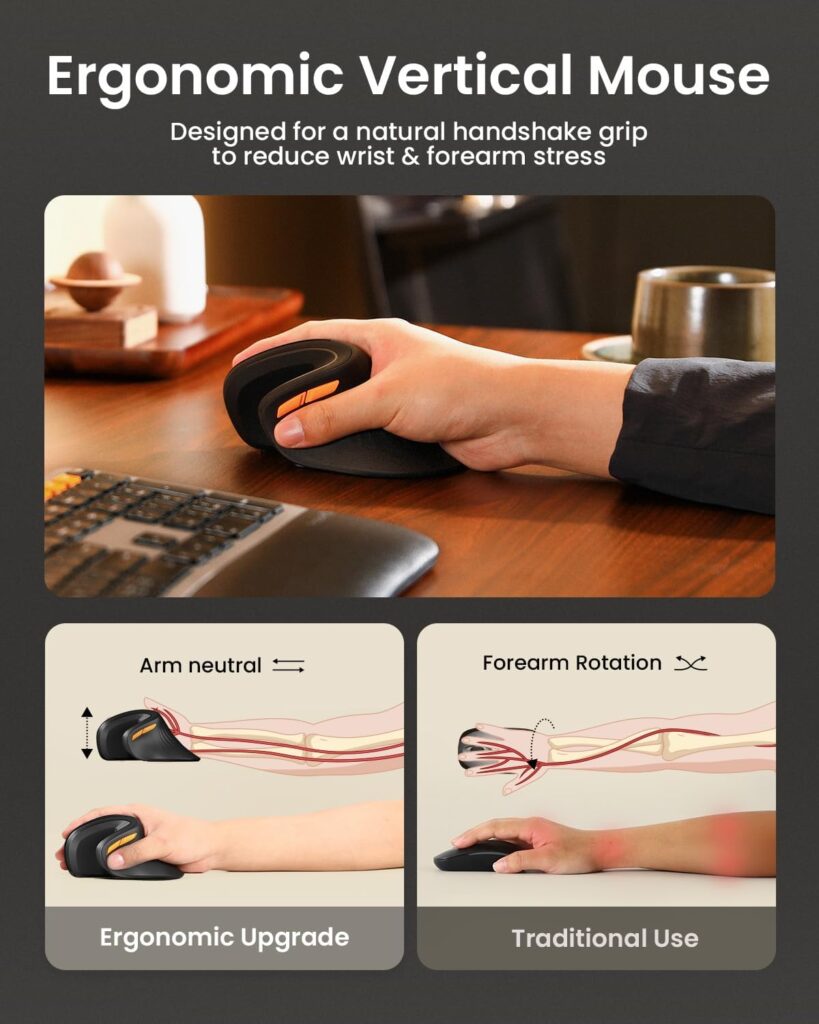
Quick Verdict: This is the pick I would start with if you have small to medium hands. It combines a 58° vertical angle, three-device connectivity, rechargeable power, and the only published adaptation guidance in this set. The main catch is its size range.
Best For: First-time vertical mouse users with small to medium hands.
Key Specifications:
- 58° vertical design; 5.43″ L × 2.72″ W
- Bluetooth and 2.4G USB-A, up to 3 devices
- 500mAh USB-C rechargeable; listing gives about 1 month average battery life
- 1000/1600/2400 DPI; 7 buttons
- Listed weight: 8.8 oz (verify with the manufacturer, as this is well above the other mice here)
- 2-year warranty; 4.4/5 from 6,213 ratings; from $25.99
What We Like
- Recommends 1–2 weeks to get used to the shape
- Quiet left and right clicks
- Large review base and a 2-year warranty
What We Don’t Like
- Designed for hand lengths under 7.5 in, so larger hands may find it cramped
- Buttons are not programmable, and back/forward buttons do not work on macOS
- USB-A receiver only; no USB-C receiver included
Ergonomic Analysis: The 58° angle rotates the hand toward a handshake position, which may reduce forearm pronation. That is the kind of posture change the research above describes, though no study tested this model.
Who Should Buy It? People who want a guided first vertical mouse with a longer warranty.
Who Should Skip It? Anyone with larger hands, or anyone who wants programmable buttons.
Value for Money: Fair to good. The warranty and connectivity are strong for the price.
🛒 Check Price on Amazon2. Nulea M510; Best for Simple Plug-and-Play
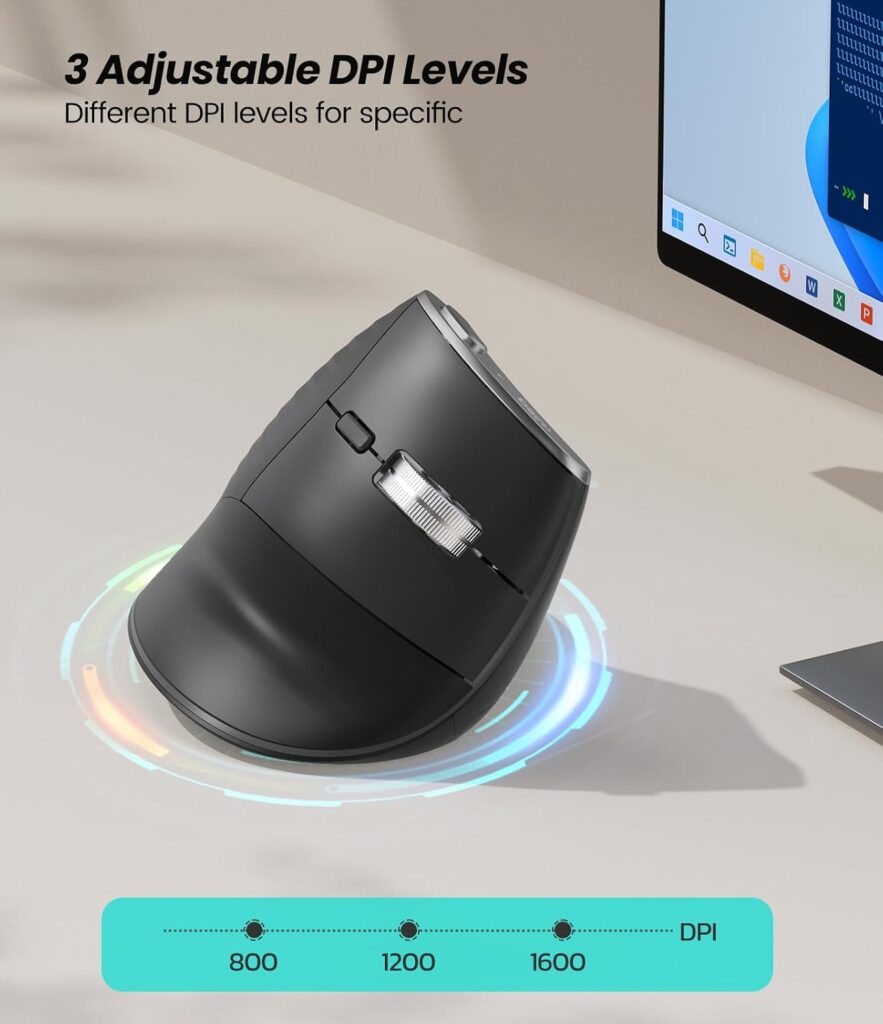
Quick Verdict: The M510 keeps things basic. It has a 57° angle, a USB dongle, and no software to install. The AA battery is not included, and there is no Bluetooth.
Best For: Desktop users who want a straightforward 2.4G mouse.
Key Specifications:
- 57° angle; 6 buttons including forward/back and a Back to Desktop key
- 2.4G USB receiver; Windows and macOS
- 800/1200/1600 DPI; 1 AA battery required (not included)
- 5.3 oz; 12-month warranty; 4.4/5 from 1,071 ratings; $25.99
What We Like
- Metal non-slip scroll wheel
- Light at 5.3 oz
- Simple setup with no software
What We Don’t Like
- Battery not included, and the listing gives no battery-life figure
- No Bluetooth, and a maximum of 1600 DPI
- The listing does not give dimensions or a hand-size range
Ergonomic Analysis: The 57° angle is close to the ProtoArc, so the posture benefit should be similar in principle. With no size information, fit is a bigger gamble. On a large or multi-monitor screen, the 1600 DPI ceiling may mean more hand travel unless you raise pointer speed in your system settings.
Who Should Buy It? Desktop users who value simplicity.
Who Should Skip It? Laptop users who want Bluetooth, or anyone who needs a known size range.
Value for Money: Fair. The price matches the ProtoArc but with fewer features and a shorter warranty.
🛒 Check Price on Amazon3. Kensington K75575WW; Best for Choosing Your Size
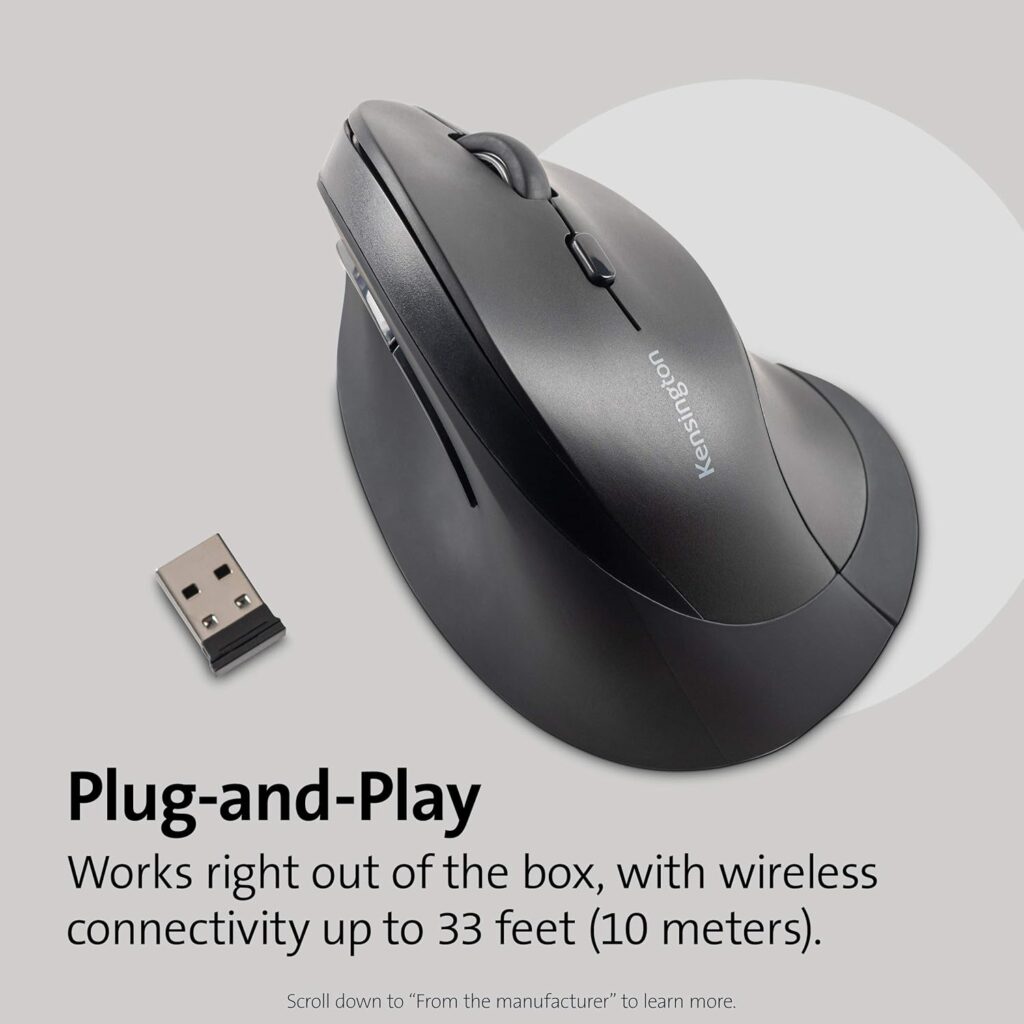
Quick Verdict: The Kensington is a straightforward vertical mouse with the biggest advantage of offering two sizes. It is not rechargeable and has the lowest customer rating in this set.
Best For: Buyers who are unsure about hand size and want a brand with mid-size and full-size options.
Key Specifications:
- Mid-size: 2.74″ tall × 4.38″ long; full-size version also listed
- 2.4GHz USB-A nano receiver stores inside the mouse; no software or drivers
- 800 to 2400 DPI across five levels; 1 AA battery included
- Windows, macOS and Chrome OS; 1-year warranty
- 4.1/5 from 2,363 ratings; $22.99 (mid-size), $39.99 (full-size)
What We Like
- Two size options
- Extended little-finger ledge for support
- Battery included, auto-sleep and an on/off switch
What We Don’t Like
- Lowest customer rating in this guide (4.1/5)
- USB-A only, so some MacBooks need an adapter
- No Bluetooth or rechargeable battery; the listing describes four buttons while the spec table says six, so confirm before buying
Ergonomic Analysis: The sloped shape is designed to hold the wrist in a neutral handshake position. The little-finger ledge may reduce the tendency to drag fingers across the desk.
Who Should Buy It? People who want to match size to hand and prefer AA power.
Who Should Skip It? Anyone who wants Bluetooth or a rechargeable battery.
Value for Money: Good for the mid-size model. The full-size version costs noticeably more.
🛒 Check Price on Amazon4. seenda MOU-302; Best for Multi-Device Switching
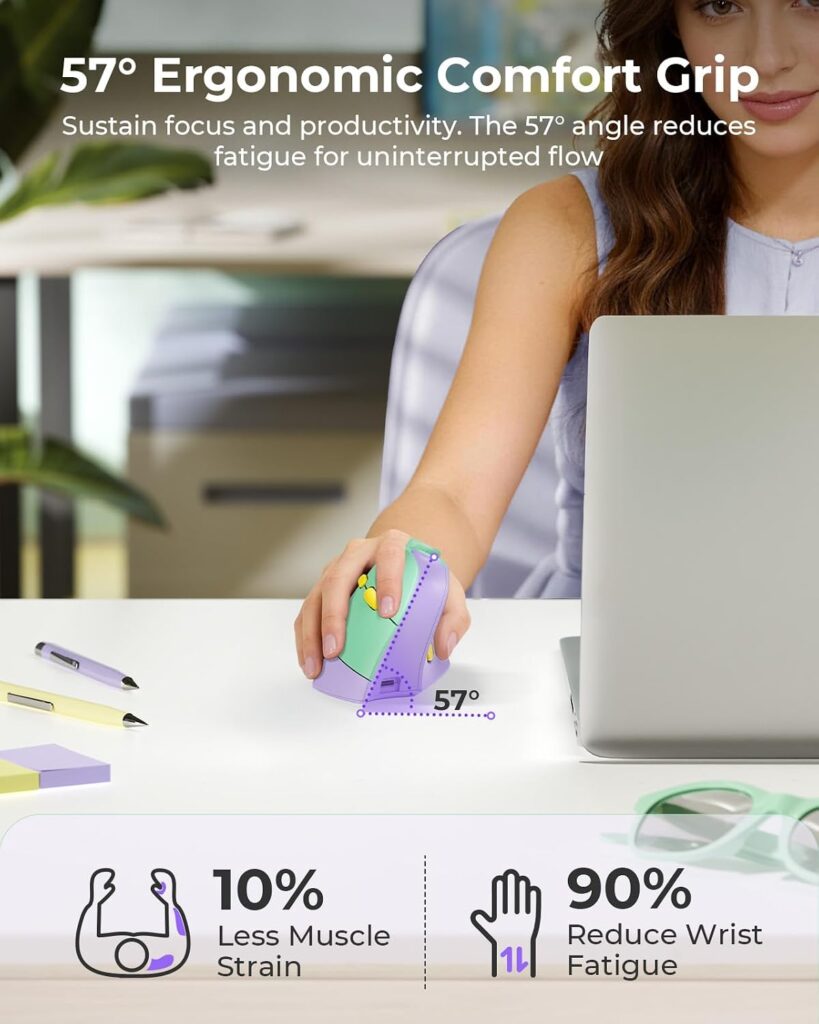
Quick Verdict: The seenda has the highest customer rating here and the most flexible connection set. It is marketed to small and medium hands, and its battery details are inconsistent in the listing.
Best For: People who move between laptop, tablet and desktop.
Key Specifications:
- 2.4G plus two Bluetooth channels, up to 3 devices
- 500mAh battery with USB-C charging; listing claims up to 2 months per charge
- 1000/1600/2400 DPI; quiet clicks; volume knob; 7 buttons
- 4.8″ L × 2.9″ W; 5.9 oz; 2-year warranty
- 4.6/5 from 1,734 ratings; $19.99 to $27.99 depending on colour
What We Like
- Strongest rating in the set
- Volume knob and quiet clicks
- Works with Windows, macOS, iOS/iPadOS, Android and Chrome OS per the listing
What We Don’t Like
- Listed for small to medium hands
- The spec table mentions an AA battery while the description says built-in 500mAh; confirm which applies
- Maximum 2400 DPI
Ergonomic Analysis: A handshake-style shape with a vertical slope. The volume knob lets you adjust audio without reaching for the keyboard, though it is an extra control to learn.
Who Should Buy It? Hybrid workers who want one mouse across several devices.
Who Should Skip It? Larger-handed users, or anyone who wants a firm battery spec before buying.
Value for Money: Good. The feature set is strong for a price often under $30.
🛒 Check Price on Amazon5. DELUX M618MINI, Best for Small Hands
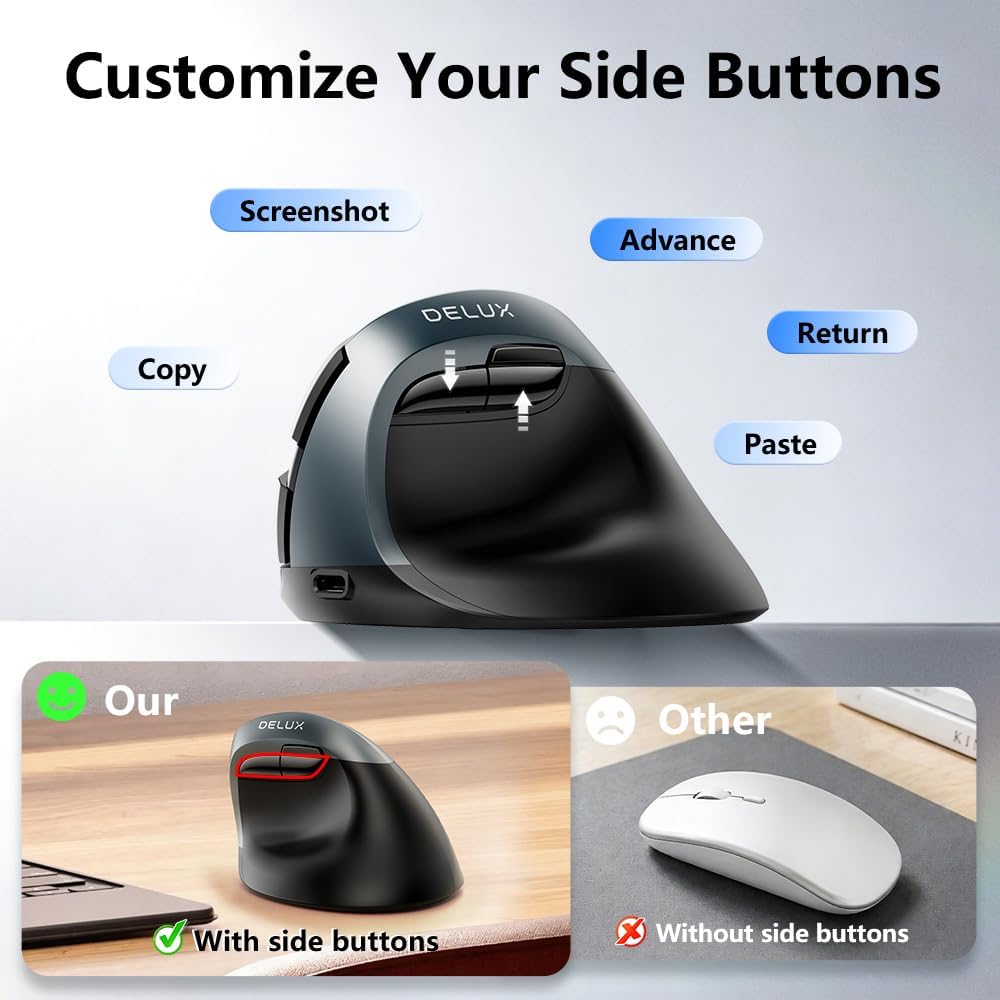
Quick Verdict: If most vertical mice feel oversized, this is the smallest in the set. It is light and quiet, but it is not programmable, and Mac support is limited.
Best For: Small hands and quiet offices.
Key Specifications:
- 4.06″ L × 3.5″ W; 4.2 oz
- 2.4G USB receiver and Bluetooth 5.2 (Windows 8 and above for Bluetooth)
- 800/1200/1600/2400/4000 DPI; 6 buttons; silent clicks
- Rechargeable via USB-C; listing claims up to 2 weeks, or a month with sleep mode
- 1-year warranty; 4.3/5 from 552 ratings; $29.99
What We Like
- Compact shape with a concave thumb area and little-finger edge
- Wide DPI range up to 4000
- Dual-mode connection
What We Don’t Like
- Buttons are not customisable, and the listing points to another model for that
- Forward/back buttons do not work on Mac
- Battery capacity is written two different ways in the listing
Ergonomic Analysis: A smaller body reduces the stretch for smaller hands, which may help you keep your fingers relaxed rather than reaching.
Who Should Buy It? Small-handed users who want a vertical shape.
Who Should Skip It? Larger hands, Mac users who rely on side buttons, or anyone who wants programmable controls.
Value for Money: Fair. It costs more than the ProtoArc and gives a smaller review base, so choose it for the size.
🛒 Check Price on Amazon6. Perixx PERIMICE-608II, Best Budget Trial
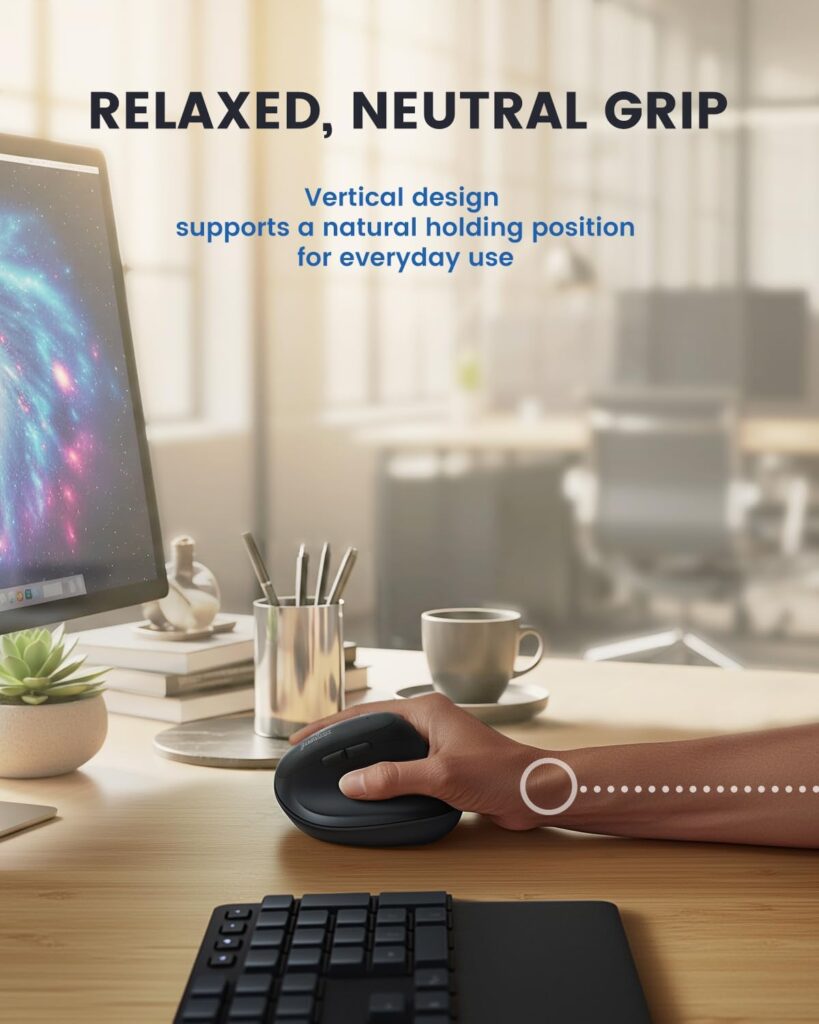
Quick Verdict: At $15.99 for the wireless version, this is the cheapest way to see whether a vertical shape suits you. The listing has conflicting battery and weight details, so read it closely.
Best For: Anyone who wants to try a vertical mouse for the lowest cost.
Key Specifications:
- 2.4GHz wireless with USB receiver; right-handed; 6 buttons
- 800/1200/1600/2400 DPI
- 110 × 73 × 75 mm, with the listing quoting 93 g in one place and 4.4 oz in another
- Listing says one AA in the description and two AAA in the table, batteries not included
- 1-year limited warranty; 4.3/5 from 830 ratings; $15.99 (a wired version is also listed)
What We Like
- Lowest price here
- Compact and light
- A wired option exists
What We Don’t Like
- Conflicting battery type and weight information
- The listing names Windows and Linux but not macOS
- Plain feature set with no Bluetooth
Ergonomic Analysis: It offers the basic vertical posture benefit. The shape is compact, so larger hands may find it small.
Who Should Buy It? Cautious first-timers on a tight budget.
Who Should Skip It? Mac users, and anyone who wants Bluetooth or rechargeable power.
Value for Money: Good as a low-risk experiment.
🛒 Check Price on Amazon7. Rapoo MT760; Best for a Gentler Transition
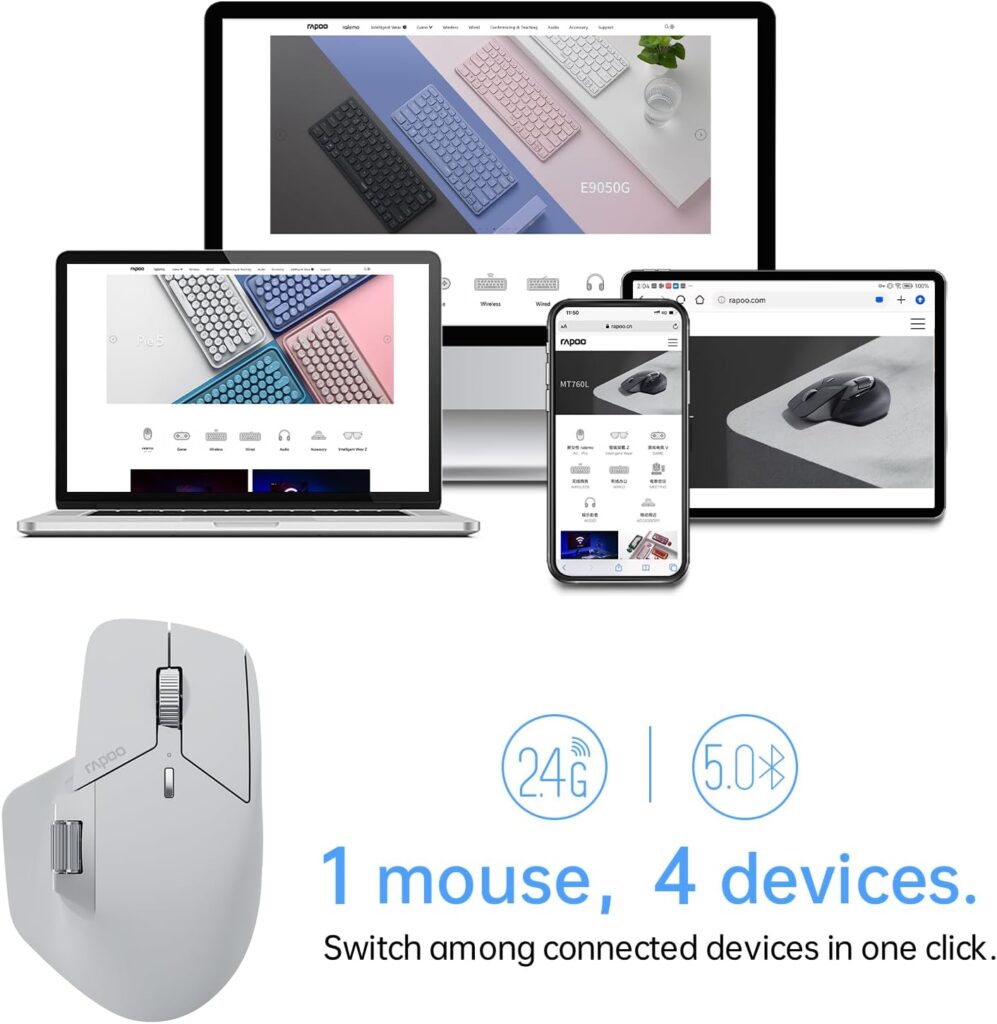
Quick Verdict: The MT760 is a contoured, thumb-supported mouse rather than a vertical one. It suits people who want a smaller change from a conventional mouse, but it will not tilt your forearm the way the others do.
Best For: Larger hands, and anyone who wants programmable buttons and multi-device switching.
Key Specifications:
- Bluetooth 5.0 and 2.4G, up to 4 devices
- 11 programmable buttons; 7 DPI levels up to 4000
- 800mAh battery with USB-C; listing claims up to 90 days
- 3.88 oz; 4.85″ L × 2.13″ W (as listed); 1-year warranty
- 4.2/5 from 854 ratings; $49.99
What We Like
- Programmable buttons and a side scroll wheel
- Light at 3.88 oz
- The listing says it suits larger hands
What We Don’t Like
- Not a vertical design, so it will not rotate your hand toward a handshake position
- Highest price in the set
- Some features need driver software, and the listing’s battery field contains an obvious error
Ergonomic Analysis: A bow-back shape with thumb support may feel more comfortable than a flat mouse, but it keeps the hand in a more palm-down position than a true vertical design. That is a design-based observation, not a test result.
Who Should Buy It? People who want a familiar feel and lots of customisation.
Who Should Skip It? Anyone who wants a vertical posture, or a lower price.
Value for Money: Fair. You pay for connectivity and programmability, not for a vertical angle.
🛒 Check Price on AmazonFull Comparison Table
| Product | Best For | Type | Key Ergonomic Feature | Weight (listed) | Connectivity | Rating |
|---|---|---|---|---|---|---|
| ProtoArc EM11 NL | First-time users, small to medium hands | Vertical, rechargeable | 58° angle | 8.8 oz (verify) | Bluetooth + 2.4G, 3 devices | 4.5/5 |
| Nulea M510 | Plug-and-play desktop use | Vertical, AA | 57° angle | 5.3 oz | 2.4G USB | 4.0/5 |
| Kensington K75575WW | Choosing a size | Vertical, AA | Little-finger ledge; two sizes | 5.3 oz | 2.4GHz USB-A | 4.2/5 |
| seenda MOU-302 | Multi-device users | Vertical, rechargeable | Handshake slope; volume knob | 5.9 oz | 2.4G + 2 Bluetooth | 4.4/5 |
| DELUX M618MINI | Small hands | Vertical, rechargeable | Compact body; thumb concave | 4.2 oz | 2.4G + Bluetooth 5.2 | 4.2/5 |
| Perixx PERIMICE-608II | Low-cost trial | Vertical, battery | Compact vertical shape | 4.4 oz or 93 g (conflicting) | 2.4GHz USB | 3.9/5 |
| Rapoo MT760 | Larger hands, gentler change | Contoured, not vertical | Thumb support; bow-back shape | 3.88 oz | Bluetooth 5.0 + 2.4G, 4 devices | 4.0/5 |
Which Mouse Should You Buy? A Simple Decision Framework
Choose the ProtoArc EM11 NL if you have small to medium hands and want a first vertical mouse with published adaptation advice and a longer warranty.
Choose the seenda MOU-302 if you switch between several devices and your hands are small to medium.
Choose the DELUX M618MINI if most mice feel too big and quiet clicks matter.
Choose the Kensington K75575WW if you want to pick between mid-size and full-size, or you prefer a replaceable AA battery.
Choose the Nulea M510 if you want a simple USB dongle setup for a desktop and do not need Bluetooth.
Choose the Perixx PERIMICE-608II if you want to spend as little as possible to find out whether a vertical shape suits you.
Choose the Rapoo MT760 if you have larger hands, want programmable buttons, or want a gentler change from a conventional mouse and understand it is not a vertical design.
Skip all of them for now if you have numbness, tingling or worsening pain. Speak to a healthcare professional first, then decide on equipment. Our guide to the best ergonomic mouse for wrist pain is a good next step when you are ready to compare more options.
Common Mistakes That Make the Timeline Longer
- Judging after three days. Early clumsiness is the adaptation phase, not a verdict.
- Switching fully on day one. Moving all eight hours at once can leave your forearm tired and your opinion of the mouse unfairly low.
- Ignoring hand size. A mouse that does not fit will not feel right at week two or week six.
- Gripping too tightly. Squeezing to compensate for an unfamiliar shape adds tension. OSHA advises against a tight grip.
- Changing everything at once. If you buy a new mouse, chair and keyboard together, you will not know which one helped.
- Leaving the mouse too far away. A mouse that sits out beyond a keyboard number pad adds reach, whatever its shape.
- Expecting the mouse to be the whole fix. Desk height, arm support and breaks all matter.
- Pushing through warning signs. Numbness, tingling or pain that keeps getting worse is a reason to get advice, not to persist.
Best Practices for Adapting Faster
- Phase in gradually. Start with 30 to 60 minutes a day, then add time. This is my suggestion, not a clinical protocol.
- Keep your old mouse nearby. Use it for precision tasks while your control builds.
- Raise pointer speed. Check sensitivity so you are not making wide wrist sweeps.
- Rest your forearm. A supported forearm may help reduce arm discomfort. The engineers’ trial above points that way, though it was not a test of any mouse in this guide.
- Keep the mouse close to the keyboard. OSHA advises this to keep your wrist straight.
- Relax your hand. ProtoArc’s own guidance says to hold the mouse naturally and keep the palm relaxed.
- Take short movement breaks. Stand, shake out your hands and change position regularly. A systematic review of six controlled trials of active microbreaks (232 participants in total) concluded that the evidence may support 2–3 minutes of light activity every 30 minutes, with no negative effect on productivity. That review looked at office workers’ general wellbeing, not wrist pain specifically.
- Keep your comfort log. Rate comfort at the start and end of each day.
Emily Richardson’s tip: Change one thing at a time. If you adjust the mouse, desk height and chair in the same week, you cannot tell which change made a difference.
Alternatives to Consider
- A gentler contoured mouse. The Rapoo MT760 above is one example if a vertical angle feels too different.
- A trackball. It moves your thumb or fingers instead of your whole forearm, which suits some people. We cover that trade-off in a separate comparison.
- A forearm support. The engineers’ trial above associated a forearm support board with lower right upper-limb discomfort.
- Alternating hands. OSHA lists this as a quick tip where practical.
- A cheaper trial first. The Perixx is a low-risk way to test the vertical shape before spending more.
Frequently Asked Questions
How long does it take to get used to a vertical mouse?
Most makers suggest about 1–2 weeks. ProtoArc’s listing recommends that range, and the other brands here do not publish a figure. Your own timeline depends on how many hours you use it, your hand size and how different the shape feels. Short, regular sessions usually help more than a full workday on day one.
How long until an ergonomic mouse fixes wrist pain?
No one can promise a timeline, and a mouse may not fix wrist pain at all. I would allow about 4–6 weeks of regular use to judge comfort, using a simple daily log. If symptoms persist, worsen, or include numbness or tingling, see a healthcare professional.
Why does my wrist feel worse with a vertical mouse at first?
You are using different muscles and a different grip, so some early fatigue is common. It should settle as you adapt. Sharp pain, numbness or tingling is different. Stop and get advice rather than pushing through.
Can a vertical mouse make wrist pain worse?
It can if the size is wrong, you grip it tightly, or you switch to it for a full day immediately. A study of fully vertical designs found poorer pointing performance than other designs, which fits the clumsy first days many people describe. Phase it in and check the fit.
How many hours a day should I use it at first?
I would start with 30 to 60 minutes and add time as control improves. This is a practical suggestion rather than a clinical rule. If your hand or forearm feels worse, scale back.
Should I stop using my old mouse completely?
Not at first. Keeping it for precision tasks during week one or two makes the transition less frustrating. Once you are comfortable, you can use the vertical mouse full time.
Is a vertical mouse good for carpal tunnel symptoms?
The evidence is mixed. A peer-reviewed study found a vertical mouse reduced wrist ulnar deviation but did not reduce carpal tunnel pressure. Carpal tunnel symptoms should be assessed by a healthcare professional, and a mouse is not a treatment.
Is a cheaper vertical mouse as good as an expensive one?
Not necessarily better or worse. Fit, angle and shape matter more than price. A budget model can work well if the size suits you, while a more expensive mouse that does not fit your hand may not.
What should I do if I don’t feel better after a month?
Review your setup first. Check desk height, forearm support, mouse distance and grip, and consider a different size or shape. If symptoms continue or get worse, speak to a healthcare professional rather than waiting longer.
Does hand size affect how long adjustment takes?
It can. A mouse that is too small or too large may never feel natural. Measure your hand, check each listing’s size guidance, and consider returning a poor fit sooner rather than waiting.
Final Verdict
An ergonomic mouse is worth trying, but it is not a guaranteed fix, and the honest timeline is two parts: about 1–2 weeks to adapt, then roughly 4–6 weeks of regular use to judge whether comfort has genuinely changed.
If you have small to medium hands and want the most guided first step, choose the ProtoArc EM11 NL. If you switch between devices, the seenda MOU-302 is the better fit. For very small hands, go with the DELUX M618MINI. If you want to pick a size, the Kensington K75575WW is the one to look at. For a low-cost experiment, the Perixx PERIMICE-608II does the job, as long as you check the listing details. Larger hands that want a smaller change from a regular mouse may prefer the Rapoo MT760, remembering it is not a vertical design.
Emily Richardson’s recommendation: Choose for fit first, add features second, and judge the result against a written comfort log rather than a single good or bad afternoon.
Compare the current Amazon listings to check today’s price, available options and customer reviews before you decide.
Medical note: Ergonomic products can improve comfort and workspace positioning, but they are not medical treatments. For persistent or severe pain, numbness or tingling, please consult an appropriate healthcare professional.